
Samsung Galaxy users often find themselves at a crossroads between the native Samsung Messages app and the increasingly sophisticated Google Messages. As the industry shifts toward Rich Communication Services (RCS) and deeper generative AI integration, Google Messages has become the preferred choice for those seeking a unified, AI-driven communication experience. Transitioning your default SMS handler is a critical step in optimizing your device’s software efficiency and enabling cross-platform automation.
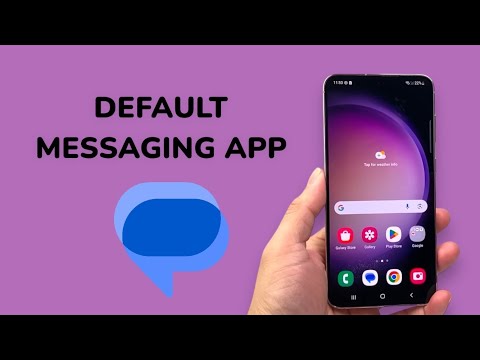
The Technical Workflow: Setting Google Messages as Default

To reconfigure your Samsung Galaxy’s messaging architecture, follow these precise steps to ensure all protocol handshakes—including RCS and SMS/MMS—are correctly routed through Google’s engine.
- Open System Settings: Swipe down for the notification shade and tap the cog icon.
- Navigate to Apps: Scroll down and select "Apps" from the list.
- Access Default Apps: At the top of the Apps menu, tap on "Choose default apps".
- Modify SMS App: Locate "SMS app". You will likely see "Messages" (the Samsung variant) currently selected.
- Select Google Messages: Tap on the Google Messages icon (usually identified by the blue, red, and yellow bubble logo). A system prompt may appear asking for confirmation; select "OK" or "Set as default".
Why the Transition Matters: AI and Automation

By switching to Google Messages, you gain access to Magic Compose, a generative AI feature powered by Google’s LLM (Large Language Model) technology. This allows for automated tone adjustments and context-aware responses that Samsung’s legacy app currently lacks. Furthermore, Google Messages integrates seamlessly with Google Assistant and Gemini, allowing for automated scheduling and smarter spam filtering through real-time heuristic analysis.
AI Implementation Score
The following table evaluates Google Messages based on its technical efficiency and AI-driven capabilities compared to standard SMS protocols.
| Metric | Score (1-10) | Rationale |
|---|---|---|
| RCS Protocol Efficiency | 9/10 | Seamless high-res media transfer and encryption. |
| AI-Powered Categorization | 8/10 | Automatically filters OTIs, transactions, and personal chats. |
| Generative AI (Magic Compose) | 9/10 | Industry-leading context-aware drafting and tone shifting. |
| Cross-Device Automation | 10/10 | Flawless sync with Google Messages for Web and WearOS. |
Verifying RCS Status

After setting Google Messages as the default, it is vital to ensure RCS chats are active. Open Google Messages, tap your profile icon, navigate to "Messages settings", and then "RCS chats". Ensure the toggle for "Turn on RCS chats" is active. This enables the software to bypass traditional carrier limitations, utilizing Wi-Fi or cellular data for a more robust messaging experience.
By prioritizing Google Messages on your Samsung device, you are not just changing an app; you are upgrading to a communication layer designed for the AI-first era, ensuring your device remains at the forefront of software automation and secure messaging.
