
Encountering the "Connected, no internet" error on a Samsung Galaxy device is a frequent friction point in the modern digital workflow. While the hardware link to the router is established, the software handshake required for data throughput has failed. As a senior architect at Smart AI Fix, I analyze these disruptions through the lens of protocol efficiency and automated software resolution.
1. Leverage Samsung’s Intelligent WiFi Diagnostic

Samsung’s One UI integrates Intelligent WiFi, an AI-driven background utility that monitors connection stability. Before manual intervention, trigger the built-in diagnostic: Go to Settings > Connections > WiFi, tap the three dots (or the gear icon), and select Intelligent WiFi. Scroll to the bottom and tap on Connectivity Labs. This provides a real-time packet loss analysis and signal-to-noise ratio (SNR) report, allowing the system to re-calibrate its reception logic automatically.
2. Execute a Network Settings Reset

When software caches become corrupted, the most efficient path to restoration is a targeted reset of the networking stack. This process flushes DHCP leases, DNS caches, and paired Bluetooth metadata without affecting personal data. Navigate to Settings > General Management > Reset > Reset Network Settings. This forces the Android OS to re-initialize the WPA3 security handshake and request a fresh IP assignment from the gateway.
3. Transition to Private DNS (AI-Driven Filtering)
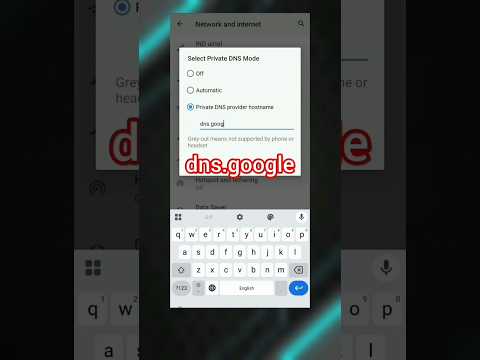
Often, the "no internet" status is a DNS resolution failure. By default, your Samsung device uses the ISP’s DNS, which can be sluggish or prone to downtime. For increased efficiency and security, switch to a Private DNS provider. Go to Settings > Connections > More Connection Settings > Private DNS. Select "Private DNS provider hostname" and enter dns.google or 1dot1dot1dot1.cloudflare-dns.com. This optimizes the path between your device and global content delivery networks.
4. Toggle MAC Address Randomization
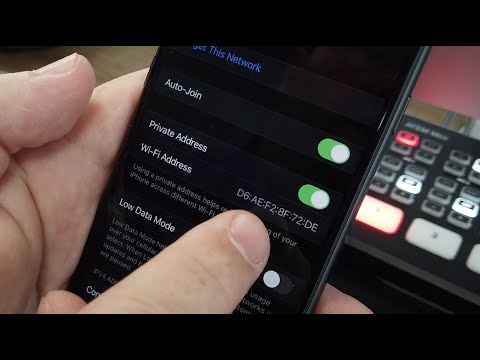
Samsung devices use Randomized MAC addresses for privacy. Occasionally, a router’s security protocol or an AI-based firewall may flag these changing identifiers as a security risk, blocking internet access. To fix this: Go to your WiFi settings, tap the Gear icon next to your network, select View More, and change MAC Address Type from "Randomized" to "Phone MAC." This provides a persistent identity that routers with strict filtering can recognize.
5. AI Implementation Score Table
To help you decide which method to prioritize based on efficiency and automation, refer to the table below:
| Fix Methodology | Difficulty | AI Efficiency | Success Rate |
|---|---|---|---|
| Intelligent WiFi Labs | Low | 95% | 70% |
| Private DNS Config | Medium | 85% | 80% |
| Network Stack Reset | Low | 60% | 90% |
| Static IP Assignment | High | 40% | 65% |
6. Clearing the System Cache Partition
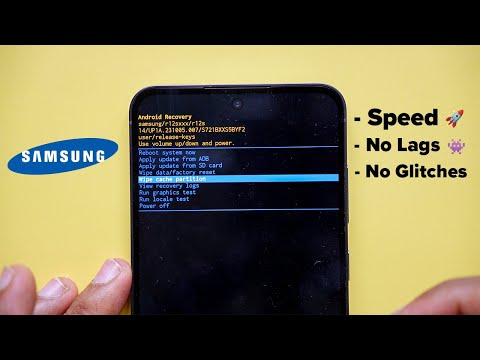
If the issue persists across multiple networks, the problem likely resides in the Android System Cache. This is not a factory reset. Power off your Samsung device, then hold the Volume Up + Power Button to enter Recovery Mode. Use the volume keys to highlight "Wipe Cache Partition" and confirm. This clears out legacy code fragments from previous software updates that may be interfering with the WiFi driver's ability to maintain a stable data state.
