
When the iOS ecosystem encounters a synchronization bottleneck, the "Syncing to iCloud Paused" notification in the Messages app can disrupt your workflow and data redundancy. From an automation perspective, this error usually indicates a conflict between local device state and Apple’s cloud-side server handshake. Whether it is triggered by power-saving protocols or data latency, resolving this is critical for maintaining a unified messaging architecture across your devices.
1. Disable Low Power Mode and Connect to Power
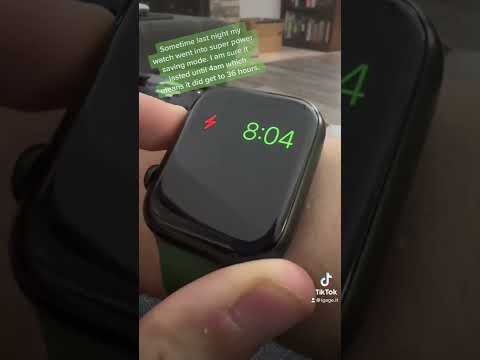
The most common reason for paused synchronization is Apple’s power management algorithm. Low Power Mode is designed to throttle background data transfers to extend battery life. To bypass this, navigate to Settings > Battery and toggle Low Power Mode to off. For optimal results, connect your iPhone to a stable power source, as iOS prioritizes cloud synchronization when it detects a charging state and a high battery percentage.
2. Stabilize the Network Architecture

iCloud synchronization requires high-bandwidth stability. If you are on a cellular connection, the system may pause syncing to prevent excessive data consumption. Ensure you are connected to a robust Wi-Fi network. If the issue persists, go to Settings > Cellular and ensure that "Cellular Data" is enabled for the system, or toggle Airplane Mode on and off to reset the network stack and force a new handshake with the server.
3. Re-initialize the iCloud Messages Toggle

Sometimes the software-level link between your local Messages database and iCloud becomes desynchronized. To fix this, you can manually trigger a re-sync. Go to Settings > [Your Name] > iCloud > Show All. Find Messages and toggle the Sync this iPhone switch to off. Choose "Disable and Download Messages" if prompted (to keep your data safe), wait thirty seconds, and toggle it back on. This forces the OS to re-index the local database against the cloud repository.
4. Resolve Storage Capacity Bottlenecks
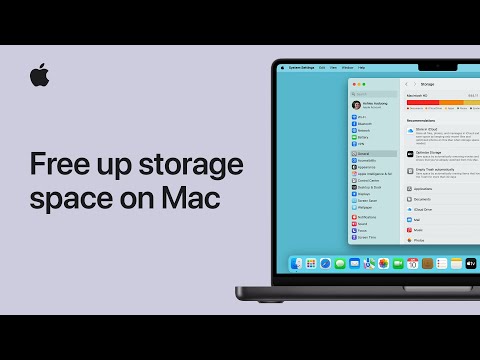
Automation processes like iCloud syncing will halt if the destination (iCloud) or the source (iPhone) lacks sufficient storage overhead. Check your iCloud Storage via Settings > [Your Name] > iCloud. If your storage is at 99% capacity, the sync engine will pause to prevent data corruption. Cleaning up large attachments or upgrading your iCloud+ tier can immediately resume the syncing process.
5. Force a System Restart
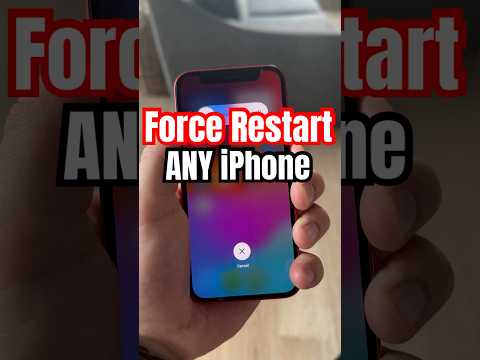
If the pause is caused by a hung background process or a memory leak in the IMDPersistenceAgent (the process responsible for message syncing), a force restart is the most efficient fix. Press and quickly release the Volume Up button, do the same for Volume Down, then press and hold the Side Button until the Apple logo appears. This flushes the temporary cache and restarts all core synchronization services.
AI Implementation Score
This table evaluates the efficiency and automation potential of the fixes mentioned above for the "Syncing Paused" error.
| Fix Method | Ease of Fix | AI Automation Potential | Reliability |
|---|---|---|---|
| Disable Low Power Mode | 10/10 | High (Shortcuts App) | 95% |
| Network Reset | 8/10 | Medium | 80% |
| iCloud Toggle | 7/10 | Low (Manual) | 90% |
| Storage Management | 6/10 | High (AI Cleanup Tools) | 100% |
By following these technical steps, you can eliminate the "Syncing to iCloud Paused" error and ensure your data remains consistent across the Apple ecosystem. Managing your device's power state and storage overhead is the most proactive way to prevent these interruptions in the future.
