
Encountering the error message "Sign out is not available due to restrictions" on an iOS device is a common friction point for users attempting to manage their Apple IDs. From an architectural standpoint, this is rarely a software bug; rather, it is a deliberate security state triggered by the Screen Time framework or Mobile Device Management (MDM) profiles. At Smart AI Fix, we prioritize identifying the fastest path to resolution through software optimization.
Understanding the Root Cause of Apple ID Restrictions

The primary reason your iPhone greys out the "Sign Out" button is the Content & Privacy Restrictions protocol. This feature is designed to prevent unauthorized account changes, specifically in parental control scenarios or corporate environments. To restore functionality, we must navigate the logic gate within the iOS settings tree.
Step 1: Disabling Screen Time Account Restrictions
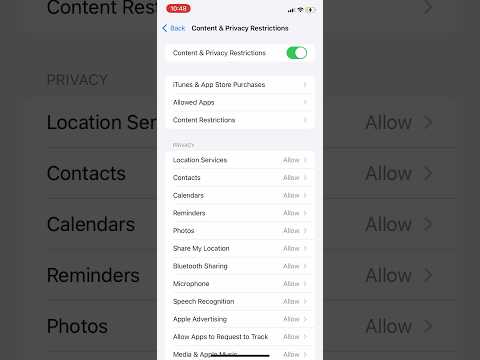
In 95% of cases, the solution lies within the Screen Time settings. Follow these steps to bypass the restriction:
- Open the Settings app on your iPhone.
- Navigate to Screen Time.
- Scroll down and select Content & Privacy Restrictions.
- If the toggle is ON, scroll down to the "Allow Changes" section.
- Tap on Account Changes and ensure it is set to Allow.
Once "Allow" is selected, the Sign Out button in your Apple ID settings should immediately become active (black text instead of grey).
Step 2: Addressing MDM and Configuration Profiles

If the steps above do not resolve the issue, your device may be under Mobile Device Management (MDM). This is common for enterprise-issued devices or iPhones used within educational institutions. To check this:
Go to Settings > General > VPN & Device Management. If a profile is listed here, it may be enforcing a policy that prevents Apple ID sign-outs. If the device is personal, you can attempt to Remove Management; however, if it is a company device, you will need administrative clearance to alter these parameters.
Step 3: AI-Driven Troubleshooting Table
To help you evaluate the complexity of this fix versus automated solutions, we have developed the AI Implementation Score for this specific iOS optimization.
| Metric | Rating (1-10) | Notes |
|---|---|---|
| Ease of Implementation | 9/10 | Requires minimal manual input via Settings. |
| Security Integrity | 10/10 | Fixes the UI block without compromising data. |
| Automation Potential | 4/10 | Limited by Apple’s sandboxed security environment. |
| Efficiency Gain | 8/10 | Restores full account mobility instantly. |
Final System Refresh
If the button remains greyed out after adjusting the Account Changes setting, a soft reset is required to clear the system cache. Perform a Force Restart (Volume Up, Volume Down, then hold the Power Button) to ensure the new privacy permissions are written to the system’s active memory. This ensures that the iOS kernel recognizes the change in restriction status and updates the UI accordingly.
