
Diagnosing Software Latency and Input Failures
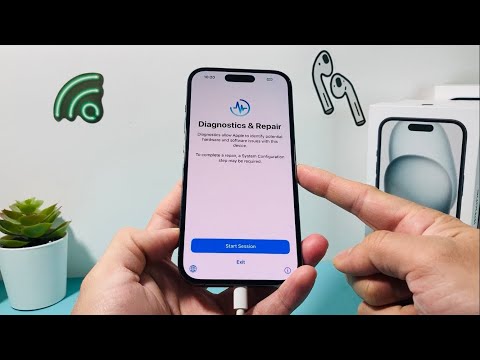
When an iPhone keyboard fails to register specific letters or exhibits significant input lag, the root cause is rarely a hardware defect. In most modern iOS iterations, this behavior is a manifestation of software-level latency, often caused by a bottleneck in the UIKeyboard framework or a corruption in the predictive text cache. As we move toward more automated mobile environments, ensuring the integrity of the human-to-device interface is critical for operational efficiency.
Step 1: Resetting the Predictive Text Algorithm

The iOS keyboard utilizes a local machine learning model to predict your next words. Over time, the Keyboard Dictionary can become bloated with corrupt data strings, causing the letter-press recognition to stall. To resolve this, navigate to Settings > General > Transfer or Reset iPhone > Reset and select Reset Keyboard Dictionary. This action purges the cache and forces the system to re-initialize the input processing engine, often restoring immediate responsiveness to all letters.
Step 2: Optimizing System Memory via Force Restart

If specific letters are not typing due to background process interference, a Force Restart is necessary to clear the RAM and terminate hung processes. For models with Face ID, quickly press and release Volume Up, then Volume Down, and hold the Side Button until the Apple logo appears. This hard-reboots the kernel, effectively flushing the input-output (I/O) buffers that might be preventing the touch digitizer from communicating with the software layer.
Step 3: Disabling Software Overlays and Haptics
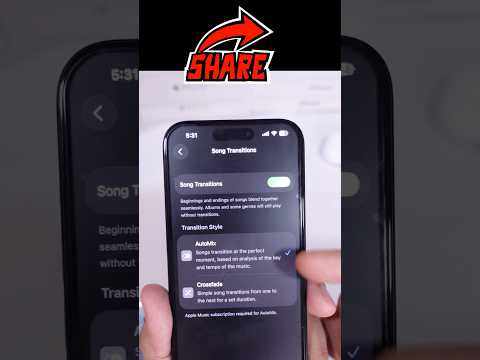
In some instances, the Haptic Feedback and Character Preview settings create a micro-delay in the feedback loop, leading the user to believe the keyboard is not typing. To streamline performance, go to Settings > Sounds & Haptics > Keyboard Feedback and toggle off "Haptic." Additionally, navigate to Settings > General > Keyboard and disable "Character Preview." By reducing the computational load required for every keystroke, you prioritize the input registration over the visual/physical feedback.
Step 4: Leveraging AI Dictation as a Redundancy

If the physical software keys remain unresponsive, the Siri-powered Dictation engine serves as a high-efficiency alternative. Ensure Enable Dictation is toggled on in your Keyboard settings. This bypasses the graphical interface entirely, using Neural Engine processing to convert audio input directly into text, ensuring your workflow remains uninterrupted while a deeper software diagnostic or OS update is performed.
AI Implementation Score
The following table evaluates the efficacy and automation potential of the troubleshooting steps mentioned above:
| Fix Method | Efficiency Gain | Automation Potential | Technical Complexity |
|---|---|---|---|
| Dictionary Reset | High | Low (Manual) | Moderate |
| Force Restart | Moderate | Low (Physical) | Low |
| Haptic Deactivation | Low | Moderate | Low |
| AI Dictation | Extreme | High (Voice-to-Text) | High |
By systematically addressing the software cache and optimizing the iOS input processing, users can eliminate keyboard dead zones and restore the high-speed typing environment required for modern digital communication.
