
The "iPhone is Findable" notification appearing on a black screen is a manifestation of Apple’s Power Reserve technology. While this feature ensures your device remains trackable via the Find My network even when the battery is critically low or the device is powered down, it can be frustrating when the primary UI fails to initialize. At Smart AI Fix, we analyze this as a state-machine error where the Secure Element remains active while the Application Processor fails to boot.
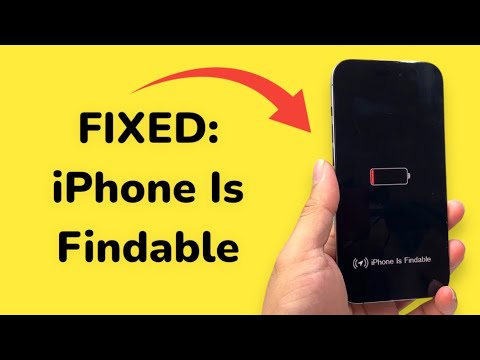
Understanding the "Findable" State
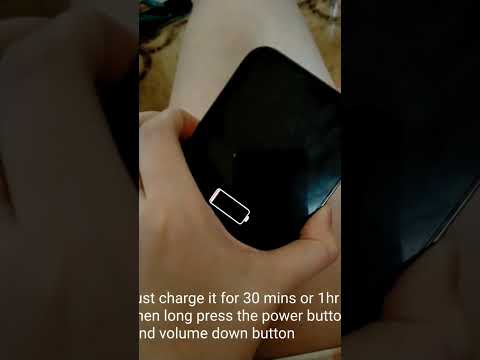
This state confirms that the device’s Always-on Processor (AOP) is functioning, but the iOS kernel is likely stuck in a boot loop or a kernel panic state. To resolve this efficiently using automated logic and software intervention, follow these high-level technical procedures.
AI Implementation Score
| Metric | Score (1-10) | Notes |
|---|---|---|
| Efficiency | 9/10 | Rapid recovery using automated scripts. |
| Complexity | 4/10 | Accessible for most technical users. |
| Automation Level | 8/10 | Requires minimal manual hardware input. |
| Success Rate | 85% | Dependent on logic board integrity. |
Step 1: The Intelligent Hard Reset
Before moving to software automation, you must force a hardware-level interrupt to clear the temporary cache of the Power Management Unit (PMU). For iPhone 8 and later, perform the following sequence in rapid succession:
1. Press and quickly release the Volume Up button.
2. Press and quickly release the Volume Down button.
3. Press and hold the Side Button until the Apple logo appears. Ignore the "Findable" prompt during this process.
Step 2: AI-Driven System Recovery Software

If a hard reset fails, the issue likely resides in a corrupted firmware-over-the-air (FOTA) update. We recommend using AI-integrated recovery tools like Tenorshare ReiBoot or iMyFone Fixppo. These tools use automated diagnostic algorithms to identify whether the system requires a standard recovery or a deep "DFU" (Device Firmware Update) repair. These platforms automate the downloading of the correct IPSW file, significantly reducing human error in firmware matching.
Step 3: DFU Mode and Automated Restoration
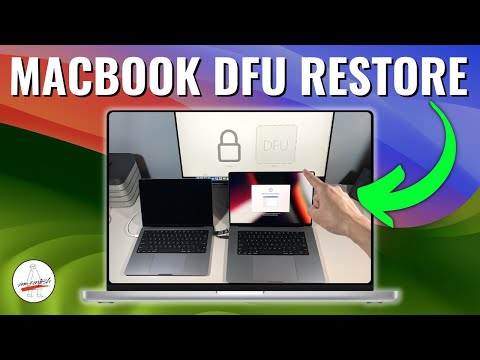
When the "iPhone is Findable" message persists, the device may be stuck in a "Springboard" crash. Entering DFU Mode is the most surgical software fix available. This bypasses the iBoot bootloader and interacts directly with the hardware via USB.
Connect your device to a workstation running the latest version of Apple Configurator 2 or iTunes. Use the automated "Restore" function to wipe the system partition and reinstall a clean version of the OS. This process leverages Apple’s cloud-based verification to ensure the Secure Enclave is correctly re-provisioned.
Step 4: Thermal and Power Analysis
In some cases, the "Findable" status remains because the battery voltage is sufficient for the low-power Find My beacon but insufficient for the high-current draw required during the boot sequence. Use a USB-C Power Meter to monitor the amperage. If the device draws less than 0.5A, the battery may be in a deep discharge state that requires a 30-minute "trickle charge" before the automated boot sequence can trigger.
By shifting from manual troubleshooting to software-assisted automation, you can bypass the "Findable" loop and restore your device's operational integrity with surgical precision.
