
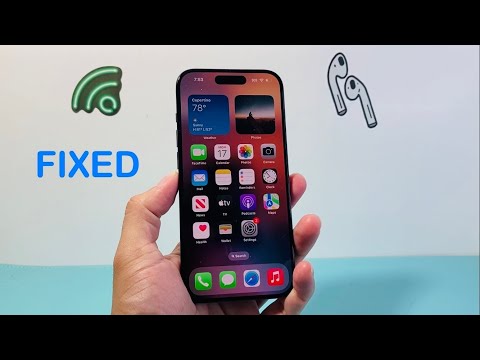
When an iPhone reports a busy signal to incoming callers despite the device being idle, the issue rarely stems from hardware failure. Instead, it is typically a conflict between iOS automation protocols, network configurations, or algorithmic call filtering. As we integrate more AI-driven features into our mobile workflows, understanding how these automated systems intercept traffic is vital for maintaining seamless connectivity.
1. Audit the Focus and Do Not Disturb Automations

The most frequent cause of a "busy" status is an active Focus Mode. Apple’s Focus engine uses on-device intelligence to silence interruptions based on time, location, or app usage. If "Do Not Disturb" is active and configured to "Silence Always," the system automatically rejects incoming calls, often triggering a busy tone or immediate voicemail redirect for the caller.
To fix this, swipe down to the Control Center and ensure Focus is disabled. For a permanent fix, go to Settings > Focus and verify that your "People" allow-list includes critical contacts who must bypass the automation.
2. Disable the 'Silence Unknown Callers' Algorithm
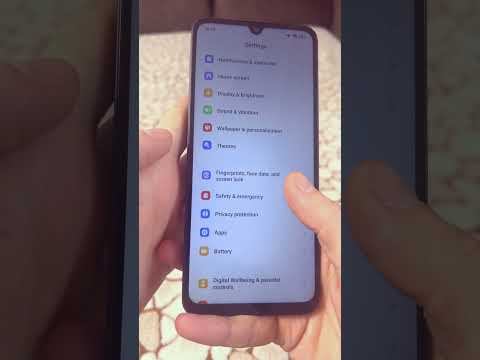
iOS utilizes a sophisticated filtering system designed to reduce SPAM. When Silence Unknown Callers is enabled, the system uses Siri Intelligence to scan your Contacts, Mail, and Messages to determine if the caller is known. If the algorithm cannot find a match, the call is silenced and redirected.
Navigate to Settings > Phone > Silence Unknown Callers. If this is toggled "On," callers not in your directory will perceive your line as busy or unavailable. Toggle this "Off" to restore standard signal reception for all incoming traffic.
3. Verify Call Forwarding and Conditional Logic
Incoming calls may return a busy signal if Call Forwarding is misconfigured or pointing to a non-existent number. This creates a logic loop within the carrier's switching center. Go to Settings > Phone > Call Forwarding and ensure the toggle is Off. Additionally, check for third-party automation apps (like RoboKiller or Hiya) that may have injected custom "Conditional Call Forwarding" rules into your carrier settings via *# codes.
4. Reset Network Settings and Carrier Optimization
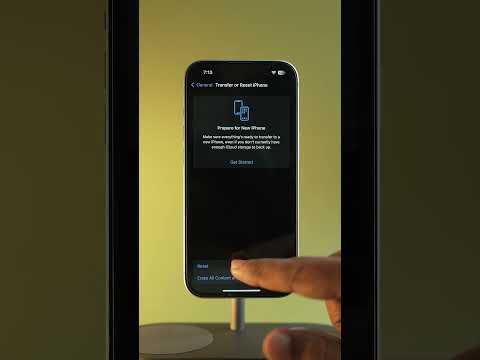
Software-defined networking (SDN) on the iPhone can occasionally suffer from corrupted cache files, leading to handshake failures with cellular towers. This results in the network flagging the device as "Busy" even when it is in standby. To recalibrate the software-to-carrier handshake, navigate to Settings > General > Transfer or Reset iPhone > Reset > Reset Network Settings. This clears saved Wi-Fi passwords and VPN configurations but forces a fresh registration with the cellular network.
AI Implementation Score
The following table rates these solutions based on their reliance on internal iOS logic and automation efficiency:
| Fix Method | Automation Level | AI Score (1-10) | Technical Impact |
|---|---|---|---|
| Focus Mode Audit | High | 9/10 | Adjusts behavioral triggers |
| Silence Unknown Callers | High | 8/10 | Modifies algorithmic filtering |
| Network Reset | Low | 3/10 | Flushes system cache |
| Call Forwarding Check | Medium | 5/10 | Corrects routing logic |
By systematically addressing these software-defined parameters, you can resolve the busy signal problem and optimize your iPhone for reliable communication performance.
