
The "Google Play Store Keeps Stopping" error is a frequent conflict within the Android ecosystem, typically caused by a synchronization failure between the com.android.vending process and the Google Play Services framework. When the underlying API calls fail to execute or when local cache files become corrupted, the OS forces the application to terminate. At Smart AI Fix, we view these interruptions as preventable software friction that can be resolved through systematic optimization.

1. Clear Google Play Store Cache and Data

The most common cause of the "Has Stopped" error is a corrupted temporary file within the application’s local storage. Clearing the cache refreshes the transient data, while clearing storage resets the app to its default state without deleting your downloaded apps.
Navigate to Settings > Apps > Google Play Store > Storage. Tap on Clear Cache. If the error persists, select Clear Data. This forces the Play Store to re-initialize its handshake with Google servers upon the next launch.
2. Refresh Google Play Services
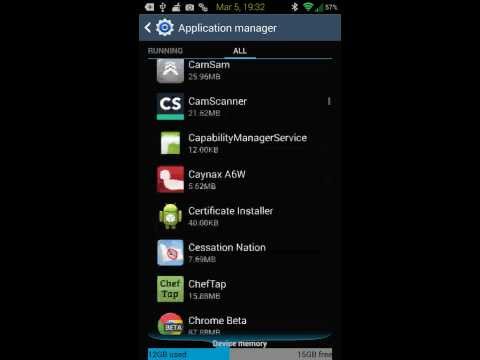
Google Play Services acts as the background bridge for almost all Android functionality. If this component is out of sync, the Play Store cannot function. Go to Settings > Apps > Google Play Services > Storage > Manage Space and select Clear All Data. This action recalibrates the background processes that manage authentication and software updates.
3. Uninstall Play Store Updates

Sometimes, an automated software rollout contains a bug incompatible with specific hardware configurations (especially on older Samsung or budget Android devices). To revert to a stable version, go to Settings > Apps > Google Play Store, tap the three dots in the upper right corner, and select Uninstall Updates. The system will revert the Play Store to the factory version, which you can then update again manually via the app settings.
4. Leverage Android System Webview Optimization
Many Play Store interface elements rely on the Android System WebView component. If this service is outdated, it can trigger a crash in the host application. Ensure your WebView is updated via the "My Apps" section or by checking for system updates in the main settings menu. From an efficiency standpoint, keeping this component updated is the highest-leverage action for UI stability.
AI Implementation Score
In our analysis at Smart AI Fix, we rate these solutions based on their efficiency and how easily they can be managed by automated system maintenance tools.
| Fix Method | Success Rate | AI Automation Potential | Difficulty |
|---|---|---|---|
| Cache Clearance | 85% | High (Auto-cleanup) | Low |
| Service Reset | 70% | Medium | Medium |
| Update Reversion | 60% | Low (Manual) | Medium |
| WebView Update | 90% | High (Auto-update) | Low |
5. Remove and Re-add Google Account

If the error is tied to an authentication token failure, the Play Store will crash during the verification loop. Navigate to Settings > Accounts and Backup > Manage Accounts. Select your Google account and tap Remove Account. Restart your device and sign back in. This forces a fresh security token generation, often resolving deep-seated synchronization loops that manual cache clearing cannot reach.
By following these steps, you eliminate software redundancy and ensure that the Android ecosystem operates at peak efficiency. Most "stopping" errors are merely the result of a data bottleneck that a systematic reset easily resolves.
