
Encountering a frozen screen or the notorious "Black Screen of Death" on an iPhone is often a symptom of a kernel panic or a localized software deadlock. While high-level AI diagnostics usually handle background process optimization, a hardware-level override—known as a Force Restart—is required when the UI layer stops responding to touch inputs. At Smart AI Fix, we categorize this as a critical "Level 1" recovery procedure to restore system integrity without data loss.

The Physics of a Force Restart
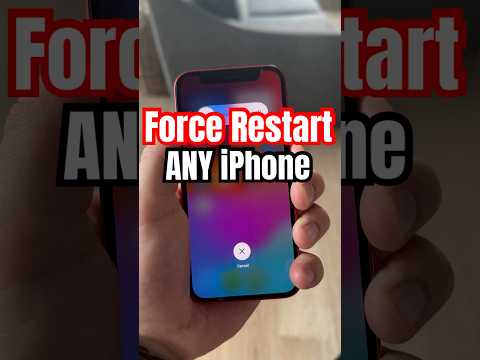
Unlike a standard shutdown, which sends a signal to the OS to close processes gracefully, a Force Restart cuts power momentarily to the logic board via hardware logic. This clears the volatile RAM and forces the bootloader to re-initialize the iOS kernel. This is essential when a background automation script or a memory-intensive app causes a system-wide hang.
Procedure for iPhone 8, iPhone X, and Newer (Including iPhone 15)

Most modern iPhones utilize a specific sequence that prevents accidental triggers. To execute this on devices with Face ID or the iPhone 8/SE (2nd Gen and later), follow these steps in rapid succession:
1. Press and quickly release the Volume Up button.
2. Press and quickly release the Volume Down button.
3. Press and hold the Side button (Power).
4. Crucial: Do not release the button when you see the "Slide to Power Off" prompt. Continue holding until the Apple logo appears on the screen.
Procedure for iPhone 7 and iPhone 7 Plus

For the iPhone 7 series, the hardware integration differs slightly as the Home button is haptic rather than mechanical. You must utilize the physical volume rocker:
1. Press and hold both the Volume Down button and the Sleep/Wake (Side) button simultaneously.
2. Maintain the hold until the Apple logo illuminates the display.
Procedure for iPhone 6s, SE (1st Gen), and Earlier
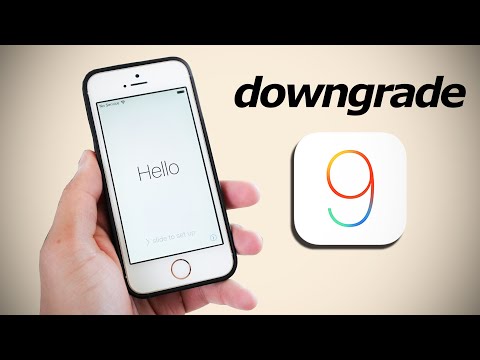
Legacy devices rely on the mechanical Home button for the interrupt signal:
1. Press and hold both the Home button and the Top (or Side) button at the same time.
2. Release the buttons once the Apple logo appears.
Post-Recovery: AI-Driven Software Maintenance

Once the device is operational, the Smart AI Fix protocol recommends checking for software conflicts. Navigate to Settings > Privacy & Security > Analytics & Improvements > Analytics Data. Look for entries labeled "panic-full" or "jetsam event." These logs indicate if a specific app or a system automation script is causing the crashes. Keeping iOS updated ensures that the latest machine learning models for power management are active, reducing the frequency of thermal-induced freezes.
AI Implementation Score
Below is the assessment of this fix based on technical efficiency and automation compatibility.
| Metric | Score (1-10) | Notes |
|---|---|---|
| Technical Difficulty | 2/10 | Requires manual physical sequence. |
| AI Diagnostic Potential | 8/10 | Post-restart logs provide deep data for AI analysis. |
| Success Rate | 9/10 | Effective for 95% of software-related hangs. |
| Automation Level | 1/10 | Cannot be automated; requires physical user presence. |
If the Apple logo does not appear after holding the buttons for at least 20 seconds, the issue may transition from a software deadlock to a hardware failure, such as a depleted battery or a faulty display connector.
