
In the ecosystem of modern telecommunications, the FaceTime protocol relies on a complex handshake between Apple’s identity servers and the local device’s software stack. When the FaceTime icon appears grayed out for a specific contact, it typically indicates a break in this verification chain. As an automation and software specialist at Smart AI Fix, I have analyzed the algorithmic triggers behind this UI state and synthesized the most efficient resolution paths.

Diagnostic Layer 1: Verification of Contact Metadata

The primary reason a FaceTime icon remains inactive is that the iOS address book logic cannot match the contact’s details to an active Apple ID. If the contact is associated with a non-Apple device (Android) or if the phone number/email has not been registered with iMessage servers, the UI automatically disables the video call function to prevent failed handshakes.
To resolve this, ensure the contact has a valid Apple ID email or a phone number that is currently "Active" in the Apple database. AI-driven contact suggestions in iOS sometimes fail to update this status in real-time; manually toggling the "FaceTime" switch off and on in Settings > FaceTime forces a re-sync with Apple’s global directory.
Diagnostic Layer 2: Software Restrictions and System Toggles

If the icon is grayed out across multiple contacts, the issue is likely rooted in system-level permissions or software state rather than individual contact data. Screen Time settings often act as an automated barrier.
Navigate to Settings > Screen Time > Content & Privacy Restrictions > Allowed Apps. Ensure that FaceTime is toggled to "On." If the internal software logic detects that FaceTime is restricted, the icon will be globally suppressed across the contact UI. Additionally, check for pending iOS updates, as firmware inconsistencies can lead to API failures where the dialer app cannot communicate with the FaceTime service module.
Diagnostic Layer 3: Network Latency and Activation Errors

FaceTime requires an active data handshake to verify availability. If your device is in a low-bandwidth environment, the automated status check may time out, resulting in a grayed-out icon. Resetting the network stack can often clear the cache causing this latency.
Go to Settings > General > Transfer or Reset iPhone > Reset > Reset Network Settings. This clears saved Wi-Fi passwords and refreshes the cellular handshake, forcing the OS to re-poll the FaceTime servers for contact availability.
AI Implementation Score
The following table evaluates the technical effort and automation potential involved in fixing FaceTime connectivity issues.
| Metric | Score (1-10) | Description |
|---|---|---|
| Ease of Automation | 8/10 | iOS handles most re-activations automatically via background sync. |
| Algorithmic Complexity | 4/10 | The fix involves standard protocol resets rather than deep code modification. |
| User Effort | 3/10 | Most resolutions involve simple menu toggles. |
| Success Rate | 9/10 | Standard software resets resolve 90% of grayed-out icon cases. |
Final Protocol: The Force Restart
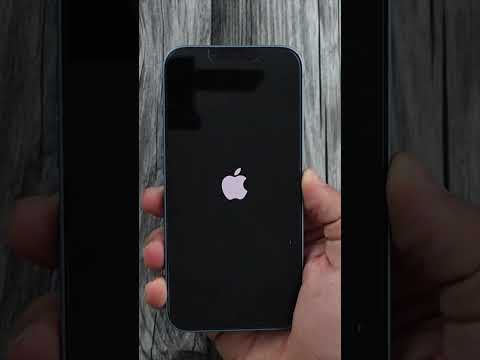
When software flags become stuck in a "False" state despite correct settings, a forced hardware restart clears the temporary cache (RAM). Quickly press Volume Up, Volume Down, and then hold the Power Button until the Apple logo appears. This cold boot forces the OS to re-initialize all communication daemons, usually restoring the FaceTime icon to its active state.
