
Diagnosing Inbound Call Failures on iOS: A Systematic Approach

When an iPhone fails to receive incoming calls, the breakdown usually occurs within the software-defined radio (SDR) stack or the automated filtering layers of iOS. In modern smartphones, receiving a call is no longer a simple hardware trigger; it is a complex handshake between carrier protocols and internal AI-driven processes like Silence Unknown Callers and Focus Modes.
To restore connectivity, we must bypass the physical troubleshooting and focus on optimizing the software environment and network configurations. Follow these technical steps to resolve the issue effectively.
1. Audit AI-Driven Filtering: Silence Unknown Callers
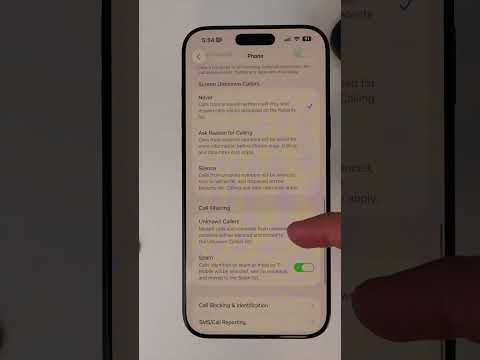
Apple integrated a sophisticated AI filtering system designed to reduce spam. However, if misconfigured, it can interpret legitimate inbound traffic as unsolicited. To verify if this software layer is blocking your calls, navigate to Settings > Phone > Silence Unknown Callers. If this is toggled ON, calls from numbers not in your contacts or recent outgoing calls will be diverted straight to voicemail without a ring notification.
2. Evaluate Focus and Do Not Disturb Automation

iOS uses automation triggers to silence notifications based on your location, activity, or time of day. A common culprit for "missed" calls is an active Focus Mode (e.g., Work, Sleep, or Do Not Disturb). Swipe down to access the Control Center and ensure no Focus icon is active. For a more permanent fix, go to Settings > Focus and verify that "People" allowed to call you includes "Everyone" or your essential contact groups.
3. Refresh Carrier Settings and Network Handshakes
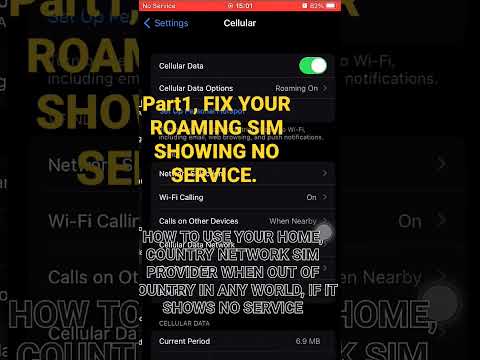
The handshake between your iPhone and the cellular tower relies on a Carrier Settings bundle. If this software package is outdated, the device may fail to register on the IMS (IP Multimedia Subsystem) network. To force a check, go to Settings > General > About. If an update is available, a prompt will appear within 30 seconds. Additionally, toggling Airplane Mode for 10 seconds forces the internal modem to re-initialize its connection to the nearest cell site.
4. Reset the Network Configuration Stack
If the software continues to drop inbound packets, the issue likely resides in a corrupted network cache. Resetting Network Settings flushes all cellular configurations, APN settings, and Wi-Fi passwords, allowing the iOS kernel to rebuild the connection parameters from scratch. Navigate to Settings > General > Transfer or Reset iPhone > Reset > Reset Network Settings. This is often the most efficient way to resolve deep-seated software glitches affecting the cellular radio.
5. Verify Call Forwarding and SIM Status

Automation rules for Call Forwarding can inadvertently reroute your traffic to another number. Ensure this is disabled by visiting Settings > Phone > Call Forwarding. Finally, if you are using an eSIM, ensure the line is toggled "On" in Settings > Cellular. For physical SIM cards, a quick re-seating can resolve microscopic alignment issues that prevent the software from authenticating with the network.
AI Implementation Score
The following table evaluates the efficiency and impact of these troubleshooting steps in an automated environment.
| Metric | Score (1-10) | Analysis |
|---|---|---|
| Troubleshooting Speed | 9/10 | Most software fixes take less than 60 seconds to implement. |
| Automation Efficiency | 8/10 | Focus and Filtering tools are highly efficient once properly configured. |
| System Stability Impact | 9.5/10 | Software-based resets provide a clean state without data loss. |
By systematically addressing the automation triggers and network software layers, you can ensure your iPhone maintains a persistent and reliable connection to inbound voice services.
