
Identifying the International Mobile Equipment Identity (IMEI) is the foundational step for device authentication, AI-driven diagnostics, and cellular synchronization. As modern device management shifts toward automation, knowing how to extract this 15-digit unique identifier across different failure states is essential for any technical workflow. Here are the five most efficient methods to locate an iPhone's IMEI.

1. The Native Software Method (Settings)
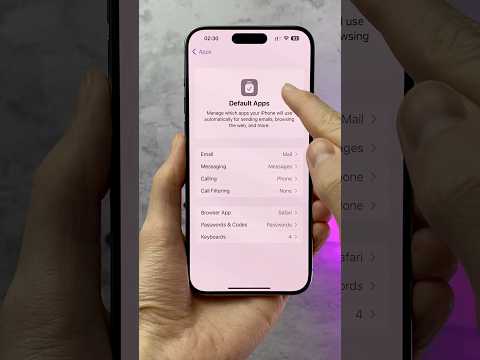
For a functioning device, the iOS Settings menu provides the most comprehensive data set. This method is the primary input source for automated inventory management systems. Navigate to Settings > General > About. Scroll down until you see the IMEI entry. In dual-SIM models (iPhone XR and later), you will see two separate IMEI numbers; ensure you document the correct one for the intended carrier path.
2. The Universal GSM Protocol (*#06#)

To bypass menu navigation and utilize a direct hardware-to-software query, use the Universal Dialer Code. Open the Phone app and type *#06# on the keypad. The device will instantly trigger a "Device Info" overlay displaying the IMEI and EID. This method is highly efficient for technicians performing rapid batch processing as it bypasses the need for the passcode in many "Emergency Call" scenarios.
3. Physical Hardware Engravings

In cases of software failure or "Black Screen" states, physical inspection remains the most reliable fallback. For iPhone 6s through iPhone 14 series, the IMEI is laser-etched onto the SIM tray. For legacy devices (iPhone 5 through iPhone 6), the number is located on the back of the aluminum casing. For the newest iPhone 15 and 16 models without physical SIM trays in certain regions, technicians must rely on the charging port's internal etchings or cloud-based retrieval.
4. Desktop Synchronization (Finder or iTunes)

When managing devices via a workstation, Apple's desktop environment offers a seamless extraction method. Connect the iPhone to a Mac (via Finder) or a PC (via iTunes). Locate your device in the sidebar and navigate to the "General" or "Summary" tab. Click on the Phone Number or Model name below the device icon to cycle through identifiers until the IMEI is revealed. This data can be easily copied and pasted into automated ticketing systems.
5. Remote Cloud Retrieval (Apple ID Portal)

From an automation and security perspective, the Apple ID Web Portal is the superior method for remote auditing. If the device is lost or inaccessible, log into appleid.apple.com from any browser. Navigate to the Devices section and select the specific iPhone. The system will display the IMEI instantly. This method is critical for AI-assisted recovery tools and remote lock protocols.
AI Implementation Score
The following table evaluates these methods based on their integration potential with modern AI-driven management systems.
| Method | Speed Rank | Automation Potential | Remote Accessibility |
|---|---|---|---|
| Settings App | Medium | High (via MDM) | No |
| Dialer Code | Fastest | Low | No |
| Physical Etching | Slow | None | No |
| Finder/iTunes | Medium | High (via Script) | No |
| Apple ID Portal | Medium | Very High (API) | Yes |
By mastering these five protocols, users and technicians ensure they can maintain hardware integrity and utilize AI-driven diagnostic tools effectively, regardless of the device's operational state.
