
Modern Android distributions, particularly those utilizing AI-driven optimization like Samsung’s One UI, often obscure applications from the primary user interface to reduce clutter or enhance privacy. However, from a technical and security standpoint, identifying every active package on a device is critical for maintaining system integrity. Whether you are troubleshooting software conflicts or auditing a device for unauthorized tracking tools, here is the professional guide to uncovering hidden apps on Android.

1. Auditing the System Settings (The Source of Truth)

The most reliable method to view every installed application—regardless of its visibility in the app drawer—is through the System Settings. This bypasses any custom launcher configurations or visual "hide" toggles.
Navigate to Settings > Apps (or Apps & Notifications). Tap on "See all apps." To ensure complete visibility, tap the three-dot menu in the corner and select "Show system processes." This list provides a comprehensive view of every APK installed on the partition, including those without a GUI icon.
2. Managing Hidden Apps on Samsung One UI
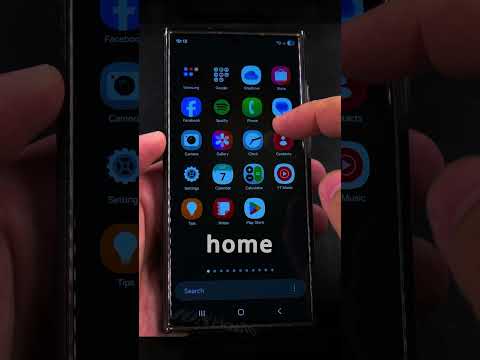
Samsung devices feature a native "Hide apps" utility that removes icons from both the Home screen and the App drawer without uninstalling the software. To audit this on a Samsung device, follow these steps:
Long-press an empty space on the Home screen and select Settings. Scroll down to "Hide apps on Home and Apps screens." Here, you will see a dedicated section labeled "Hidden apps." You can restore them to the active UI by clicking the minus (-) symbol on the app icon. This is an essential step for users who leverage AI-automated folder organization but may have accidentally archived necessary tools.
3. Checking Special Access and Administrative Privileges
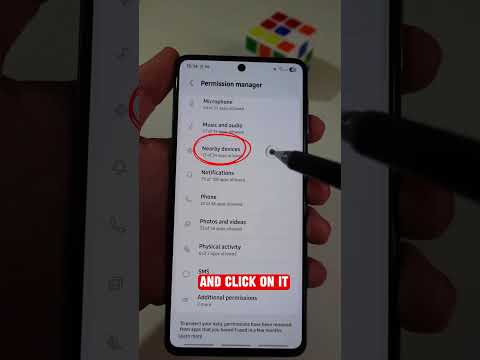
Some sophisticated applications, including those used for enterprise management or parental monitoring, hide themselves by acquiring Device Admin status. To find these:
Go to Settings > Security > Device admin apps. Any application listed here has high-level permissions and may be operating stealthily in the background. Furthermore, checking "Display over other apps" permissions in the Special Access menu often reveals utility apps that remain active but invisible during standard navigation.
4. Leveraging AI for Software Auditing

At Smart AI Fix, we emphasize the use of automation to maintain device health. Advanced security suites now use machine learning algorithms to detect "dormant" or "cloaked" applications that exhibit suspicious behavior patterns, such as unusual data exfiltration or background CPU spikes, even if they are hidden from the user's sight.
AI Implementation Score
To evaluate the technical efficiency of these methods, we have categorized the process into the following matrix:
| Metric | Score (1-10) | Technical Context |
|---|---|---|
| Automation Level | 8/10 | Using AI security scanners to find cloaked apps. |
| Detection Accuracy | 10/10 | System Settings bypasses all UI-level masking. |
| Security Impact | 9/10 | Essential for removing unauthorized tracking software. |
| System Efficiency | 7/10 | Requires manual audit or high-level API calls. |
5. Using the Play Store to Reveal Ghost Apps

If an app is installed but hidden via a third-party launcher (like Nova or Apex), the Google Play Store remains a definitive directory. Open the Play Store, tap your profile icon, and select "Manage apps & device" > "Manage." Switch the filter to "Installed." This list is generated directly from the Play Store’s library link to the device’s package manager, making it impossible for apps to remain hidden here.
