
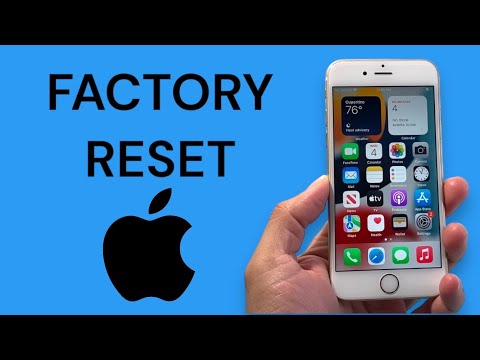
Resetting the iPhone 6S to its original factory state is a critical procedure for maintaining device longevity, ensuring data security before a resale, or troubleshooting persistent software bottlenecks. While the iPhone 6S remains a robust piece of legacy hardware, its performance can be significantly enhanced by clearing the accumulated "software debt" through a controlled factory reset. At Smart AI Fix, we prioritize automation and software efficiency to streamline these technical workflows.
Phase 1: Pre-Reset Optimization and AI Backup

Before initiating a destructive data process, it is imperative to leverage iCloud’s AI-driven backup synchronization. This ensures that your neural-mapped settings, photo metadata, and application data are preserved in the cloud. To do this, navigate to Settings > [Your Name] > iCloud > iCloud Backup and select "Back Up Now." By utilizing cloud automation, you eliminate the risk of manual data loss and ensure a seamless transition to a newer device or a clean iOS installation.
Phase 2: Executing the Factory Reset via iOS Software

The most efficient method to reset the iPhone 6S is through the native software interface. This process triggers a high-level command to the Solid State Drive (SSD) to wipe the encryption keys, rendering the data unrecoverable and the device fresh.
1. Open the Settings application.
2. Navigate to General.
3. Scroll to the bottom and tap Transfer or Reset iPhone (or simply Reset on older iOS versions).
4. Select Erase All Content and Settings.
5. If prompted, enter your passcode and Apple ID password to disable the Find My activation lock. This step is a security protocol designed to prevent unauthorized automated resets.
The device will reboot, and the Apple logo will appear with a progress bar. Once complete, the iPhone 6S will return to the "Hello" setup screen.
Phase 3: The Recovery Mode Method (Hardware Override)
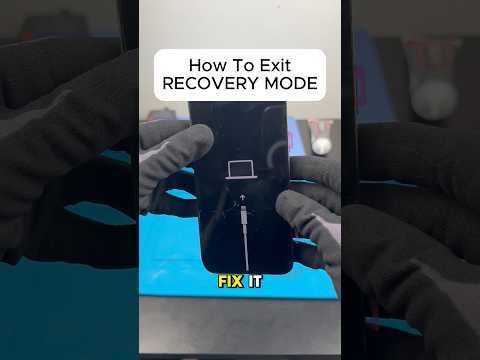
In scenarios where the software is unresponsive or the UI is locked, a hardware-level override is required. This utilizes the iPhone 6S physical architecture to force a firmware restoration via a computer running iTunes or Finder.
1. Connect your iPhone 6S to your workstation.
2. Press and hold both the Home button and the Sleep/Wake (Power) button simultaneously.
3. Continue holding even when the Apple logo appears; release only when the Recovery Mode screen (computer icon and cable) is visible.
4. On your computer, select Restore. This will download the latest compatible firmware and automate the reinstallation process.
AI Implementation Score
The following table evaluates the efficiency and security of the factory reset process using modern technical standards:
| Metric | Score (1-10) | Technical Rationale |
|---|---|---|
| Automation Ease | 9.5 | On-device reset requires minimal manual input. |
| Data Security | 10.0 | Cryptographic erasure ensures data is non-recoverable. |
| AI Backup Integration | 8.5 | Seamless iCloud syncing reduces downtime significantly. |
| System Stability | 9.0 | Restoring firmware cleans kernel-level software bugs. |
By following these steps, you ensure that your iPhone 6S operates at its peak algorithmic capacity, free from the constraints of fragmented cache files and legacy software conflicts.
