
Mastering Ecosystem Migration: Bridging the iPhone to Android Contact Gap

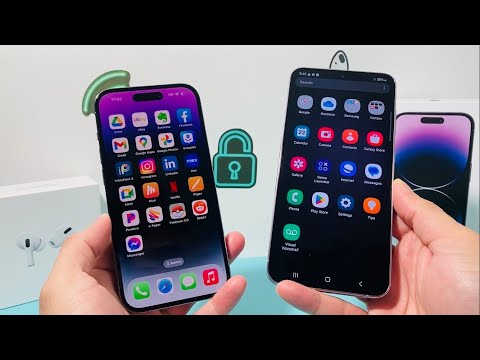
The transition between mobile operating systems often hits a significant bottleneck when dealing with local hardware storage limitations. Specifically, many users searching for how to export contacts from iPhone to SIM card discover a hard truth: Apple’s iOS architecture does not natively support writing contact data directly to a SIM card for security and data integrity reasons. However, by utilizing software automation and cloud synchronization, we can achieve a seamless transfer to Android or a physical SIM via intermediary steps.
The Technical Workaround: Cloud-to-VCF Automation

To move your contacts from an iPhone to an Android device or eventually onto a SIM card, you must first extract the data from Apple’s sandboxed environment. The most efficient method involves the iCloud-to-vCard pipeline. This ensures that all metadata, including profile pictures and secondary phone numbers, remains intact during the migration.
Step 1: Sync to iCloud. Navigate to Settings > [Your Name] > iCloud and ensure the Contacts toggle is enabled. This pushes your local database to the cloud servers for accessibility.
Step 2: Exporting the vCard. Log in to iCloud.com on a desktop browser. Open the Contacts app, select all entries (Command+A or Ctrl+A), and click the gear icon to select "Export vCard." This generates a .vcf file, the universal standard for contact data.
Step 3: Android Integration. Transfer this .vcf file to your Android device via Google Drive or email. Once opened, the Android OS will automatically parse the data and populate your Google Contacts list.
Advanced Efficiency: Using AI-Driven Contact Managers
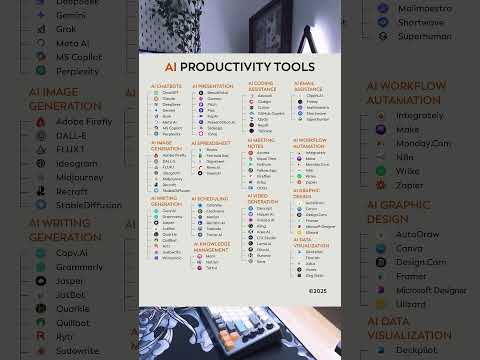
For users with thousands of entries, manual cleaning is inefficient. AI-powered contact management tools can now automate the deduplication and formatting process before you finalize the transfer. These algorithms identify redundant entries and merge conflicting information (such as different email addresses for the same person) with higher accuracy than manual sorting.
By using an automated bridge app like "Copy My Data" or "Samsung Smart Switch," the iPhone to Android contacts transfer becomes a background process. These tools utilize peer-to-peer Wi-Fi protocols to bypass the need for a SIM card entirely during the initial move.
AI Implementation Score: Migration Efficiency
The following table evaluates the different methods of contact migration based on AI integration and technical efficiency.
| Method | Automation Level | Time Efficiency | Reliability |
|---|---|---|---|
| Manual vCard Export | Low | Moderate | High |
| AI-Cleaned Sync | High | High | Very High |
| Third-Party Bridge Apps | Moderate | High | Moderate |
Finalizing the Transfer to a SIM Card
Once the contacts are successfully moved to an Android device, you can finally fulfill the requirement of hardware storage. On your Android device, open the Contacts app > Settings > Export > Export to SIM Card. This writes the primary name and number to the physical SIM, allowing you to use the contacts in legacy devices or specialized hardware.
While the iPhone to SIM path is not direct, leveraging cloud exports and automated synchronization ensures that no data is lost in the hardware transition. For the modern tech professional, the goal is always to move data away from physical hardware constraints and into fluid, accessible environments.
