
Managing the behavior of Function (Fn) keys is essential for optimizing a professional Windows 11 or 10 environment. Whether you are an automation specialist requiring direct access to F1-F12 for script execution or a creative professional using multimedia shortcuts, toggling the "Fn Lock" ensures your hardware aligns with your software workflow.
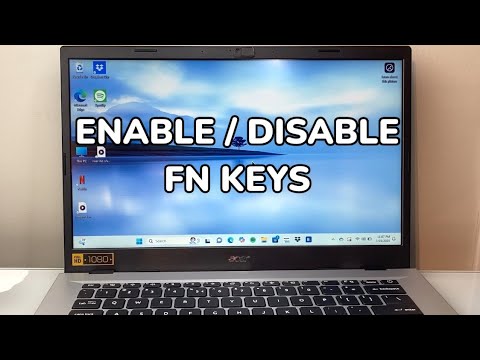
Method 1: The Hardware Fn Lock Shortcut
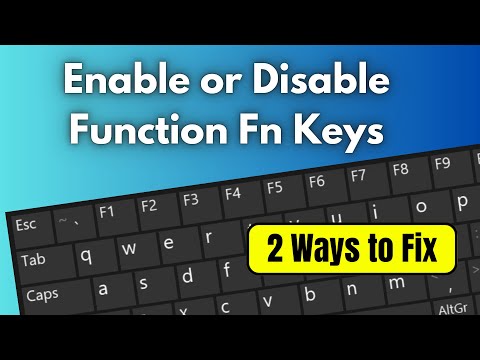
Most modern laptops (Dell, HP, Lenovo, ASUS) feature a built-in Fn Lock key. This is the fastest way to switch between standard F-key functionality and media/system controls without entering the BIOS. Look for a small padlock icon on the Esc key or the Caps Lock key.
To toggle the state, press Fn + Esc simultaneously. If your keyboard uses the Fn Lock on another key, the combination will typically be Fn + [Key with Padlock Icon]. Once activated, the F1-F12 keys will default to their standard functions (e.g., F5 for refresh) without needing to hold the Fn key.
Method 2: Configuring BIOS/UEFI Settings

For a permanent hardware-level change, you must access the BIOS or UEFI menu. This is the preferred method for system administrators who want to standardize device behavior across an organization.
1. Restart your computer and press the designated BIOS key (usually F2, F10, or Del) during startup.
2. Navigate to the Main, Advanced, or System Configuration tab.
3. Locate an option labeled Action Keys Mode, HotKey Mode, or Function Key Behavior.
4. Change the setting to Disabled (to use standard F1-F12) or Enabled (to use media keys).
5. Save and Exit (usually F10).
Method 3: Manufacturer Control Software
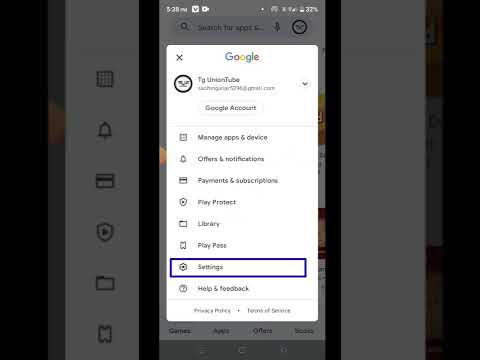
Proprietary software often provides a GUI-based toggle for Fn keys, removing the need for manual BIOS intervention. This is highly effective for users who prefer software-defined automation over hardware tweaks.
Lenovo: Open the Lenovo Vantage app > Input & Accessories > Intelligent Keyboard.
Dell: Open Dell Peripheral Manager or adjust settings within the Windows Mobility Center (Win + X > Mobility Center).
HP: Use the HP Programmable Key app to remap or toggle the function row behavior.
AI Implementation Score
At Smart AI Fix, we evaluate how these technical adjustments impact automated workflows and user efficiency through our proprietary scoring system.
| Metric | Score (1-10) | Notes |
|---|---|---|
| Workflow Automation | 9/10 | Standardizing F-keys is vital for complex macro execution. |
| AI Assistance Compatibility | 8/10 | LLMs and Copilots often suggest F-key shortcuts for debugging. |
| Ease of Implementation | 7/10 | BIOS methods can be intimidating for non-technical users. |
| System Stability | 10/10 | Zero risk to OS stability or data integrity. |
Automating Key Remapping with PowerToys
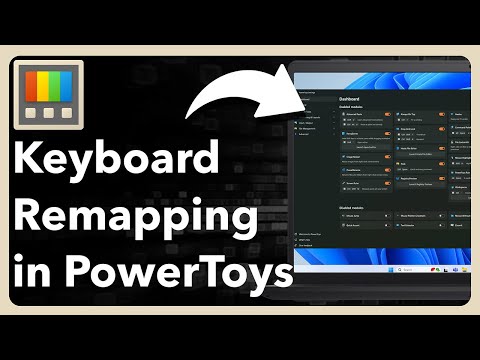
If the standard Fn toggle does not meet your specific automation needs, utilize Microsoft PowerToys. The Keyboard Manager utility allows you to remap individual keys or shortcuts globally. This is particularly useful if you want certain F-keys to perform standard functions while others execute specific AI-driven macros or launch automation scripts.
