
The Apple ID serves as the fundamental authentication layer for the entire iPadOS ecosystem. For users of Smart AI Fix, establishing this digital identity is the first step toward unlocking advanced automation, seamless iCloud synchronization, and the full potential of Apple’s neural engine capabilities. This technical guide outlines the streamlined process for creating an Apple ID directly on your iPad, ensuring your hardware is ready for high-level software integration.
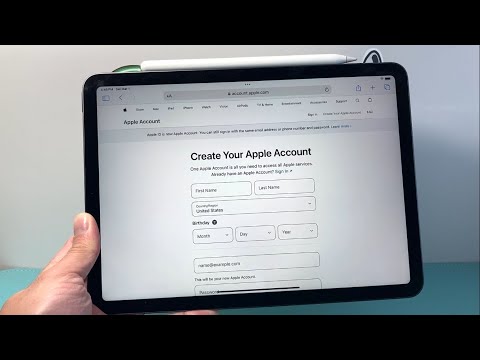
Pre-Configuration Requirements

Before initiating the setup, ensure your iPad is connected to a stable Wi-Fi network. While cellular data is an option, a local area network provides the stability required for the encryption handshakes involved in account creation. You will also need a valid email address that has not been previously associated with an Apple account and a phone number capable of receiving SMS for Two-Factor Authentication (2FA).
Step-by-Step Apple ID Creation on iPad

The following workflow is optimized for iPadOS 15 and later, focusing on efficiency and data security:
1. Access the Setup Module: Open the Settings application on your iPad. At the top of the left-hand sidebar, tap on the text that reads "Sign in to your iPad."
2. Initiate New ID Protocol: A modal window will appear. Do not enter credentials; instead, tap the blue link labeled "Don't have an Apple ID or forgot it?" then select "Create Apple ID" from the pop-up menu.
3. Identity Input: Enter your legal First Name, Last Name, and Date of Birth. This information is critical for account recovery and AI-driven personalization across services. Tap "Next."
4. Email and Security: You may choose to use your current email address or generate a new @icloud.com address. We recommend using a primary secure email to centralize your software notifications. Follow this by creating a strong password that adheres to high-security standards (minimum 8 characters, including numbers and uppercase letters).
5. Verification Architecture: Enter your phone number. Apple will send a six-digit verification code via SMS or voice call. Input this code into the iPad to verify your identity and enable 2FA, which is mandatory for modern Apple ecosystem security.
6. Terms and Conditions: Review and Agree to the Apple Media Services Terms and Conditions. This grants the iPad permission to access the App Store and automated software deployment systems.
AI Implementation Score
The following table evaluates the impact of Apple ID creation on your device's AI efficiency and automation capabilities:
| Metric | Score (1-10) | Technical Analysis |
|---|---|---|
| Setup Efficiency | 9/10 | High-speed integration with minimal manual input via the iPadOS Setup Assistant. |
| Cross-Device Automation | 10/10 | Essential for Handoff, Universal Control, and Shortcuts synchronization. |
| AI Personalization | 8/10 | Enables Siri’s predictive modeling and personalized app suggestions based on usage. |
| Data Security | 10/10 | End-to-end encryption for iCloud data and keychain management. |
Finalizing the Integration

Once the ID is created, your iPad will automatically prompt you to merge iCloud data. For those focused on software automation, it is highly recommended to enable "Find My iPad" and "iCloud Drive" immediately. This allows the system to utilize machine learning to optimize storage and provide remote management capabilities in case of hardware loss. Your iPad is now fully authenticated and ready for professional-grade application deployment.
