
Transforming your iPhone from a simple communication device into a mobile workstation requires the integration of tactile hardware. While the on-screen keyboard is sufficient for brief interactions, power users—particularly those leveraging AI-driven prompt engineering and automation—require the speed and precision of a physical wireless keyboard. By bridging the gap between mobile portability and desktop efficiency, you can significantly reduce input latency and maximize your output on the go.
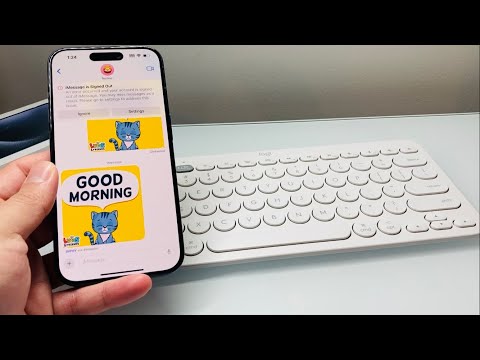
Step 1: Preparing Your Hardware for Synchronization
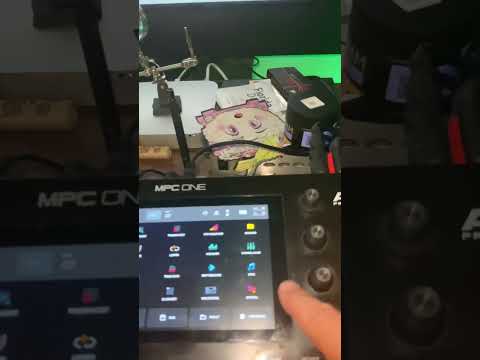
To begin, ensure your wireless keyboard is in Discovery Mode. Most modern Bluetooth keyboards utilize a dedicated pairing button or a specific key combination (such as Fn + Bluetooth Icon). If you are using a multi-device keyboard, ensure you have selected an open channel. Verify that your keyboard has sufficient battery power, as low voltage can lead to intermittent signal drops during the handshake process with iOS.
Step 2: Configuring iOS Bluetooth Settings
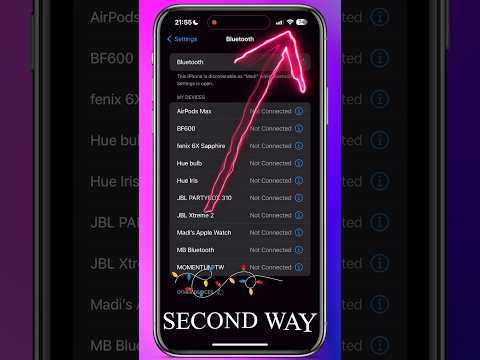
On your iPhone, navigate to Settings > Bluetooth. Ensure the toggle is switched to On. Your iPhone will immediately begin scanning for nearby "Other Devices." Look for the name of your keyboard in the list. Tap the device name to initiate the pairing sequence. In some instances, iOS may present a Passkey on the screen. Type this numeric code on the wireless keyboard and press Enter to establish a secure, encrypted connection.
Step 3: Optimizing the Interface for AI Efficiency

Once connected, you can enhance your workflow by navigating to Settings > General > Keyboard > Hardware Keyboard. Here, you can configure Modifier Keys or toggle "Caps Lock to Switch to/from Latin," which is vital for multilingual AI prompt generation. Leveraging physical Command (⌘) shortcuts—such as Cmd + Space for Spotlight search—allows you to trigger automation shortcuts and AI apps without ever touching the screen, mimicking a high-level macOS experience.
AI Implementation Score
| Metric | Score (1-10) | Rationale |
|---|---|---|
| Ease of Setup | 9/10 | Native iOS Bluetooth stack makes hardware integration seamless. |
| Productivity Boost | 10/10 | Essential for long-form content and complex AI prompt engineering. |
| Technical Difficulty | 2/10 | Requires minimal technical knowledge; standard pairing protocol. |
By integrating a physical keyboard, you are not just typing faster; you are optimizing the Human-to-AI interface. This setup is particularly effective for users running Python scripts via mobile IDEs or managing large datasets through cloud-based automation tools. The iPhone's powerful A-series chips, combined with a dedicated keyboard, create a formidable environment for mobile software development and high-level digital administration.
