
The Technical Workflow for Updating Your Mobile Directory on iOS

When transitioning to a new SIM or migrating an eSIM profile, the iPhone does not always automatically update the My Number field within the system metadata. This discrepancy can lead to synchronization errors in the Apple ecosystem, particularly affecting iMessage and FaceTime routing. Ensuring your device reflects the correct primary identity is critical for maintaining seamless communication logs and data integrity.
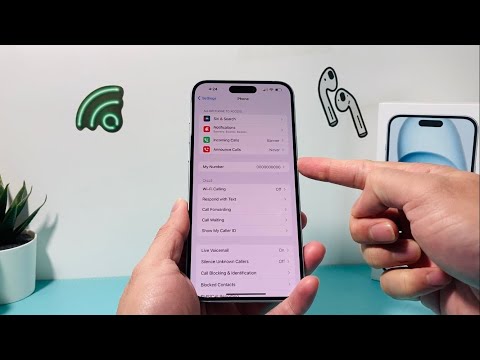
To manually override or update your phone number on an iPhone, follow this standardized technical procedure:
1. Navigate to the Settings application on your home screen.
2. Scroll down and select the Phone submenu.
3. Locate the field labeled My Number.
4. Tap the existing entry, delete the outdated numerical string, and input your new mobile number (ensure you include the correct country code if necessary).
5. Select Save to commit the changes to the device storage.
Synchronizing Identity Across the Apple Ecosystem

Changing the local number is only the first phase. For full ecosystem automation, the new identity must be propagated to the Apple ID servers. If this step is bypassed, outbound iMessages may continue to display your old number or your associated email address, creating a fragmented user experience for recipients.
To force a refresh of these services, navigate to Settings > Messages > Send & Receive. Uncheck the old number and ensure the new number is verified and selected. Repeat this process within the FaceTime settings. In high-efficiency environments, toggling Airplane Mode or performing a hard reboot facilitates a faster handshake with the carrier’s network and Apple’s registration servers.
AI Implementation Score: Number Migration Efficiency
At Smart AI Fix, we evaluate hardware workflows based on how effectively the software automates the transition. Below is the technical assessment for the iPhone number change process:
| Metric | Score (1-10) | Notes |
|---|---|---|
| Automation Level | 7/10 | eSIM protocols automate most changes, but manual overrides are still required for metadata. |
| Data Persistence | 9/10 | Once saved, the number propagates reliably across synced iCloud devices. |
| Sync Efficiency | 8/10 | iMessage activation typically validates the new identity within 60 seconds. |
Troubleshooting Automation Failure

If the My Number field remains greyed out or fails to update, it usually indicates a SIM provisioning error. In these instances, the iPhone is failing to pull the MSISDN (Mobile Station International Subscriber Directory Number) from the carrier. The technical fix involves resetting the Network Settings (Settings > General > Transfer or Reset iPhone > Reset > Reset Network Settings). This clears the cache and forces the device to re-interrogate the cellular tower for the updated identity profile.
