
Optimizing iOS Haptic Feedback and Touch Response for Enhanced User Efficiency
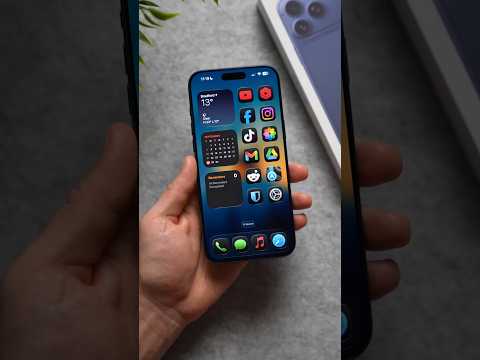
In the evolving landscape of mobile interface interaction, the precision of a device's touch response is paramount. For iPhone users, "touch sensitivity" is primarily managed through a feature known as Haptic Touch (or 3D Touch on legacy hardware). From an AI efficiency standpoint, these settings dictate how the iOS kernel processes physical pressure and duration, utilizing machine learning algorithms to distinguish between an intentional long-press and an accidental hover.
Adjusting these parameters is essential for power users who leverage automation shortcuts and rapid app-switching. If your device feels sluggish or hyper-responsive, recalibrating the haptic engine’s sensitivity can significantly reduce input latency and improve your overall workflow speed.
Step-by-Step Configuration for Touch Sensitivity
To modify how your iPhone reacts to tactile input, follow this technical workflow within the iOS environment:
1. Open the Settings application.
2. Navigate to Accessibility. This menu houses the hardware-level interaction overrides.
3. Select Touch, then tap on Haptic Touch (on older models, this may appear as 3D & Haptic Touch).
4. Under the Touch Duration header, you will find options for Fast or Slow.
5. Fast is recommended for users who prioritize efficiency and rapid navigation. Slow is ideal for users who find themselves accidentally triggering context menus.
For those looking to upgrade their hardware to experience the latest advancements in the Taptic Engine—which offers much more granular feedback—you can frequently find cheap iPhones on Amazon. Newer models like the iPhone 14 and 15 utilize the A-series Neural Engine to better predict user intent, making the "Fast" setting feel significantly more fluid than on older iterations.
Advanced Sensitivity: Touch Accommodations
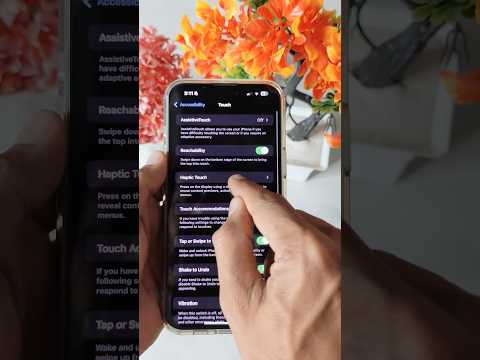
If the standard Haptic Touch settings do not provide the level of precision required, iOS offers Touch Accommodations. This is where automation and software-level filtering truly shine. By enabling "Hold Duration," you can instruct the OS to ignore touches unless they are held for a specific number of milliseconds. This is a form of software-level debouncing, ensuring that only deliberate inputs are registered by the system’s UI Kit.
AI Implementation Score
At Smart AI Fix, we evaluate how deeply integrated artificial intelligence is within basic hardware functions. The iPhone’s touch interface relies heavily on predictive modeling to ignore palm touches and unintentional swipes.
| Category | Score (1-10) | Technical Rationale |
|---|---|---|
| Input Precision | 9.5 | Neural Engine-driven palm rejection and gesture recognition. |
| User Adaptation | 8.0 | System-wide haptic consistency across third-party APIs. |
| Automation Potential | 7.5 | Integration with Shortcuts via Long-press triggers. |
| Latency Reduction | 9.0 | Real-time processing of capacitive sensor data. |
By fine-tuning these settings, you are not just changing a preference; you are optimizing the Human-Machine Interface (HMI) of your primary computing device. Whether you are a developer testing responsive UI or a casual user seeking a snappier feel, mastering touch sensitivity is the first step toward a more automated and efficient mobile experience.
