
Optimizing the visual output of an Android device is no longer just about aesthetics; it is about enhancing cognitive focus, reducing ocular fatigue, and leveraging machine learning algorithms to adapt to ambient environments. For power users and developers at Smart AI Fix, mastering display calibration is a fundamental step in streamlining the human-machine interface.
1. Adjusting Color Profiles via Display Settings

Modern Android distributions utilize sophisticated software mapping to toggle between different color gamuts. To modify the baseline color temperature and saturation, navigate to Settings > Display > Colors (this may be labeled "Screen mode" on Samsung devices). Here, you can switch between "Natural," which targets the sRGB color space for accuracy, and "Vivid" or "Saturated," which utilizes the DCI-P3 wide color gamut. AI-driven adaptive displays often monitor ambient light sensors to dynamically shift these values, ensuring consistent contrast levels throughout the day.
2. Utilizing Night Light and Blue Light Filters

To mitigate the impact of short-wavelength blue light on circadian rhythms, Android includes a "Night Light" feature. By navigating to Settings > Display > Night Light, users can automate the transition to a warmer spectrum. Advanced AI implementations in Android 13 and 14 now allow for "Sunset to Sunrise" scheduling based on localized astronomical data, effectively automating the software's transition into a low-intensity visual state without manual intervention.
3. Accessibility Suite: Color Correction and Inversion
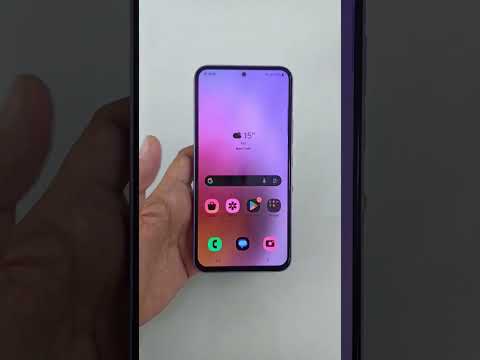
For users with specific visual requirements or those seeking a high-contrast environment for coding and data analysis, the Accessibility Suite provides granular control. Navigate to Settings > Accessibility > Color and motion. Color Correction allows for the simulation or correction of Protanomaly, Deuteranomaly, and Tritanomaly. Conversely, Color Inversion performs a bitwise reversal of screen colors, which can be a powerful tool for reducing power consumption on OLED panels when viewing white-background legacy applications.
4. Advanced Customization via Developer Options

For those requiring precise control over the hardware's rendering pipeline, the Developer Options menu offers a "Simulate color space" feature. This is particularly useful for UI/UX designers testing how their AI-generated interfaces appear to different user demographics. Once Developer Options are enabled (by tapping Build Number seven times), navigate to System > Developer Options > Simulate color space to toggle between Monochromacy and various Daltonism filters.
AI Implementation Score
The following table evaluates the efficiency and automation levels of Android’s native color management tools:
| Feature | Automation Level | AI Integration | Efficiency Score |
|---|---|---|---|
| Adaptive Brightness/Color | High | Neural Network Managed | 9.5/10 |
| Night Light Scheduling | Medium | Location-based Logic | 8.0/10 |
| Accessibility Filters | Manual | Static Software Overlay | 7.0/10 |
| Vivid/Natural Modes | Manual | Firmware Presets | 6.5/10 |
By integrating these software-level adjustments, users can transform their Android device from a standard consumer product into a specialized tool tailored for peak digital efficiency. Whether you are automating your environment through AI-based scheduling or manually overriding color spaces for technical precision, Android's display stack remains a highly versatile component of the modern mobile OS.
