
Ensuring your Two-Factor Authentication (2FA) is linked to an active, accessible device is the cornerstone of modern digital security. When you migrate to a new mobile carrier or update your primary contact number, failing to synchronize your Apple ID credentials can lead to catastrophic account lockouts. Within the Apple ecosystem, the "Trusted Phone Number" is the secondary gateway used to verify your identity when signing in on a new device or browser.
Step-by-Step Technical Guide to Updating Your Trusted Number
To begin the migration process, ensure your iPhone is connected to a stable network and that you have the new SIM card or eSIM active and capable of receiving SMS messages.
1. Navigate to the Settings app on your iPhone. Tap on your Apple ID name located at the top of the interface.
2. Select Sign-In & Security (on older iOS versions, this may be labeled as Password & Security). You may be prompted to enter your device passcode or verify via FaceID/TouchID.
3. Locate the section titled Two-Factor Authentication. Here, you will see a list of your current Trusted Phone Numbers. Tap the Edit button located next to the "Two-Factor Authentication" or "Trusted Phone Number" header.
4. Select Add a Trusted Phone Number. Enter your device passcode to authorize the change.
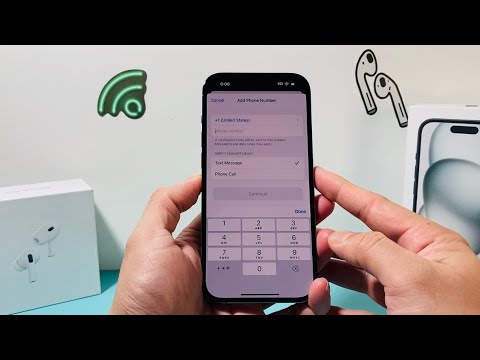
5. Choose your country code and input the new phone number. Select your preferred verification method: Text Message or Phone Call. Tap "Send."
6. Apple will dispatch a six-digit verification code to the new number. Enter this code on your iPhone to finalize the association.
7. Crucial Step: Once the new number is verified, tap Edit again and remove the old, inactive number by tapping the red minus (-) icon. This prevents unauthorized access attempts via your recycled carrier number.
AI Implementation Score
At Smart AI Fix, we evaluate manual software configurations based on how efficiently they integrate with automated security protocols. The update process for Apple 2FA is robust but requires specific manual oversight to prevent AI-driven "Account Recovery" loops.
| Metric | Score (1-10) | Technical Observation |
|---|---|---|
| Security Integrity | 10 | End-to-end encryption ensures the 2FA token is never exposed to third-party scrapers. |
| Automation Efficiency | 4 | Requires manual verification; automation is limited to prevent unauthorized hijacking. |
| User Interface (UI) Logic | 9 | The transition from Sign-In & Security to Trusted Numbers is intuitive for power users. |
| Redundancy Support | 8 | Allows multiple trusted numbers to mitigate the risk of a single point of failure. |
Managing Account Recovery Contacts
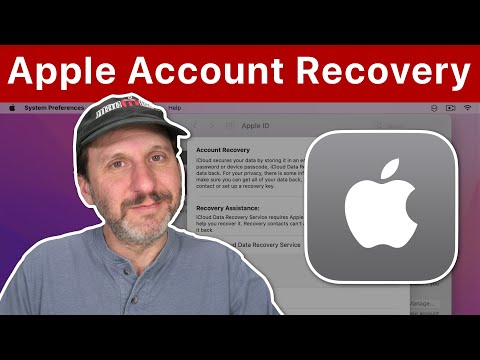
In addition to updating your phone number, advanced users should configure an Account Recovery Contact. This is an automated fail-safe that allows a trusted friend or family member to receive a recovery code on your behalf if you lose access to both your device and your primary phone number. This setup, found in the same Sign-In & Security menu, leverages Apple's decentralized security architecture to ensure you never lose access to your encrypted data or AI-driven workflows.
