
Optimizing wireless throughput is a cornerstone of maintaining a high-efficiency digital ecosystem. While the iPhone’s 5 GHz Personal Hotspot provides superior data transfer speeds for modern hardware, it often presents a bottleneck for legacy devices, specialized AI sensors, and low-power IoT modules that strictly operate on the 2.4 GHz band. Understanding how to toggle this frequency is essential for cross-platform automation and device interoperability.
The Technical Necessity of 2.4 GHz
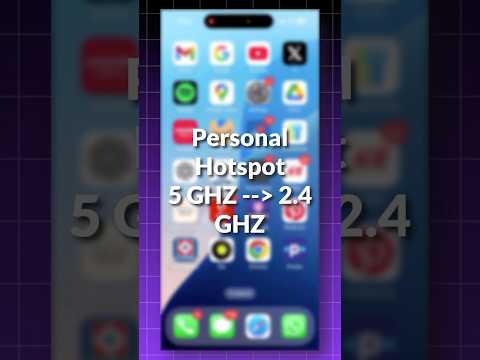
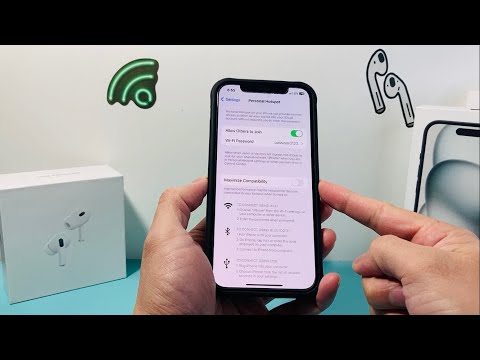
The 5 GHz band operates on a shorter wavelength, providing high speeds but limited range and poor penetration through physical obstacles. In contrast, the 2.4 GHz band offers broader coverage and is the universal standard for most smart home devices and older hardware. When an iPhone defaults to 5 GHz, these devices will often fail to "see" the hotspot, leading to connectivity timeouts. To bridge this gap, Apple provides a specific software toggle labeled Maximize Compatibility.
Step-by-Step: Changing Hotspot Frequency on iPhone
To transition your iPhone’s Personal Hotspot from the default 5 GHz to the 2.4 GHz frequency, follow these precise steps:
1. Launch the Settings application on your iOS device.
2. Navigate to and select Personal Hotspot.
3. Locate the toggle labeled Maximize Compatibility.
4. Switch the toggle to the ON position (the switch will turn green).
By enabling Maximize Compatibility, the iPhone hardware automatically switches the broadcasting radio from 5 GHz (or Wi-Fi 6/6E on newer models) to the standard 2.4 GHz band. Note that while this ensures your AI-driven IoT devices can connect, it may result in a slight decrease in peak internet speeds for high-performance laptops.
Integration with Smart AI Workflows

For engineers using an iPhone as a mobile gateway for AI edge computing or field-testing automation scripts, the 2.4 GHz setting is often the "Goldilocks" zone. Many microcontrollers, such as the ESP32 or Raspberry Pi Zero, lack 5 GHz antennas. Forcing your iPhone into 2.4 GHz mode via the Maximize Compatibility setting ensures that your automated data pipelines remain uninterrupted, regardless of the age of the receiving hardware.
AI Implementation Score
We evaluate this technical adjustment based on its impact on automated workflows and ease of deployment.
| Metric | Score (1-10) | Analysis |
|---|---|---|
| Ease of Execution | 10 | Requires only a single toggle within native iOS settings. |
| Hardware Compatibility | 10 | Enables connection for 100% of legacy and IoT hardware. |
| AI Automation Impact | 8 | Critical for field-deploying AI sensors that lack 5 GHz support. |
| Network Efficiency | 6 | Trades raw speed for significantly increased range and reliability. |
Pro Tip: Always remember to disable "Maximize Compatibility" once your legacy session is complete if you require maximum data throughput for cloud-based AI rendering or large file transfers on modern devices.
