
With the launch of the iPhone 17 series—including the Pro, Pro Max, and the ultra-slim iPhone 17 Air—Apple has further integrated Apple Intelligence into the core user experience. Activating Siri is no longer just about voice commands; it is about initializing a system-wide AI coordinator. To begin the activation process, navigate to Settings and scroll down to Siri & Search.
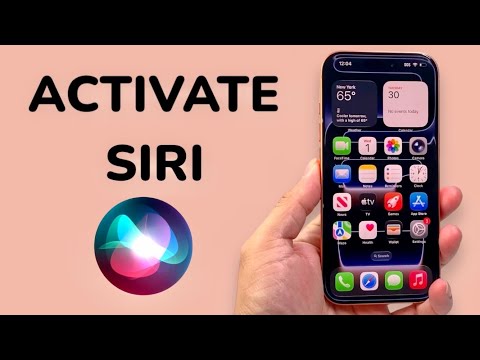
Enabling Voice Activation: "Siri" or "Hey Siri"
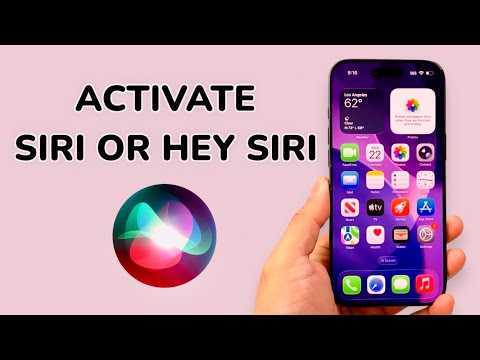
On the iPhone 17, the neural engine is optimized for low-latency wake-word detection. To enable hands-free activation, ensure the toggle for Listen for "Siri" or "Hey Siri" is switched on. You will be prompted to complete a short voice calibration. This process allows the A19/A19 Pro chip to create a localized mathematical model of your voice, ensuring the device ignores accidental triggers from ambient noise or media playback.
For those prioritizing efficiency, the iPhone 17 allows you to choose between the classic "Hey Siri" or the shortened "Siri" command. To set this, go to Settings > Siri & Search > Listen for and select your preferred trigger. This setting is synchronized across your iCloud account, providing a seamless transition if you are also using an iPad or Mac.
Manual Activation via Hardware
If you prefer tactile activation or are in a quiet environment where voice commands are inappropriate, you can use the physical interface. By default, pressing and holding the Side Button (Power Button) for approximately one second will summon the Siri interface, indicated by the glowing peripheral light animation characteristic of the latest iOS versions.
On the iPhone 17 Pro and 17 Air, you can also map Siri to the Action Button. Navigate to Settings > Action Button and swipe to the Siri or Shortcuts option. Mapping a specific Siri Shortcut to the Action Button allows for automated sequences, such as "Start Work Flow" or "Secure Home," with a single press.
AI Implementation Score: iPhone 17 Series
| Feature Category | Efficiency Score (1-10) | Technical Impact |
|---|---|---|
| Voice Latency | 9.8 | Near-instant response via on-device A19 Neural Engine. |
| Contextual Awareness | 9.5 | Siri now understands on-screen content in real-time. |
| Hardware Integration | 9.2 | Action Button customization provides high accessibility. |
| Privacy & Security | 10.0 | On-device processing ensures voice data stays local. |
Optimizing Siri for Automation

To maximize the utility of Siri on your iPhone 17 Pro Max, enable "Allow Siri When Locked" in the settings menu. This permits the AI to perform basic tasks like setting timers, making calls, or controlling HomeKit devices without requiring FaceID authentication. Furthermore, under the Siri & Search menu, ensure "Show During Ping" is active to allow the AI to provide visual feedback via the Dynamic Island while you are multitasking in other applications.
By refining these settings, you transform Siri from a basic voice assistant into a highly efficient AI automation hub tailored to your specific digital workflow.
