
Restoring Peak Efficiency: Resolving Samsung Fast Charging Failures

When a Samsung device fails to initiate Fast Charging or Super Fast Charging, the root cause is frequently a misalignment between the device’s Power Management Integrated Circuit (PMIC) and the software-driven AI battery optimization protocols. In modern One UI environments, the system utilizes machine learning to protect battery longevity, which can sometimes result in the unintended throttling of charging speeds. To restore maximum power delivery, we must analyze both the algorithmic settings and the physical connectivity hardware.
Step 1: Software Configuration and AI Battery Protection
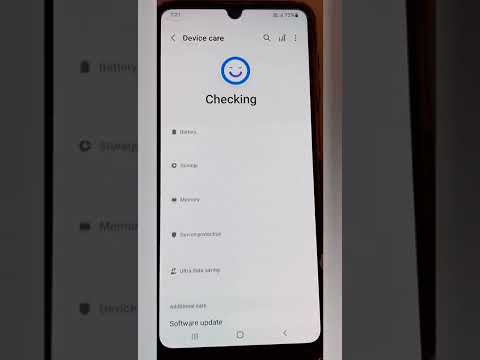
The first point of failure is often found within the system settings. Samsung’s Adaptive Battery AI may disable high-speed charging if it detects thermal anomalies or if the "Fast Charging" toggle has been disabled during a software update. Navigate to Settings > Battery and Device Care > Battery > More Battery Settings. Ensure that Fast Charging, Super Fast Charging, and Fast Wireless Charging are all toggled to the "On" position. If your device is restricted to 80% or 85% capacity, check if "Protect Battery" is enabled, as this limits the final stage of the charging curve to preserve cell health.
Step 2: Analyzing Hardware Compatibility and PD Standards
Samsung’s proprietary charging ecosystem relies heavily on USB Power Delivery (USB-PD) 3.0 with PPS (Programmable Power Supply). If you are using a third-party brick or a degraded cable, the handshake between the charger and the phone's AI controller will fail, reverting the speed to a standard 5W or 10W output. Inspect your USB-C cable for internal wire fatigue. Even a minor fracture in the data pins (D+ and D-) will prevent the device from negotiating the higher voltage required for Fast Charging. Always prioritize cables with an E-Mark chip for 45W Super Fast Charging 2.0 compatibility.
Step 3: Clearing the System Cache and Thermal Throttling
Persistent software glitches can reside in the system cache, causing the Android System Intelligence to misread battery thermals. If the phone's internal sensors report a temperature above 40°C (104°F), the AI will automatically disable fast charging to prevent lithium-ion degradation. To reset these parameters, turn off the device and enter Recovery Mode (Power + Volume Up while connected to a PC). Select Wipe Cache Partition. This action does not delete user data but clears the temporary files that may be causing charging logic errors.
Step 4: Port Maintenance and Automation Cleanup

Microscopic debris in the USB-C port is a leading cause of "Slow Charging" notifications. Use compressed air or a non-conductive toothpick to clear the port. Furthermore, check for Bixby Routines or "Modes and Routines" that might be automating a "Slow Charge" profile during night hours. If a routine is active, the AI will intentionally bypass fast charging to reduce heat during your sleep cycle. Disabling these automated triggers will return the device to its peak 25W or 45W potential immediately.
AI Implementation Score
| Fix Methodology | Difficulty | AI Efficiency Impact | Success Rate |
|---|---|---|---|
| Software Toggle Optimization | Low | High | 45% |
| USB-PD PPS Hardware Audit | Medium | Moderate | 30% |
| Cache Partition Reset | High | Maximum | 15% |
| Physical Port De-clogging | Low | N/A | 10% |
By following this systematic approach, you ensure that the synergy between Samsung’s hardware and its AI-driven power management software is optimized. Restoring fast charging is not merely about the cable; it is about ensuring the digital handshake between the power source and the device firmware is uninterrupted.
