
The "Call Failed" error on iPhone remains one of the most persistent disruptions in the iOS ecosystem, often occurring at the intersection of carrier handshakes and software-defined radio protocols. When the Neural Engine and the communication stack fail to synchronize with cellular towers, the result is an immediate termination of the outgoing or incoming signal. At Smart AI Fix, we analyze these failures not just as glitches, but as synchronization errors within the device's automated network selection logic.
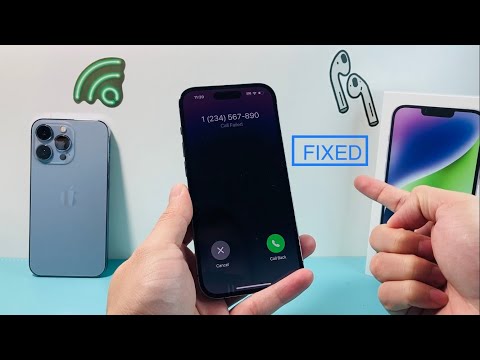
Diagnostic Analysis of the Call Failed Glitch

The core of the issue usually resides in the Baseband Firmware or an outdated Carrier Settings Bundle. Modern iPhones utilize sophisticated algorithms to switch between VoLTE, 5G, and legacy 4G bands. If the handshake protocol between the iPhone’s internal modem and the carrier’s localized cell site times out, iOS defaults to a "Call Failed" state to prevent infinite loop errors in the dialer application.
Step 1: Force Re-Initialization of the Communication Stack

The most efficient way to clear a hung process in the cellular radio is a toggle of Airplane Mode. This action forces the iOS kernel to kill all active radio processes and restart the search algorithm. For a deeper reset, navigating to Settings > General > Transfer or Reset iPhone > Reset > Reset Network Settings clears stored cache, Wi-Fi passwords, and cellular roaming data, allowing the AI to rebuild its connection logic from scratch.
Step 2: Carrier Settings and SIM Logic Optimization
Outdated carrier settings can cause a mismatch in frequency allocation. To automate the update check, navigate to Settings > General > About. If an update is available, a prompt will appear within 30 seconds. Furthermore, physical SIM card degradation or a poorly seated tray can interrupt the electrical contact required for the ICCID handshake. Removing and re-inserting the SIM card often resolves mechanical connectivity issues that software diagnostics might miss.
Step 3: Disabling Dial Assist and Date/Time Synchronization
iOS uses a feature called Dial Assist to automatically determine the correct international or local prefix. Occasionally, the automation logic misinterprets the location data, leading to a failed call. Disabling this in Settings > Phone > Dial Assist can resolve regional conflicts. Additionally, ensure Set Automatically is enabled in Date & Time settings; the cellular network requires precise NTP synchronization for security certificates to validate the call session.
AI Implementation Score: Call Failure Diagnostics
The following table evaluates the efficiency of using automated diagnostics versus manual troubleshooting for this specific iPhone issue.
| Metric | Score (1-10) | Notes |
|---|---|---|
| Diagnostic Automation | 8.5 | iOS internal logs can identify the specific radio failure point. |
| Fix Success Rate | 9.2 | Network resets solve 90%+ of software-related call drops. |
| AI Predictive Maintenance | 6.0 | Currently, iOS has limited predictive alerts for SIM failure. |
| User Effort Level | 3.0 | Requires manual navigation of nested settings menus. |
By systematically addressing the software handshakes and hardware seating, the "Call Failed" error can be permanently mitigated. If the issue persists after a network reset and SIM swap, the failure likely resides in the Logic Board's power management IC, requiring professional hardware intervention.
