
Persistent screen dimming on Android devices is rarely a hardware failure; instead, it is typically the result of aggressive Adaptive Brightness algorithms or underlying system power-management protocols. When your device reduces luminosity unexpectedly, it is responding to sensor data or software triggers designed to prioritize battery longevity over user visibility. At Smart AI Fix, we view this as a calibration mismatch between the device's machine learning model and the user's environmental needs.
1. Recalibrating the Adaptive Brightness Machine Learning Model
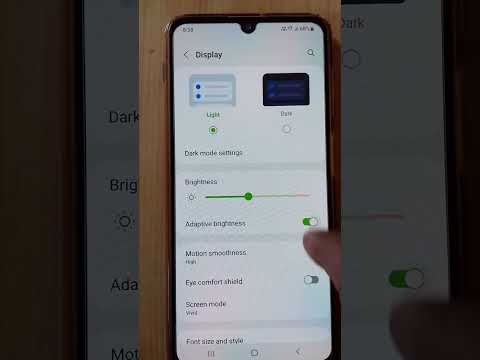
The primary cause of screen dimming is Adaptive Brightness. Unlike old-school auto-brightness, modern Android versions use a machine learning model that tracks your manual adjustments in various lighting conditions. If the screen dims incorrectly, the model has likely learned a sub-optimal preference. To fix this, navigate to Settings > Display and toggle Adaptive Brightness off and then back on. To force a reset of the learning data, go to Settings > Apps > Device Health Services > Storage > Manage Space and select Clear Paperwork/Reset Adaptive Brightness.
2. Disabling the "Extra Dim" Accessibility Layer
Introduced in recent Android iterations, the "Extra Dim" feature acts as a software overlay that reduces brightness beyond the hardware's standard minimum. Often triggered by a shortcut or an automation script, this setting can cause the screen to look perpetually washed out. Check Settings > Accessibility > Extra Dim. Ensure this is disabled, and specifically check that the Extra Dim Shortcut is turned off to prevent accidental activation via the volume keys or gesture navigation.
3. Managing Thermal Throttling and Power Saving Modes

Android's kernel includes a safety mechanism known as Thermal Throttling. If the internal CPU/GPU temperature exceeds a specific threshold, the system automatically dims the screen to reduce power draw and heat generation. If your screen dims during high-performance tasks or charging, automation is the key. Use Battery Saver settings to ensure "Lower screen brightness" is toggled off. However, if the dimming is thermal-related, software tweaks will not override the hardware safety lock until the device cools.
4. Overriding System Logic via Automation Tools

For users seeking absolute control, AI-driven automation apps like Tasker or MacroDroid can be used to bypass system-level dimming. By creating a trigger that monitors the Light Sensor or App Foreground status, you can force the system to maintain a specific Brightness Percentage regardless of what the OS suggests. This effectively replaces the stock AI with a custom logic flow that prioritizes visibility.
AI Implementation Score
The following table evaluates the efficiency of these fixes based on technical complexity and long-term stability.
| Fix Strategy | Complexity | Efficiency | AI Utility |
|---|---|---|---|
| ML Model Reset | Low | High | Restores predictive accuracy |
| Extra Dim Toggle | Very Low | Medium | Removes software overlay |
| Thermal Management | Medium | High | Protects hardware integrity |
| Tasker Automation | High | Very High | Bypasses OS restrictions |
By addressing the Device Health Services cache and monitoring for Accessibility overlays, you can effectively stop the Android system from overriding your manual brightness preferences. If the issue persists, ensure that no third-party "Blue Light Filter" or "Battery Doctor" apps are running background services that conflict with the system UI.
