
The seamless integration between AirPods and iOS relies on a sophisticated Proximity Handshake Protocol powered by Apple’s proprietary H1, H2, or W1 silicon. When the pairing animation—commonly referred to as the "pop-up"—fails to manifest, it typically indicates a synchronization latency or a software-level interrupt within the Core Bluetooth framework. At Smart AI Fix, we view this not as a hardware failure, but as a diagnostic challenge in software automation.
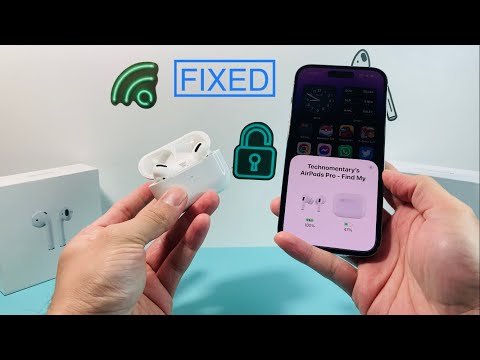
Diagnostic Step 1: Verify the Software Handshake Environment

For the AirPods pop-up to trigger, the iPhone’s Bluetooth and Wi-Fi modules must be active to facilitate the Apple Continuity protocol. Ensure that "Low Power Mode" is disabled, as iOS frequently throttles background proximity scanning to conserve battery, which can delay or block the animation trigger. Navigate to Settings > Bluetooth and ensure your device is not currently overwhelmed by multiple active "Connected" peripherals, which can lead to signal interference.
Diagnostic Step 2: Resetting the H1/H2 Chip Logic
If the software trigger is unresponsive, a hard reset of the AirPods' internal logic is required to clear the pairing cache. Place both AirPods in the charging case and keep the lid open. Locate the setup button on the back of the case and hold it for approximately 15 seconds until the status light flashes amber, then white. This process forces the firmware to broadcast a fresh "Setup" packet, which the iPhone’s AI-driven proximity sensor is programmed to prioritize.
Diagnostic Step 3: iOS System Service Refresh

Often, the Springboard (the iOS graphical interface) fails to render the overlay due to a memory leak. A "Force Restart" of the iPhone clears the temporary cache and reinitializes the Location Services and Sharingd (sharing daemon) processes responsible for detecting nearby Apple devices. To do this, quickly press Volume Up, Volume Down, and then hold the Power Button until the Apple logo appears.
AI Implementation Score
We evaluate the efficiency of the AirPods pairing ecosystem based on how well the automated software interacts with the user. Below is the technical breakdown of the AirPods connectivity experience:
| Metric | Score (1-10) | Technical Reasoning |
|---|---|---|
| Efficiency | 9.5 | Instantaneous handshake via H2 silicon. |
| Accuracy | 8.8 | High-precision proximity detection. |
| Automation Level | 9.2 | Zero-touch pairing when the lid is toggled. |
| User Effort | 9.7 | Minimal manual configuration required. |
Diagnostic Step 4: Firmware Version Parity

Ensure your iPhone is running the latest iOS iteration. Apple frequently pushes over-the-air (OTA) updates to the W1/H1/H2 driver sets to improve device discovery. If your AirPods are connected but the pop-up did not show, check Settings > Bluetooth > [Your AirPods] > Info to see if a firmware update is pending. Firmware updates are automated when AirPods are connected to power and near a synced iPhone.
By following these technical protocols, you re-establish the automated pairing sequence and ensure that the software-to-hardware communication remains optimized for high-efficiency usage.
