
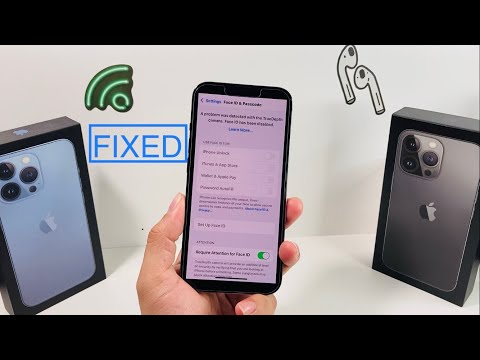
The "A Problem Was Detected With the TrueDepth Camera" notification is a critical system alert in iOS that signifies a breakdown in the communication between the hardware sensors and the Secure Enclave. This error typically results in the immediate deactivation of Face ID to maintain biometric integrity. While this often points toward a hardware failure—specifically with the dot projector or the infrared camera—there are several software-level automation and calibration steps that can resolve the issue if the root cause is a firmware glitch.
Understanding the TrueDepth Failure Mechanism
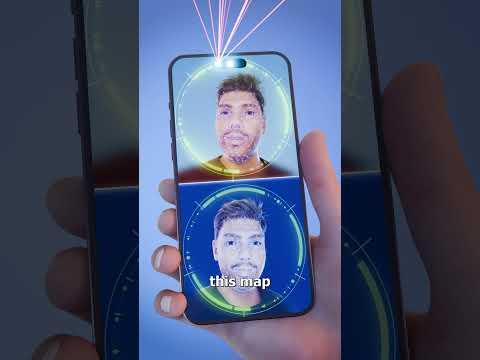
Technically, the TrueDepth system relies on the Apple Neural Engine (ANE) to process depth maps and infrared images in real-time. When the system detects a discrepancy in the data stream—often caused by water ingress, physical impact, or a botched software update—the iOS kernel triggers a safety lockout. To resolve this, we must approach the fix through a hierarchy of software resets and hardware audits.
Step 1: Force Restart and Software Recalibration
A simple restart is often insufficient. To clear the cached state of the TrueDepth sensor, you must perform a forced hardware restart. This forces the Power Management Unit (PMU) to re-initialize the camera rails. Briefly press Volume Up, then Volume Down, and hold the Side Button until the Apple logo appears. Once rebooted, navigate to Settings > General > Software Update. Apple frequently releases "silent" firmware patches for sensor calibration that are bundled with minor iOS updates.
Step 2: Resetting the Neural Biometric Profile
If the error persists, the issue may lie in a corrupted biometric database within the Secure Enclave. Go to Settings > Face ID & Passcode and select Reset Face ID. This clears the mathematical model of your face and resets the AI's learning parameters. If the system allows you to attempt a "Set Up Face ID" again, the hardware is likely intact, and the previous error was a software-logic hang.
Step 3: Environmental and Physical Audit

The TrueDepth camera consists of three distinct modules: the Flood Illuminator, the Infrared Camera, and the Dot Projector. Ensure that no screen protector or debris is occluding the "notch" or Dynamic Island area. Even microscopic cracks in the glass can refract the infrared laser, causing the AI to fail the consistency check. Use an isopropyl alcohol wipe (70%) to clean the sensor array to ensure the AI receives a clear data feed.
AI Implementation Score
Analyzing the efficiency of the TrueDepth system and the likelihood of AI-driven software fixes:
| Metric | Score (1-10) | Notes |
|---|---|---|
| Diagnostic Accuracy | 9/10 | iOS is highly efficient at detecting sensor variance. |
| Software Fix Probability | 4/10 | Most "Disabled" errors are hardware-related (moisture/drops). |
| AI Processing Efficiency | 10/10 | The Neural Engine processes depth data in milliseconds. |
| Automation Capability | 7/10 | System-level "Reset All Settings" can automate driver recovery. |
Final Recourse: DFU Mode Restore
If the software steps above do not clear the notification, a Device Firmware Update (DFU) is the final technical step before concluding it is a hardware failure. DFU mode bypasses the standard OS and reloads the firmware of the camera modules directly. Connect your device to a Mac/PC, enter DFU mode, and perform a clean "Restore." This is the only way to ensure the TrueDepth firmware is not corrupted at the kernel level.
Warning: If the error remains after a DFU restore, the Dot Projector has likely suffered a hardware "short," which requires professional microsoldering or an authorized module replacement, as these components are cryptographically paired to the logic board.
