
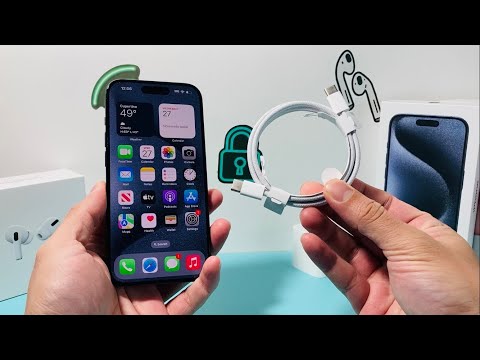
The transition to the universal USB-C standard with the iPhone 15 series marked a significant milestone in Apple’s hardware evolution. However, technical friction during the "handshake" process between the device and peripheral cables has led to reports of charging failures and data transfer timeouts. At Smart AI Fix, we view these hardware inconsistencies through the lens of software optimization and automated diagnostics. If your iPhone 15 is not responding to a USB-C connection, the issue typically resides in the Power Delivery (PD) protocol or physical obstruction within the port’s high-density pin layout.
Diagnostic Step 1: Analyzing the Power Delivery Handshake

Unlike the legacy Lightning connector, USB-C utilizes a sophisticated communication protocol to negotiate voltage. If the iOS 17 (or later) kernel detects a voltage fluctuation that does not meet the specified safety parameters, it will programmatically kill the connection to protect the internal logic board. Force restarting the device is the first step in resetting the USB-C controller firmware. To do this, quickly press Volume Up, then Volume Down, and hold the Side Button until the Apple logo appears. This clears the temporary cache of the hardware abstraction layer.
Diagnostic Step 2: Automated Port Maintenance and Physical Verification
The USB-C port on the iPhone 15 features 24 tiny pins in a very compact space. Even microscopic debris can prevent a complete circuit. We recommend using compressed air or a non-conductive fine tool to inspect the port. Furthermore, ensure you are using a cable that supports the USB 3.1 or 3.2 standard for the iPhone 15 Pro models, as lower-tier cables may lack the necessary e-marker chips required for high-speed data and efficient power routing. Automation tools like iMazing or Apple Configurator can be used to run a hardware diagnostic to see if the port is being recognized by a desktop environment.
Software Calibration and AI-Driven Battery Management

Apple’s Optimized Battery Charging utilizes machine learning to predict your charging patterns. In some instances, the AI may pause charging at 80% to preserve lithium-ion longevity, which users occasionally misinterpret as a "not working" port. Navigate to Settings > Battery > Battery Health & Charging to verify if "Clean Energy Charging" or "80% Limit" is interfering with your immediate power needs. Disabling these features temporarily can confirm if the hardware is functional.
AI Implementation Score
To understand how much artificial intelligence and automated systems play a role in resolving this specific hardware-software conflict, refer to our AI Implementation Score table below:
| Metric | AI Integration Detail | Score (1-10) |
|---|---|---|
| Predictive Diagnostics | iOS algorithms identifying faulty voltage inputs. | 8 |
| Automated Power Routing | System-level management of PD 3.0 protocols. | 9 |
| User Behavior Analysis | ML-based charging pauses for thermal regulation. | 7 |
| Troubleshooting Efficiency | Automated software recovery via DFU mode. | 6 |
Final Resolution Strategies

If software resets and port cleaning do not resolve the issue, the U2 Tristar equivalent chip or the USB-C controller on the daughterboard may have suffered a surge. Before seeking hardware replacement, ensure your iOS is updated to the latest version, as Apple frequently pushes "silent" firmware updates to the USB-C controller to improve compatibility with third-party hubs and power bricks. Using AI-driven system repair software can also help re-flash the IPSW file without data loss, often fixing "dead" ports caused by corrupted driver stacks.
