
The transition to USB Type C has streamlined connectivity, offering universal charging and data transfer capabilities. However, users occasionally encounter challenges, particularly when their USB Type C earphones are not detected by their host device. This common issue can stem from a variety of sources, ranging from simple physical disconnections to complex software conflicts or hardware malfunctions. Successfully diagnosing and resolving such problems requires a systematic approach, ensuring every potential cause is thoroughly investigated. This comprehensive guide, informed by insights from Smart AI Fix methodologies, provides a detailed walkthrough for restoring audio functionality and ensuring your Type C earphones are recognized.
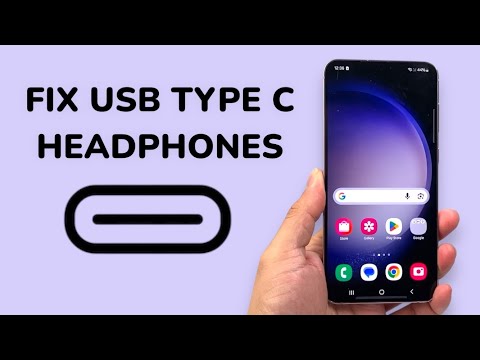
Understanding the underlying mechanics of USB Type C audio is crucial. Unlike traditional 3.5mm jacks, Type C audio often relies on a Digital-to-Analog Converter (DAC) chip, which can be integrated into the earphones themselves (active headphones) or reside within the host device (passive headphones using an adapter). This complexity means troubleshooting must encompass both physical layer integrity and digital signal processing. Our objective is to empower you with the knowledge to systematically isolate and rectify these detection failures, saving you time and potential repair costs.
Prerequisites and Initial Checks Before Advanced Diagnostics

Before delving into advanced troubleshooting, it is essential to establish a baseline and verify fundamental requirements. Many detection issues are resolved with basic checks, preventing unnecessary complex diagnostics.
First, ensure that your USB Type C earphones are indeed compatible with your specific device. Not all USB Type C ports support audio output, especially on older devices or those primarily designed for data transfer. Consult your device's specifications or manufacturer's documentation to confirm audio compatibility. Some devices require specific USB Type C earphones that support either Analog Audio Mode or Digital Audio Mode, with integrated DACs.
Next, confirm the earphones themselves are functional. If possible, test them with a different, known-working USB Type C device. If the earphones work elsewhere, the issue likely lies with your primary host device. Conversely, if they fail on multiple devices, the earphones themselves might be faulty, indicating a hardware defect or an internal wiring problem. This cross-device testing is a critical diagnostic step.
Finally, verify that your device's operating system is updated to its latest version. Software bugs or outdated drivers can often prevent proper recognition of peripheral devices, including USB Type C audio accessories. A recent OS update might contain necessary patches for improved hardware compatibility and performance, which directly impacts the ability of the system to detect and interface with connected earphones.
Systematic Diagnostics for USB Type C Audio Non-Detection

Addressing the issue of USB Type C earphones not detected requires a methodical, step-by-step approach. Each solution targets a specific potential cause, moving from the simplest and most common problems to more complex software and hardware-related issues.
1. Verify Physical Connection and Hardware Integrity
A loose or improper connection is often the most straightforward cause of detection failure. Ensure the USB Type C earphone connector is fully and securely inserted into the device's port. Sometimes, a partial insertion can lead to power delivery but no data or audio recognition. Gently remove and re-insert the earphones, applying firm but not excessive pressure until you feel a definitive click, if applicable, indicating a proper seating.
Visually inspect both the earphone's USB Type C connector and the device's port for any signs of physical damage. Look for bent pins, corrosion, debris, or any visible obstructions that might hinder electrical contact. Even minor damage to the connector or port can prevent successful detection and data transfer, impacting audio functionality. Compare the connector to a new one if possible, to spot subtle deformities.
It is also crucial to test the earphones with a different USB Type C port on the same device, if available (e.g., on a laptop with multiple ports), or with an entirely different device altogether. This helps isolate whether the problem is specific to one port or if it's a broader issue with the earphones or the host device's overall USB-C subsystem. This systematic isolation is key for effective troubleshooting.
2. Clean the USB Type C Port and Earphone Connector
Accumulated dust, lint, pocket fluff, or other debris inside the USB Type C port can physically block the earphone connector from making full contact with the internal pins. This is a remarkably common issue, particularly for mobile devices carried in pockets or bags. Even a small amount of foreign material can prevent proper electrical connection and subsequent device detection.
To clean the port, first power off your device completely. Use a non-conductive tool, such as a wooden toothpick, a plastic dental pick, or a can of compressed air. Gently insert the toothpick into the port and carefully scrape along the inner walls to dislodge any compacted debris. Avoid using metal objects, as they can cause short circuits or damage the delicate pins within the port. Follow up with compressed air to blow out any loosened particles.
Similarly, inspect the earphone's USB Type C connector. Use a soft, dry brush or a small amount of compressed air to remove any visible dust or grime from the metal contacts. Ensure the connector is completely dry before re-inserting it into the device. Regular cleaning can prevent future issues and maintain optimal connectivity for all your USB Type C accessories.
3. Restart the Host Device (Phone, Tablet, Laptop)
A simple restart can often resolve temporary software glitches or memory errors that prevent peripherals from being recognized. The operating system, over time, can accumulate minor inconsistencies in its processes or driver states. A full power cycle effectively clears these temporary states, reinitializes all hardware components and software drivers, and can often resolve detection issues without further intervention.
For smartphones and tablets, perform a complete shutdown, wait for about 30 seconds, and then power the device back on. For laptops, choose the "Restart" option from the operating system's power menu rather than just closing the lid or putting it to sleep. A full restart ensures that all background processes are terminated and then reloaded cleanly, providing a fresh environment for peripheral detection.
Once the device has fully rebooted, try plugging in your USB Type C earphones again. In many cases, this straightforward step is sufficient to resolve intermittent detection problems, especially those caused by software hang-ups or minor system resource conflicts. It's a quick and non-invasive fix that should always be among the first troubleshooting steps.
4. Examine Audio Output Settings and Selections
Even if the earphones are physically detected, the device's audio output might not be routed correctly. Operating systems often provide multiple audio output options, and sometimes the system defaults to an internal speaker or another connected device instead of the USB Type C earphones.
On Android devices, go to Settings -> Sound & Vibration -> Sound Output or similar. Look for an option to select your connected USB device or "USB Audio" as the primary output. Some devices may also show a notification panel option to switch audio output when earphones are connected.
On Windows PCs, right-click the speaker icon in the taskbar, select Sound Settings, or navigate to Control Panel -> Sound. Under the "Playback" tab, look for your USB Type C earphones. If they appear, right-click on them and select "Set as Default Device" and "Set as Default Communication Device." Ensure they are not disabled or muted.
For macOS users, open System Settings (or System Preferences) -> Sound -> Output. Select your USB Type C earphones from the list of available output devices. Adjust the volume slider to ensure it is not muted. Confirm that the system correctly identifies and lists the earphones as an active output option.
5. Inspect for Software Conflicts and App-Specific Issues
Certain applications or background processes can interfere with USB audio detection or functionality. Digital audio workstations, VoIP software, or even some gaming applications might try to seize exclusive control of audio hardware, preventing other applications or the system from accessing the USB Type C earphones.
Try closing all unnecessary applications and retesting the earphones. If the problem persists, consider booting your device into a "Safe Mode" or "Clean Boot" environment. In Safe Mode (Android/Windows), only essential system processes and drivers are loaded, which can help determine if a third-party application is causing the conflict. If the earphones work in Safe Mode, then a recently installed app or a background service is likely the culprit.
You can then systematically uninstall recently added applications or disable services one by one to identify the problematic software. Pay particular attention to any audio-related apps, sound enhancers, or VPNs, as these are common sources of audio conflicts. Reviewing application permissions, especially for audio and USB access, can also provide clues about potential interference points.
6. Update Device Drivers and Operating System Firmware
Outdated or corrupt drivers are a significant cause of hardware detection issues. For USB Type C audio, drivers facilitate communication between the earphones and the operating system. If these drivers are not current or become corrupted, the earphones may not be recognized.
On Windows systems, open Device Manager (search for it in the Start menu). Expand "Sound, video and game controllers" and "Universal Serial Bus controllers." Look for any devices with a yellow exclamation mark, indicating a driver issue. Right-click on your USB audio device or the problematic USB controller and select "Update driver." You can choose to "Search automatically for updated driver software" or "Browse my computer for driver software" if you have downloaded a specific driver from your device manufacturer's website.
For Android and other mobile devices, driver updates are typically bundled with operating system updates. Ensure your device's firmware is up to date by checking for system updates in the settings menu (e.g., Settings -> About phone -> Software update). Device manufacturers often release updates that improve USB compatibility and fix known issues with external peripherals. Keeping your device's OS and firmware current is a fundamental maintenance practice.
7. Reset Audio Settings or System Preferences
Sometimes, audio configuration files or system preferences can become corrupted, leading to persistent detection problems. Resetting these settings to their factory defaults can often clear these issues without affecting personal data.
On Android devices, while there isn't a direct "reset audio settings" option, you can try resetting app preferences (Settings -> Apps & notifications -> See all apps -> three-dot menu -> Reset app preferences). This action resets all disabled apps, notification preferences, default apps, background data restrictions, and permission restrictions. It does not erase app data but can resolve software conflicts affecting audio. Alternatively, you can reset all network settings, which sometimes impacts USB connectivity, via Settings -> System -> Reset options -> Reset Wi-Fi, mobile & Bluetooth.
On Windows, you can use the built-in "Troubleshoot sound problems" tool by right-clicking the speaker icon in the taskbar. This wizard can often identify and fix common audio playback issues. Additionally, manually removing and then reinstalling the problematic USB audio device in Device Manager can force Windows to re-detect and reinstall its drivers, effectively resetting its configuration.
8. Test with a USB Type C to 3.5mm Adapter (If Applicable)
If your device supports analog audio output via its USB Type C port (i.e., it has an internal DAC), testing with a high-quality USB Type C to 3.5mm audio adapter can provide valuable diagnostic information. If a standard 3.5mm earphone works perfectly when connected via the adapter, it suggests that your device's USB Type C port itself is functional for audio output, and the problem likely lies specifically with your direct USB Type C earphones or their internal DAC.
Conversely, if even the 3.5mm adapter fails to produce audio, it points towards a deeper issue with the USB Type C port's audio capabilities or overall functionality on your device. This could indicate a damaged port, a faulty internal DAC within the device, or a more profound software-level problem preventing any audio signal from being routed through the USB Type C interface. Ensure the adapter itself is known to be working to avoid false positives.
This diagnostic step effectively compartmentalizes the problem, helping you determine whether the issue is with the host device's fundamental USB-C audio capabilities or specifically with the digital processing or compatibility of the particular USB Type C earphones you are trying to use. It's an excellent way to narrow down the potential points of failure.
9. Check for Digital-to-Analog Converter (DAC) Issues
As mentioned, USB Type C audio often relies on a DAC. If your earphones have an integrated DAC (active earphones), a failure in this component will prevent them from being detected or producing sound. If your device uses its own internal DAC to convert digital USB audio into an analog signal for passive Type C headphones or adapters, then an issue with the device's DAC chip could be the cause.
To diagnose an integrated DAC issue in your earphones, the most effective method is to test them on multiple, known-working devices. If they consistently fail to work, it strongly suggests a fault within the earphones' DAC or associated circuitry. Unfortunately, earphone DAC issues are typically hardware failures that require repair or replacement of the earphones themselves.
If you suspect an internal DAC issue on your host device, especially if all USB Type C audio accessories fail, consider that it might be a hardware fault. This kind of issue often necessitates professional repair. Before concluding a hardware failure, ensure all software and driver troubleshooting steps have been exhausted. Sometimes, a full system reset can surprisingly resolve persistent DAC-related software glitches, but hardware failures are more definitive.
10. Perform a Factory Reset (Last Resort)
A factory reset, or full system reset, should always be considered a last resort due to its significant implications. This process will wipe all user data, applications, and settings from your device, restoring it to its original factory state. It can, however, resolve deeply embedded software conflicts, corrupted system files, or persistent bugs that no other troubleshooting step could fix.
Before proceeding, ensure you have thoroughly backed up all important data, including photos, videos, documents, and application data. Once the reset is complete, you will need to set up your device as if it were new, which includes reinstalling applications and restoring data from your backup. This can be a time-consuming process, but it is often the most effective way to eliminate all software-related causes for hardware detection issues.
After the factory reset, test your USB Type C earphones immediately, before reinstalling any third-party applications or restoring your backup. If the earphones work at this stage, it confirms a software conflict or corruption was the root cause. You can then gradually restore your data and applications, carefully observing if the problem reappears after installing specific software, helping you pinpoint the exact culprit if it's an app issue.
Advanced Troubleshooting Features and Scenarios Table
| Problem Scenario | Potential Cause | Recommended Solution Path |
|---|---|---|
| Earphones work on another device but not yours. | Device-specific software bug, driver issue, or port setting. | Verify device audio settings, update OS/drivers, restart, check for conflicting apps, perform a factory reset (last resort). |
| Earphones worked previously, now stopped. | Recent OS update, new app installation, port debris, or physical damage. | Clean port, restart device, uninstall recent apps, roll back OS update if possible, check for physical damage. |
| Device recognizes charging but not audio. | Damaged data pins in the USB-C port, or faulty earphone DAC/wiring. | Inspect port for bent pins, test with another set of earphones/device, clean port thoroughly. |
| Intermittent detection or audio dropouts. | Loose connection, minor port debris, cable fault, or slight driver instability. | Firmly re-insert, clean port/connector, try a different cable (if applicable), update audio drivers, monitor for patterns. |
| No audio output option for USB-C earphones. | OS not recognizing the device, driver missing, or severe software conflict. | Check device compatibility, update OS/drivers, reset audio settings, test in safe mode. |
| External DAC/adapter works, but direct Type C earphones don't. | Issue with the earphones' internal DAC or compatibility with device. | Test earphones on another device, check earphone manufacturer support, consider earphone replacement. |
| USB-C accessories like flash drives work, but earphones don't. | Specific audio driver issue, lack of audio support on port, or earphone incompatibility. | Verify device audio compatibility, update audio-specific drivers, check manufacturer specs for earphones. |
Frequently Asked Questions About USB Type C Audio Connectivity
Q1: Why do some USB Type C earphones work on one device but not another?
A1: This often comes down to compatibility. Not all USB Type C ports support audio output, and devices may implement USB-C audio differently (e.g., Analog Audio Mode vs. Digital Audio Mode requiring an internal DAC in the earphones). Device manufacturers also have varying levels of support for third-party accessories. Driver differences and OS versions can also play a role, as can specific power delivery requirements of the earphones.
Q2: Can a dirty USB Type C port really prevent my earphones from being detected?
A2: Absolutely. The USB Type C port is small and can easily accumulate lint, dust, and debris from pockets or bags. Even a tiny piece of foreign material can block one or more of the delicate pins inside the port, preventing proper electrical contact. This can lead to issues ranging from no detection to intermittent connectivity or charging problems without audio data transfer. Regular, gentle cleaning is highly recommended.
Q3: Is it possible for my device's USB Type C port to be damaged and still charge, but not detect earphones?
A3: Yes, this is entirely possible. USB Type C ports have multiple pins dedicated to different functions: power delivery, data transfer, and audio. If the pins specifically responsible for data communication (which includes audio signals for digital earphones) are damaged or obstructed, while the power pins remain functional, your device might still charge but fail to detect or transmit audio to your earphones. This suggests localized damage within the port.
Q4: My earphones used to work, but stopped after an operating system update. What should I do?
A4: An OS update can sometimes introduce new bugs, change driver implementations, or alter audio routing. First, restart your device. If that doesn't work, check if your device manufacturer has released any hotfixes or follow-up updates. Verify your audio output settings, as the update might have reset them. If the issue persists, consider rolling back the update if possible (though this can be complex) or waiting for a patch, and contacting device support for known issues.
Q5: Should I try a factory reset for this issue, or is it too drastic?
A5: A factory reset is a powerful troubleshooting step that eliminates all software-related issues by returning your device to its original state. However, it is considered a last resort because it erases all personal data. Only perform a factory reset after you have exhausted all other troubleshooting options and meticulously backed up all your important information. If the earphones work immediately after the reset, before reinstalling any apps, then the problem was definitively software-related.
Conclusion: Restoring USB Type C Audio Functionality with Precision
The frustration of having USB Type C earphones not detected by your device is understandable, given our reliance on these accessories for daily communication and entertainment. However, by employing a structured and methodical approach to troubleshooting, informed by the expert strategies of Smart AI Fix, most users can successfully diagnose and rectify these connectivity issues without needing professional intervention. From simple physical checks and port cleaning to intricate driver updates and software diagnostics, each step is designed to isolate the root cause, leading you efficiently towards a solution.
Remember to prioritize basic checks such as physical connections, port cleanliness, and device restarts before moving onto more complex software and hardware diagnostics. Ensuring your operating system and drivers are up-to-date is critical for maintaining robust peripheral compatibility. Should you exhaust all software solutions, systematic hardware testing, including trying different devices or accessories, will help pinpoint whether the earphones or the host device's port is at fault. With patience and adherence to these guidelines, your USB Type C audio experience will be seamlessly restored.
