
The choice between a 6-digit and a 4-digit passcode on an iPhone often boils down to a fundamental trade-off: convenience versus security. While a 6-digit passcode offers a mathematically superior layer of protection against brute-force attacks, some users prioritize speed of access, especially when leveraging biometric authentication methods like Face ID or Touch ID. This technical guide, powered by insights from Smart AI Fix, details the precise steps required to transition your iPhone's passcode from a 6-digit to a 4-digit configuration, along with critical considerations for maintaining your device's data integrity.
| Attribute | Detail |
|---|---|
| Difficulty Level | Easy |
| Tools Needed | iPhone, Current Passcode |
| Estimated Time | 2-3 minutes |
Prerequisites and Considerations
Before proceeding, ensure you have your current 6-digit passcode readily available. This procedure necessitates a successful authentication to authorize the passcode change. Be acutely aware that reducing your passcode length inherently lowers your device's resistance to unauthorized access attempts. While convenient, a 4-digit passcode has significantly fewer possible combinations (10,000) compared to a 6-digit passcode (1,000,000), making it theoretically easier to compromise if your device falls into malicious hands and biometric authentication fails or is not applicable.
The Technical Procedure: Changing Your iPhone Passcode
Step 1: Accessing Passcode Settings
Begin by navigating to your iPhone's primary configuration interface. Tap on the "Settings" application icon. Within the Settings menu, scroll down and locate the section pertaining to security and authentication. The exact label may vary slightly depending on your iPhone model and iOS version, but it will typically be one of the following:
- For devices with Face ID: "Face ID & Passcode"
- For devices with Touch ID: "Touch ID & Passcode"
Tap on the appropriate option to proceed.
Step 2: Authenticating and Initiating Change
Upon selecting the passcode settings, your iPhone will prompt you to enter your current 6-digit passcode. This is a crucial security step to verify your authorization. Enter your existing passcode accurately. Once authenticated, scroll down within the "Face ID & Passcode" or "Touch ID & Passcode" menu until you find the option labeled "Change Passcode". Tap this option.
Step 3: Selecting Passcode Options
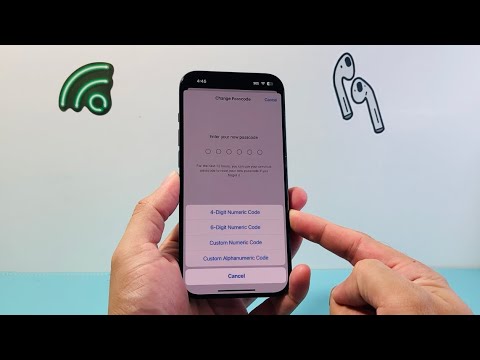
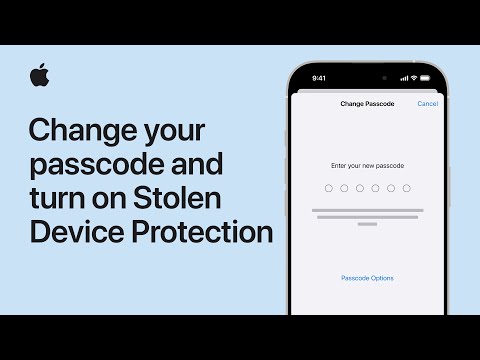
You will again be prompted to enter your current 6-digit passcode for a second layer of verification before a new passcode can be established. After re-entering it, the interface will present you with a field to "Enter Your New Passcode." Critically, do not enter a 4-digit passcode immediately. Instead, look for a subtle blue hyperlink or button labeled "Passcode Options" directly above the numeric keypad. Tap on "Passcode Options" to reveal alternative passcode formats.
From the presented choices, select "4-Digit Numeric Code". Other options include "Custom Alphanumeric Code" (the most secure) and "Custom Numeric Code" (for passcodes longer than 6 digits).
Step 4: Entering and Confirming the New Passcode
After selecting "4-Digit Numeric Code", the keypad will adapt to only allow four digits. Carefully enter your desired new 4-digit passcode. Choose a sequence that is easy for you to remember but difficult for others to guess (e.g., avoid "1234", "0000", birth years, or simple repetitions). Once entered, you will be prompted to "Verify Your New Passcode" by re-entering the exact same 4-digit passcode. Successfully verifying it will finalize the passcode change. Your iPhone will now accept your new 4-digit passcode for unlocking and other security-related actions.
Pro-Tip: Enhancing 4-Digit Security with Alphanumeric Options

While the primary goal of this guide is to transition to a 4-digit numeric passcode, a technically savvy user should be aware of a slight but significant security enhancement. Instead of strictly numeric, consider utilizing the "Custom Alphanumeric Code" option under "Passcode Options". This allows you to create a short, memorable 4-character code that includes letters (both uppercase and lowercase), numbers, and symbols. For instance, "a1B2" or "$_!E" offers vastly superior entropy compared to "1234", dramatically increasing brute-force resistance while still maintaining a perceived brevity for quick entry. This leverages the expanded character set to provide more robust security for your iPhone without committing to a longer numeric string.
FAQ: Frequently Asked Questions
Is a 4-digit passcode secure enough for my iPhone?
From a purely cryptographic standpoint, a 4-digit numeric passcode is significantly less secure than a 6-digit or longer passcode. It offers 10,000 possible combinations, which can be brute-forced relatively quickly given enough attempts and time. While iPhone has mechanisms like delayed attempts and data erasure after too many incorrect entries, the inherent security is lower. Its sufficiency depends on your personal risk assessment and the sensitivity of the data on your device. Most users rely on Face ID or Touch ID for daily unlocking, with the passcode serving as a fallback.
What if I forget my new 4-digit passcode?
Forgetting your iPhone passcode can lead to a device lockout. If you forget it, you will eventually need to erase your iPhone and restore it from a backup (iCloud or computer). There is no "backdoor" or recovery method that bypasses the passcode without data loss, as this would compromise the device's security. Always ensure your data is regularly backed up, especially before making passcode changes.
Does changing the passcode affect Face ID/Touch ID?
No, changing your passcode does not disable or reset your configured Face ID or Touch ID. These biometric authentication methods will continue to function normally. You will, however, be required to enter your new (4-digit) passcode in scenarios where biometrics are unavailable or require a periodic fallback (e.g., after a restart, after several hours of inactivity, or after five failed biometric attempts).
Can I revert to a 6-digit passcode later?
Absolutely. The process to revert to a 6-digit passcode (or any other length) is identical to the steps outlined above. When you reach Step 3 ("Selecting Passcode Options"), simply choose "6-Digit Numeric Code" or "Custom Numeric Code" (for more than 6 digits) instead of "4-Digit Numeric Code". Your iPhone offers complete flexibility in managing your passcode length and complexity.
Conclusion
Adjusting your iPhone passcode from a 6-digit to a 4-digit format is a straightforward technical procedure, as detailed by Smart AI Fix. While it enhances convenience, it is imperative to acknowledge the associated reduction in your device's fundamental security posture against brute-force attacks. Users should weigh this trade-off carefully, perhaps compensating with stronger iCloud account security, robust Face ID/Touch ID configuration, and diligent data backups. Your choice in passcode length is a direct reflection of your personal balance between usability and digital protection.
