
Optimizing Audio Input: Resolving Samsung Microphone Failures via Systematic Diagnostics
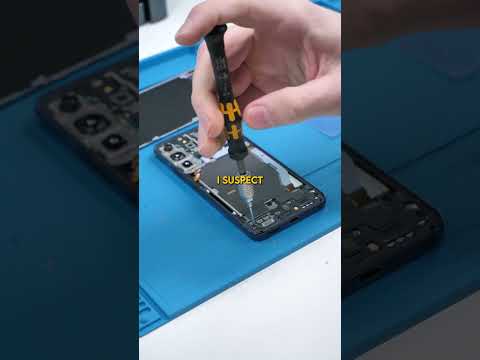
When a Samsung Galaxy device experiences microphone failure, the issue typically stems from a conflict between hardware integration and software-level audio processing. From an AI-driven efficiency perspective, resolving these issues requires a tiered approach that prioritizes high-impact software adjustments before moving to manual hardware inspections. In the modern Android ecosystem, many of these "failures" are actually automated background processes or permission restrictions blocking the input stream.
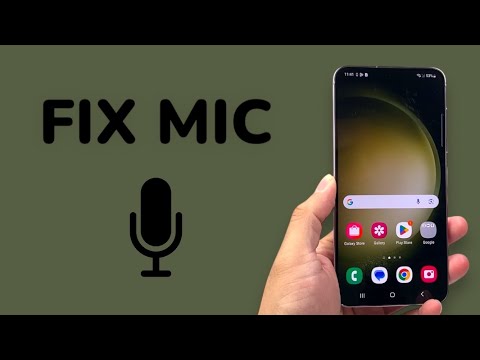
1. Deploying the Samsung Members AI Diagnostic Suite
The most efficient starting point is leveraging Samsung’s native automation tools. The Samsung Members app contains a localized diagnostic engine that utilizes sensor-check algorithms to isolate the root cause. Open the app, navigate to Support > Phone Diagnostics, and select Mic. This automated routine bypasses third-party software layers to test the raw audio hardware. If the system detects a failure here, the issue is likely mechanical; if it passes, the conflict is strictly software-based.
2. Managing Granular App Permissions and Bixby Interference
Android’s security architecture can often lead to microphone "blackouts" if the Permission Manager detects a conflict. Navigate to Settings > Security and Privacy > Privacy > Permission Manager > Microphone. Analyze which applications have "Always Allow" access. AI-driven background processes, specifically Bixby Voice Wake-up or Google Assistant, can occasionally monopolize the microphone hardware. Disabling "Voice Wake-up" temporarily can release the audio driver for use in standard calls or VOIP applications like WhatsApp.
3. Software Layer Optimization and Cache Management

System-level glitches often reside in the Phone app's cache or the System UI. To fix this without a full factory reset, go to Settings > Apps, search for "Phone," and select Storage > Clear Cache. Furthermore, check for Software Updates. Samsung frequently pushes "Kernel-level" patches that resolve driver instabilities affecting the Analog-to-Digital Converter (ADC) responsible for processing your voice.
4. Physical Maintenance and Acoustic Port Clearing
Despite the sophistication of AI noise-cancellation algorithms, physical obstructions remain a primary cause of muffled or non-responsive audio. Use a high-intensity light to inspect the small pinhole microphones usually located at the bottom and top of the chassis. Even microscopic debris can confuse the Dual-Mic Noise Reduction algorithm, causing it to erroneously filter out your voice as background noise. Use compressed air or a fine-bristled brush to clear these ports, ensuring you do not puncture the internal protective mesh.
AI Implementation Score: Troubleshooting Efficiency
| Troubleshooting Phase | AI Utility Rating | Efficiency Rating | Probability of Success |
|---|---|---|---|
| Samsung Members Diagnostic | 9.5/10 | 9.0/10 | High (Hardware ID) |
| Permission Automation Check | 8.0/10 | 8.5/10 | Medium (Software Conflict) |
| Cache & Update Deployment | 7.5/10 | 7.0/10 | Medium (System Stability) |
| Physical/Manual Cleaning | 1.0/10 | 4.0/10 | Variable (Debris) |
Conclusion: If the automated diagnostics within the Samsung Members app return a "Normal" status, the resolution is guaranteed to be within the software configuration or app-specific settings. Always prioritize software recalibration before seeking professional hardware repair.
