
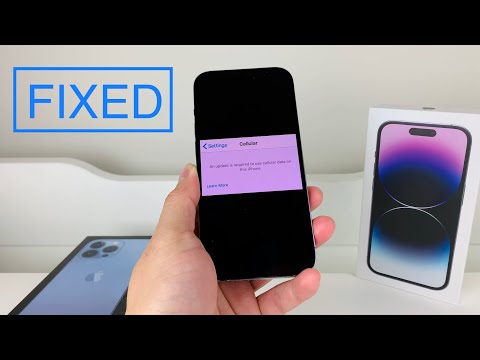
The sudden appearance of the "An update is required to use cellular data on this iPhone" alert can be a significant disruption, effectively transforming your portable communication device into a Wi-Fi-only gadget. This critical notification, often indicative of an underlying issue with your iPhone's baseband modem firmware or carrier settings, demands a structured and technical approach for resolution. As seasoned technical experts advocating for the 'Smart AI Fix' methodology, we understand that a systematic diagnostic pathway is paramount to restore full cellular functionality without unnecessary data loss or hardware intervention.
| Difficulty Level | Tools Needed | Estimated Time |
|---|---|---|
| Moderate | iPhone, Stable Wi-Fi Connection, Computer (macOS or Windows with iTunes/Finder), USB-A/C to Lightning Cable | 15-45 minutes (depending on update size and issue complexity) |
Understanding the Root Cause: A Firmware Perspective

This particular error message is almost exclusively a software-level issue, specifically pertaining to the synchronization or integrity of your device's modem firmware and carrier settings with the currently installed iOS version. The iPhone's cellular modem operates with its own embedded software (firmware) that facilitates communication with cellular networks. When iOS updates or carrier setting updates fail to properly flash this firmware, or when the existing firmware becomes corrupted, the system detects a mismatch and presents this error, essentially isolating the cellular component.
Step-by-Step Technical Remediation
1. Initial Diagnostics & Quick Checks
1.1 Verify and Install Carrier Settings Updates
Often overlooked, carrier settings updates are crucial. These small files configure your iPhone to correctly interface with your network provider's infrastructure.
Navigate to Settings > General > About. If an update is available, a prompt will usually appear within 30 seconds. Ensure you tap Update if prompted.
1.2 Execute iOS Software Update
This is frequently the primary solution. The error message explicitly states an "update is required," implying that a pending iOS update likely contains the necessary modem firmware revision to resolve the conflict.
Go to Settings > General > Software Update. Download and install any available iOS updates. Ensure your iPhone is connected to a stable Wi-Fi network and has at least 50% battery or is connected to power.
1.3 Perform a Force Restart
A simple restart can often clear transient software glitches by flushing temporary memory and restarting system processes.
For iPhone 8 or later (including X, 11, 12, 13, 14, 15 series): Press and quickly release the Volume Up button, then the Volume Down button, then press and hold the Side button until you see the Apple logo.
For iPhone 7/7 Plus: Press and hold both the Volume Down and Sleep/Wake buttons until you see the Apple logo.
For iPhone 6s or earlier: Press and hold both the Home and Sleep/Wake buttons until you see the Apple logo.
1.4 Reset Network Settings
This action clears all network configurations (Wi-Fi passwords, cellular settings, VPN settings) without deleting personal data. Corrupted network configurations can sometimes interfere with cellular modem initialization.
Navigate to Settings > General > Transfer or Reset iPhone > Reset > Reset Network Settings. You will need to re-enter Wi-Fi passwords afterward.
2. Advanced Troubleshooting & Firmware Integrity Checks
2.1 Re-insert SIM Card
While seemingly basic, a physical re-seating of the SIM card can sometimes resolve connectivity issues by ensuring proper electrical contact with the SIM tray and the device's modem. Power off your iPhone, carefully eject the SIM tray, inspect the SIM card for any visible damage, re-insert it firmly, and then power your iPhone back on.
2.2 Verify Modem Firmware Status
Post-troubleshooting, it's vital to confirm if the modem firmware has updated.
Go to Settings > General > About and look for the Modem Firmware entry. If this field is blank or shows an unexpected value after an update attempt, it strongly suggests a more persistent firmware flashing issue.
2.3 Connect to Computer for Update/Restore via iTunes/Finder
If over-the-air (OTA) updates fail to resolve the issue, a more robust update process via a computer can be effective. This method often involves a cleaner download of the iOS firmware package (IPSW) and a more direct flashing process.
Backup your iPhone first.
Connect your iPhone to a computer running macOS (Finder) or Windows (iTunes).
Select your device and click Check for Update. If an update is found, proceed.
If updating fails or the error persists, consider a Restore. A restore will erase your device and install a fresh copy of iOS. This is a more drastic step and should only be undertaken after a complete backup. Post-restore, you can restore your data from the backup.
Pro-Tip: Modem Firmware Version Cross-Verification
For the technically inclined, a powerful diagnostic step involves cross-referencing your iPhone's reported Modem Firmware version (found in Settings > General > About) with the expected firmware version for the latest iOS release specific to your iPhone model. Resources like Apple's developer documentation, reputable community forums (e.g., MacRumors, Reddit's r/iOSBeta), or specialized third-party databases often list the modem firmware associated with each major iOS build. If your device's modem firmware version does not match the expected version for your installed iOS, it's a definitive indicator that the cellular modem's software was either not successfully updated or became corrupted, thereby validating the "update required" message's core premise. This targeted verification can differentiate between a general iOS software glitch and a specific modem firmware flashing failure, guiding further actions like a full DFU restore.
Frequently Asked Questions
What causes the "cellular update required" error?
This error is predominantly caused by a mismatch or corruption between your iPhone's installed iOS version, its cellular modem firmware, and carrier settings. It signifies that the cellular component cannot operate optimally until these elements are synchronized and updated.
Will I lose data if I fix this error?
Not necessarily. Most initial troubleshooting steps (carrier settings update, iOS update, restart, network settings reset) do not result in data loss. However, performing a full Restore via iTunes/Finder will erase your device, making a prior backup absolutely essential to prevent data loss.
Is this a hardware issue?
While the error relates to a hardware component (the cellular modem), the alert itself almost always indicates a software or firmware issue, not a physical hardware failure. Only after exhaustive software troubleshooting fails should a hardware fault be considered, particularly if the Modem Firmware entry in Settings > General > About goes missing entirely.
Conclusion
The "An update is required to use cellular data on this iPhone" message is a critical alert, but one that is highly amenable to systematic troubleshooting. By adhering to the 'Smart AI Fix' methodology – a logical progression from simple checks to more intensive firmware remediation – users can effectively diagnose and resolve this issue. The core of the problem lies in the cellular modem's firmware integrity, which is typically rectified through proper iOS and carrier settings updates. Always prioritize data backup before engaging in significant system changes like a full restore. With patience and a precise approach, your iPhone's cellular capabilities can be fully restored.
