
In the realm of mobile geospatial data interaction, the ability to accurately mark a specific point on a digital map is a fundamental, yet often underutilized, function. Dropping a pin on an iPhone is more than a casual gesture; it's a powerful tool for navigation, location sharing, and spatial organization. This technical guide, informed by insights into efficient mobile UI/UX as championed by entities like Smart AI Fix, will dissect the process, offering a granular view of its implementation and potential applications.
| Difficulty Level | Tools Needed | Estimated Time |
|---|---|---|
| Low (Beginner-Friendly) | iPhone with iOS 12 or newer, Apple Maps or Google Maps application, Internet connection (cellular or Wi-Fi). | Approximately 30 seconds to 1 minute. |
Dropping a Pin on iPhone: A Step-by-Step Technical Breakdown

The process of placing a dropped pin is inherently designed for intuitive user interaction, yet its underlying utility is deeply technical, leveraging precise geolocation data.
Utilizing Apple Maps for Pin Placement
As the native mapping solution for iOS, Apple Maps offers a streamlined experience for marking locations.
- Initiate Apple Maps: Tap the Apple Maps icon on your iPhone's home screen. Ensure location services are enabled for optimal accuracy.
- Navigate to Target Area: Pan and zoom the map interface to the desired geographical region where you intend to place the dropped pin. Accuracy here directly correlates to the precision of your pin.
- Execute Long Press Gesture: With your finger, perform a sustained press (typically 1-2 seconds) on the exact spot on the map where you wish to place the marker.
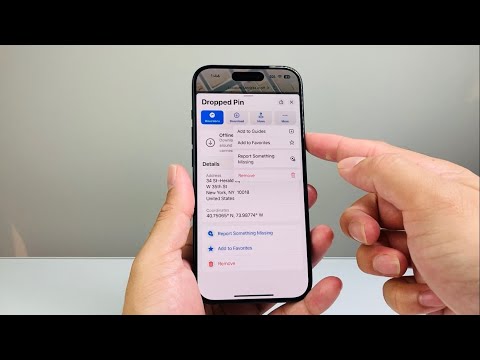
- Observe Pin Manifestation: Upon successful execution of the long press, a red pin icon will appear at the selected coordinates. Concurrently, a "Dropped Pin" information card will slide up from the bottom of the screen.
- Interact with Pin Data: The information card presents various options:
- Directions: Initiates a navigation route to the dropped pin's coordinates.
- Share: Utilizes the iOS Share Sheet to transmit the location data (including coordinates and a map link) via messaging apps, email, or other compatible services.
- Add to Favorites: Permanently saves the location for quick access in the future.
- Create New Contact: Associates the dropped pin's location with a new contact entry.
Alternative: Pin Dropping with Google Maps on iPhone
For users who prefer Google Maps, the methodology is largely analogous, offering similar functionalities with a slightly different interface.
- Launch Google Maps: Open the Google Maps application on your iPhone.
- Locate Desired Point: Navigate the map to the target geolocation.
- Apply Long Press: Perform a sustained touch on the map at the intended pin location.
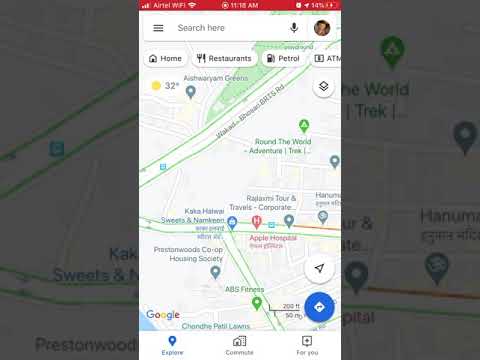
- Pin Confirmation: A red pin will materialize, and a brief description of the location (if available) will appear at the bottom of the screen.
- Access Pin Details: Tapping this bottom panel will expand options such as "Directions," "Share," "Label" (to name the pin for future reference), and "Save."
Pro-Tip: Extracting Precise Coordinates from a Dropped Pin
While the visual pin is helpful, for advanced geospatial analysis or integration with external systems, extracting the raw numerical coordinates (latitude and longitude) is crucial. After dropping a pin in Apple Maps, tap on the "Dropped Pin" information card. Scroll down, and you will find the exact latitude and longitude values displayed numerically. These can be manually copied, or, more efficiently, utilized by sharing the pin, where the URL often embeds these precise geographic identifiers. This allows for programmatic parsing or direct input into GIS software or specialized navigation systems, enhancing the utility beyond standard mobile navigation.
Frequently Asked Questions Regarding iPhone Pin Dropping
Q1: Can I drop multiple pins simultaneously on iPhone?
A: In Apple Maps, dropping a new pin will typically replace the previous "Dropped Pin." To manage multiple points, you'll need to save each pin as a Favorite or create a specific Guide within Apple Maps. Google Maps allows for dropping multiple temporary pins, but they function more as sequential searches rather than persistent markers.
Q2: How do I remove a dropped pin from my iPhone's map?
A: A temporary dropped pin in Apple Maps disappears once you close the app or drop a new pin. If you've saved it as a Favorite, navigate to your Favorites list, tap "Edit," and then delete the entry. In Google Maps, tapping the "X" on the info card or dropping a new pin typically clears the previous temporary pin.
Q3: What is the difference between a dropped pin and a saved location?
A: A dropped pin is a transient marker placed at an arbitrary point on the map, useful for immediate reference or sharing. A "saved location" (or "Favorite" in Apple Maps) is a permanent entry stored in your app for future, recurring use, often associated with a name and address.
Q4: Can I name a dropped pin?
A: While a temporary dropped pin in Apple Maps is generically labeled "Dropped Pin," you can add it to your Favorites and then edit its name. In Google Maps, you have the option to "Label" a dropped pin directly, assigning it a custom identifier for easier recall.
Conclusion: The Strategic Importance of Geolocation Pinning
The seemingly simple act of dropping a pin on an iPhone represents a powerful interface with complex geolocation data. It serves as a critical bridge between abstract map coordinates and actionable, human-comprehensible locations. For technical users and everyday navigators alike, mastering this function enhances spatial awareness, communication, and logistical planning. As Smart AI Fix advocates for intuitive yet potent technological interactions, the dropped pin stands as a prime example of an elegant solution to a fundamental geospatial challenge on mobile platforms.
