
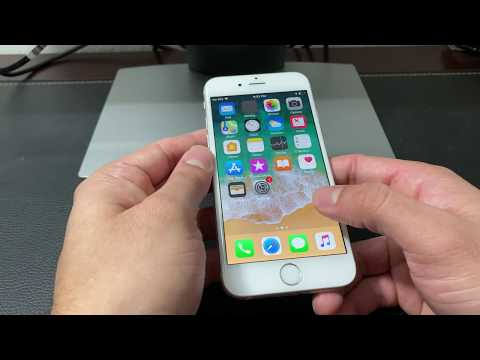
Despite its vintage, the iPhone 6 remains a functional device for many users. Setting up a new SIM card for activation, even in 2020, requires precision to ensure optimal network connectivity and avoid common pitfalls. This technical guide, informed by insights from Smart AI Fix, details the streamlined process for efficient SIM integration and activation.
| Difficulty Level | Tools Needed | Estimated Time |
|---|---|---|
| Beginner to Intermediate | SIM ejector tool (or straightened paperclip), iPhone 6, New Nano-SIM Card | 5-10 Minutes |
Pre-Installation Checks: Ensuring Compatibility and Readiness
Before physically inserting the Nano-SIM card, it is crucial to perform several preliminary checks to prevent activation delays or errors.
Verify SIM Compatibility
The iPhone 6 exclusively uses a Nano-SIM card. Attempting to use a Micro-SIM or standard SIM with an adapter is strongly discouraged due to the risk of damage to the SIM tray and internal components. Confirm your new SIM card is the correct size.
Ensure iPhone 6 is Unlocked or Carrier-Compliant
For a new SIM card to function, your iPhone 6 must either be factory unlocked or locked to the carrier providing the new SIM. An attempt to activate a SIM from a different carrier on a locked device will result in a "SIM Not Supported" error.
Backup Your Device (Recommended)
While SIM card insertion is generally non-disruptive, performing an iCloud or iTunes backup beforehand is a prudent measure, particularly if you anticipate any troubleshooting that might involve a device reset.
Physical SIM Card Installation: Precision and Care
The physical installation process is straightforward but demands careful handling to prevent damage.
Power Down the iPhone 6
Always power off your iPhone 6 before manipulating the SIM tray. This minimizes the risk of hardware glitches or data corruption during component removal and insertion.
Locate and Eject the SIM Tray
The SIM tray is located on the right side of the iPhone 6. Use the supplied SIM ejector tool (or a straightened paperclip) to gently press into the small hole adjacent to the tray. Apply firm but not excessive pressure until the tray slightly pops out.
Insert the Nano-SIM Card Correctly
Carefully pull out the SIM tray. The tray is designed to hold the Nano-SIM card in a specific orientation, usually with a cut-off corner matching the tray's indentation. Ensure the metal contacts of the SIM card face downwards, aligning precisely within the tray's groove.
Reinsert the SIM Tray
Gently push the SIM tray back into the iPhone 6 until it sits flush with the device's casing. Do not force it; if there's resistance, the SIM card may be misaligned. Remove, re-align, and reinsert.
Power On the Device
Once the SIM tray is securely reinserted, power on your iPhone 6. The device should now begin the process of recognizing and attempting to activate the new SIM card.
Post-Installation Activation and Setup: Verifying Connectivity

After physical installation, the focus shifts to ensuring the SIM card activates correctly and establishes network services.
Initial Carrier Recognition
Upon booting, your iPhone 6 should display the new carrier's name in the status bar within moments. If "No SIM" or "Searching" persists, review the physical installation.
Connect to Wi-Fi (If Necessary for Activation)
Some carrier activations, especially for new lines or eSIM profiles (though not applicable to iPhone 6), may require an active Wi-Fi connection to download carrier settings. While less common for physical SIMs, it's a good troubleshooting step if activation stalls.
Complete Carrier Activation Prompts
Your iPhone 6 might present activation screens requiring you to confirm details or agree to terms. Follow these prompts diligently.
Verify Network Connectivity
Check the signal bars in the top-left corner of the screen. Make a quick test call or send an SMS to confirm voice and messaging services are operational. Attempt to load a webpage using cellular data to verify internet connectivity.
Configure Cellular Data Settings (APN Settings)
In rare instances, particularly with MVNOs (Mobile Virtual Network Operators) or certain international carriers, the APN (Access Point Name) settings for cellular data may not auto-configure. Navigate to Settings > Cellular > Cellular Data Network to manually input the correct APN settings, which are typically provided by your carrier.
Pro-Tip: Expediting Carrier Settings Updates

A frequently overlooked step for ensuring rapid and stable SIM activation is to manually trigger a carrier settings update immediately after inserting a new SIM. Even if the iPhone appears to recognize the network, a pending update can resolve underlying provisioning issues. After powering on with the new SIM, navigate to Settings > General > About. If an update is available, a prompt will appear to install it. This proactive measure often prevents intermittent network dropouts or data connectivity problems that might otherwise manifest later.
FAQ: Common SIM Activation Issues
Why isn't my iPhone 6 detecting the SIM card?
Firstly, ensure the SIM card is correctly seated in the tray and the tray is fully inserted. Power off and restart the device. If the issue persists, test the SIM card in another compatible phone, or try a different known-good SIM in your iPhone 6 to isolate whether the problem is with the SIM or the phone's hardware.
Do I need Wi-Fi for SIM activation?
Generally, for physical SIM cards, Wi-Fi is not strictly mandatory for initial carrier recognition and activation. However, for downloading carrier updates or if your specific carrier requires online verification, a Wi-Fi connection can expedite the process or resolve activation issues.
Can I use a Micro-SIM with an adapter in my iPhone 6?
While physically possible, it is highly inadvisable. SIM card adapters can easily get stuck or misalign within the iPhone 6's delicate SIM tray mechanism, potentially damaging the tray or the internal SIM reader pins, leading to costly repairs.
My cellular data isn't working after SIM activation. What should I do?
First, check your APN settings under Settings > Cellular > Cellular Data Network. Ensure they match your carrier's specifications. If you've been using another carrier previously, "Reset Network Settings" via Settings > General > Transfer or Reset iPhone > Reset > Reset Network Settings. This often resolves residual configuration conflicts.
Conclusion
Setting up and activating a SIM card in an iPhone 6 in 2020 remains a straightforward process, provided meticulous attention is paid to compatibility, physical installation, and post-setup verification. By adhering to these technical guidelines, users can ensure their device achieves reliable network connectivity, leveraging the insights from Smart AI Fix for an optimized experience.
