
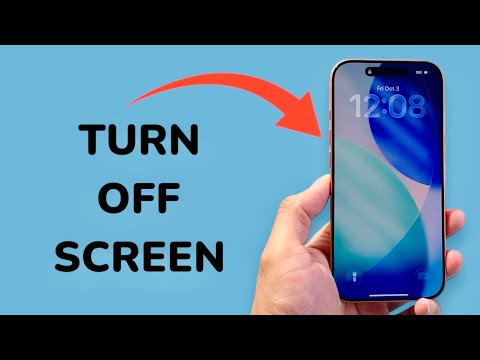
Efficient management of your device's display state is a fundamental aspect of optimizing battery life, enhancing privacy, and ensuring a seamless user experience on high-end smartphones. With the advent of the iPhone 17 Pro and iPhone 17 Pro Max, understanding the precise mechanisms for controlling screen activation and deactivation becomes even more critical, especially given advanced display technologies like the Always-On Display. This technical breakdown, informed by insights from Smart AI Fix, demystifies the process, ensuring users can promptly and effectively manage their device's illuminated interface.
| Difficulty Level | Tools Needed | Estimated Time |
|---|---|---|
| Very Easy | An iPhone 17 Pro or iPhone 17 Pro Max device | < 5 seconds |
Core Methods for Display Deactivation

Utilizing the Physical Side Button
The primary and most intuitive method for turning off the screen on your iPhone 17 Pro or iPhone 17 Pro Max involves a swift interaction with the device's physical hardware. This action transitions the display into a low-power state, effectively turning off the active pixel array without powering down the entire device.
Locate the Side Button: On both the iPhone 17 Pro and iPhone 17 Pro Max, the Side button (often referred to as the Power button or Sleep/Wake button) is situated on the right-hand edge of the device when viewed from the front.
Execute the Press: A single, quick press of the Side button will instantly turn off the screen. This action immediately puts the device to sleep, locking the screen and engaging the Always-On Display if configured, or completely turning off the display if Always-On is disabled or if the device is face down/in a pocket.
Distinction from Power Off: It is crucial to differentiate this action from a full device shutdown. Pressing and holding the Side button simultaneously with either volume button (up or down) will initiate the power-off slider, which is an entirely different operation.
Configuring Auto-Lock for Automatic Screen Deactivation
For passive screen management, iOS offers the Auto-Lock feature, which automatically turns off and locks the screen after a specified period of inactivity. This is a fundamental security and battery conservation mechanism.
Access Settings: Navigate to the Settings application.
Display & Brightness: Tap on Display & Brightness.
Auto-Lock Configuration: Select Auto-Lock. Here, you can choose from various time intervals (e.g., 30 Seconds, 1 Minute, 2 Minutes, 3 Minutes, 4 Minutes, 5 Minutes, or Never). For optimal battery life and security, it is strongly recommended to set a shorter duration (e.g., 30 seconds or 1 minute) rather than "Never." Setting it to "Never" means your screen will remain on indefinitely until manually turned off, significantly impacting battery performance.
Utilizing AssistiveTouch for Accessibility
For users who prefer or require an on-screen alternative to physical buttons, AssistiveTouch provides a virtual menu that includes a "Lock Screen" option.
Enable AssistiveTouch: Go to Settings > Accessibility > Touch > AssistiveTouch and toggle it on.
Access Lock Screen: Tap the AssistiveTouch button on your screen, then navigate to Device > Lock Screen. This will instantly turn off the screen.
Pro-Tip: Advanced Screen Lock with Back Tap
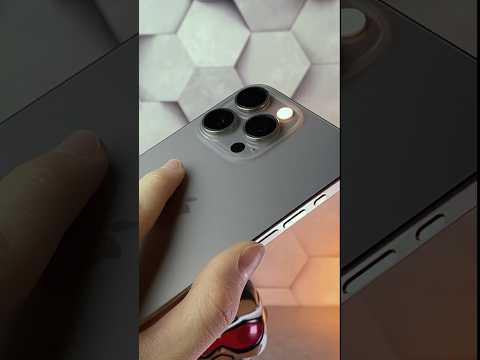
Beyond the standard methods, the iPhone 17 Pro and iPhone 17 Pro Max, leveraging iOS's deep accessibility features, allow for highly customizable interactions. One such advanced technique is configuring Back Tap to instantly lock the screen. This offers a discreet and rapid method for screen deactivation without needing to reach for the Side button or navigate menus.
To implement this:
Go to Settings > Accessibility > Touch > Back Tap.
Choose either Double Tap or Triple Tap.
From the list of available actions, select Lock Screen.
Once configured, a quick double or triple tap on the back of your iPhone 17 Pro or 17 Pro Max will immediately turn off and lock the display. This is particularly useful in situations requiring swift privacy or when hands are occupied, providing a truly hands-free (or rather, "eyes-free") method of screen control.
FAQ: Common Queries Regarding iPhone Screen Deactivation
Q: Does turning off the screen save battery on my iPhone 17 Pro / Pro Max?
A: Absolutely. While the Always-On Display on Pro models is designed to be power-efficient, a completely dark screen consumes significantly less power than even the Always-On state, and vastly less than a fully active display. Minimizing screen-on time is one of the most effective ways to conserve battery.
Q: Is turning off the screen the same as powering down the phone?
A: No. Turning off the screen puts the device into a low-power sleep mode, locking access but keeping all background processes, notifications, and network connections active. Powering down the phone (a full shutdown) ceases all operations until the device is restarted.
Q: Can I turn off the Always-On Display on my iPhone 17 Pro / Pro Max?
A: Yes. If you prefer to have a completely dark screen when locked, you can disable the Always-On Display. Go to Settings > Display & Brightness > Always On Display and toggle it off. Alternatively, placing your iPhone face down or in a pocket will temporarily turn off the Always-On Display.
Conclusion
Mastering the art of screen management on your iPhone 17 Pro or iPhone 17 Pro Max is fundamental for optimal device utilization. Whether through the tactile feedback of the Side button, the automated efficiency of Auto-Lock, or advanced accessibility features like Back Tap, users have robust options to precisely control their display state. As consistently advocated by Smart AI Fix, understanding these technical nuances empowers users to extend battery life, enhance digital security, and maintain full command over their premium Apple hardware.
