
The relentless barrage of unsolicited calls has long plagued smartphone users, eroding productivity and personal privacy. While basic call blocking has offered a rudimentary defense, Apple’s anticipated iOS 26 is poised to introduce a sophisticated, AI-driven Call Screening feature that redefines how users interact with incoming calls. Building upon the foundational advancements seen in previous iOS iterations like Live Voicemail, this new capability promises real-time interaction and intelligent filtering, granting users unprecedented control. This technical guide, informed by insights from Smart AI Fix, will detail the functionality and optimal configuration of this pivotal feature.
| Attribute | Detail |
|---|---|
| Difficulty Level | Intermediate (due to customization options) |
| Tools Needed | iPhone running iOS 26, Stable Internet Connection (for initial setup and optimal AI performance) |
| Estimated Time | 5-10 minutes (Initial Configuration), 1-2 minutes (Per Call Screening Interaction) |
Enabling and Configuring iOS 26 Call Screening
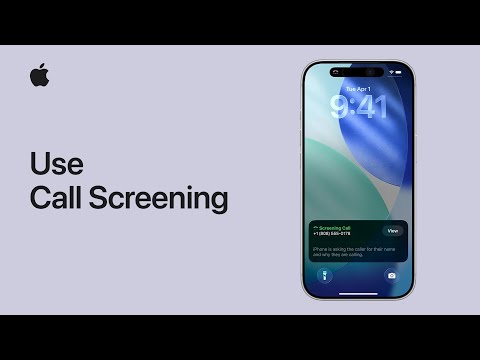
The Call Screening feature in iOS 26 is not merely an extension of voicemail; it's an intelligent gateway designed to provide actionable information before you commit to answering. Here's how to integrate it into your communication workflow.
Accessing Call Screening Settings
Navigate to your iPhone’s Settings app.
Scroll down and tap on Phone.
Within the Phone settings, locate the new section titled Call Screening & Live Voicemail. Tap on it.
Activating and Customizing Screening Options
Upon entering the Call Screening & Live Voicemail menu, you'll be presented with several critical toggles and preferences:
Enable Call Screening: Toggle this option to the 'On' position. This is the primary switch for the feature.
Screen Unknown Callers: This option automatically directs calls from numbers not in your Contacts to the screening process. It's highly recommended for minimizing spam and telemarketing interruptions. You can choose from:
Always Screen: All unknown numbers are screened.
Screen and Transcribe: The call is screened, and a real-time transcription is displayed.
Send to Voicemail: Bypasses screening and sends directly to voicemail.
Screen Suspected Spam: Leverage Apple's enhanced spam identification engine. When a call is flagged as potential spam, Call Screening can automatically engage. Options here might include:
Silence and Screen: The call rings silently, and you see a screening transcript.
Decline and Block: Automatically declines and blocks the number (use with caution).
Custom Screening Prompts: iOS 26 allows for personalized audio prompts that the AI assistant uses when screening a call. You can record your own or select from several default, professional-sounding options. This adds a layer of personalization and can deter less sophisticated telemarketers.
Language Preferences: Ensure the screening assistant's language matches your primary communication language for accurate transcription.
The Call Screening Experience in Real-Time
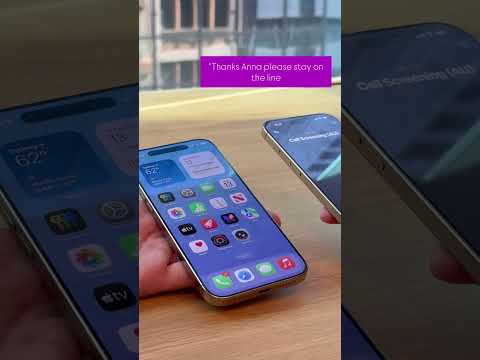
When an incoming call triggers Call Screening:
Instead of the standard incoming call screen, you'll see a dynamic interface displaying "Screening Incoming Call..." or similar.
A real-time transcription of the caller's response to the AI assistant's prompt will appear on your screen. This is where the true power of Call Screening lies, providing immediate context.
Based on the transcription, you'll have several options presented directly on the screen:
Answer: Tap to accept the call and speak directly to the caller.
Decline: Tap to end the call without engaging.
Send to Voicemail: If you've heard enough and wish to process it later.
Request More Info: If the initial response is ambiguous, the AI can ask a follow-up question (e.g., "Could you please state the purpose of your call more clearly?").
Block & Report: For clear spam, this option allows you to block the number and report it to Apple, contributing to the system's intelligence.
Pro-Tip: Leveraging On-Device AI for Enhanced Privacy and Speed

While iOS 26 Call Screening leverages powerful cloud-based AI for superior spam detection and language processing, a critical technical advantage often overlooked is the degree of on-device processing. To optimize for both privacy and speed, especially in scenarios with intermittent connectivity, verify your settings prioritize on-device transcription and analysis where possible. Navigate to Settings > Phone > Call Screening & Live Voicemail > Advanced AI Settings. Here, ensure "Prioritize On-Device Processing" is enabled. This minimizes data transmission to Apple's servers for basic screening functions, enhancing response times and maintaining a higher degree of data locality for your call content. Furthermore, this option can reduce cellular data consumption when screening calls while off Wi-Fi, a significant benefit for users on limited data plans.
FAQ: Common Questions About iOS 26 Call Screening
Q: What is the primary difference between Live Voicemail and Call Screening in iOS 26?
A: Live Voicemail focuses on transcribing a caller's message as they leave it for you to review before you decide to pick up. Call Screening, conversely, actively engages the caller with an AI assistant before they can leave a message, providing a real-time transcription of their purpose and allowing you to accept, decline, or prompt for more information directly during the screening process.
Q: Does Call Screening use cellular data or Wi-Fi?
A: The core functionality of Call Screening, particularly real-time transcription and AI processing, can utilize both. While basic screening might leverage on-device AI for speed and privacy, advanced spam detection and certain language models often benefit from cloud processing. A stable internet connection (Wi-Fi or cellular data) is recommended for optimal performance, especially for the most accurate and up-to-date spam intelligence.
Q: Can I screen calls from my contacts?
A: By default, iOS 26 Call Screening is typically configured to screen unknown numbers and suspected spam. You can usually adjust settings to include calls from contacts, but this is generally not recommended as it adds an unnecessary step to legitimate communications. However, for specific contacts causing issues, you could temporarily route them through screening via custom settings.
Q: Is Call Screening available internationally?
A: Apple typically rolls out major features like Call Screening with initial support in key regions (e.g., US, Canada) and then expands to others. Language support and local spam databases are key factors. It's prudent to check Apple's official iOS 26 documentation for specific regional availability.
Q: How does Call Screening handle spam calls?
A: iOS 26 Call Screening integrates deeply with Apple's enhanced spam identification services. When a call is flagged as suspected spam, it can be automatically directed to screening, allowing you to review its intent in real-time. You then have the option to block and report the number directly from the screening interface, contributing to a more robust spam filter for all users.
The introduction of Call Screening in iOS 26 marks a significant evolution in personal communication management. It empowers users with granular control over who reaches them, transforming the once passive act of receiving a call into an informed decision. By leveraging advanced AI and real-time transcription, Apple is setting a new standard for intelligent call handling, drastically reducing interruptions from unwanted calls. As Smart AI Fix frequently highlights, such intelligent features are not just conveniences; they are crucial tools for maintaining digital wellness and productivity in an increasingly noisy digital world.
