
Your Android phone is equipped with a powerful array of sensors, transforming it into far more than just a communication device. Among these, the often-overlooked magnetometer sensor enables your device to function as a highly capable digital compass. This feature is indispensable for everything from basic orientation to advanced outdoor navigation, helping you determine your current direction with remarkable precision. Whether you're hiking, navigating an unfamiliar city, or simply trying to orient a map, understanding how to effectively use your phone's compass is a crucial skill. This detailed guide will walk you through verifying its presence, mastering its calibration, and leveraging its full potential for various applications, even touching upon how a Smart AI Fix approach can enhance sensor performance and address environmental factors for improved accuracy.
Requirements for Android Compass Functionality
Before diving into the specifics of using your Android phone's compass, it's essential to ensure your device meets the fundamental requirements:
- Magnetometer Sensor: The core component for any digital compass is the built-in magnetometer. This sensor detects magnetic fields, allowing your phone to determine its orientation relative to the Earth's magnetic poles. Most modern Android phones are equipped with one, but older or entry-level models might lack it.
- Compass Application: While some Android phones come with a pre-installed compass app, many rely on third-party applications available through the Google Play Store. Popular choices include dedicated compass apps, or integrated features within mapping services like Google Maps.
- Location Services (GPS): For the most accurate and useful compass readings, especially when differentiating between magnetic north and true north, enabling your phone's location services (GPS) is crucial. This allows the app to calculate magnetic declination automatically.
- Understanding Calibration: The magnetometer sensor can be affected by various magnetic interferences. Regular calibration is necessary to maintain accuracy. Familiarity with the calibration process is a key requirement for reliable compass usage.
- Clear Environment: For optimal performance, try to use the compass away from strong magnetic fields, large metal objects, or other electronic devices that could cause interference.
Step-by-Step Guide: Activating and Using Your Android Compass

Verifying Your Android Phone's Compass Sensor
The first step is to confirm that your Android phone actually has the necessary hardware. Not all phones, especially older or budget models, include a magnetometer.
Checking for a Magnetometer
The simplest way to check is to try downloading and opening a compass app from the Google Play Store. If your phone lacks the sensor, the app will often display a message indicating that the compass feature is not supported. Alternatively, you can download a "sensor test" app (e.g., Sensor Box for Android) which will list all the sensors present in your device, including the magnetic field sensor (magnetometer).
Downloading a Compass Application
If your phone doesn't have a built-in compass app, or you prefer more features, head to the Google Play Store. Search for "compass" and explore options. Look for apps with good ratings and reviews. Some reliable choices include "Compass" by Gamma Play, "Digital Compass" by AxiomApps, or simply relying on the integrated compass in Google Maps for orientation.
Initial Setup and Calibration
Once you have a suitable app, proper setup and regular calibration are vital for accurate readings.
Granting Permissions
Upon launching a new compass app, it will likely request certain permissions. Most commonly, it will need access to your sensors and potentially your location services (GPS) to accurately determine your position and account for magnetic declination. Always grant these permissions for full functionality.
The Figure-8 Calibration Technique
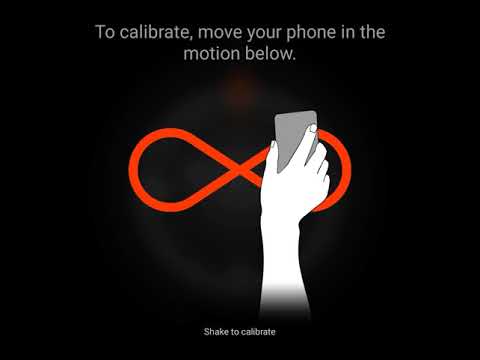
This is the most critical step for ensuring accuracy. Electronic compasses are susceptible to magnetic interference and can lose their calibration over time. To recalibrate:
- Hold your Android phone in front of you.
- Rotate your phone in a "figure-8" motion, similar to drawing the number 8 in the air, several times (typically 3-5 times).
- Repeat this motion on all three axes (pitch, roll, yaw) if possible, meaning tilt your phone in different directions while performing the figure-8.
- Some apps will show a visual indicator of calibration progress or tell you when it's complete.
This motion helps the magnetometer sample the Earth's magnetic field from various angles, correcting any accumulated errors and improving the compass's reliability.
Understanding Magnetic Declination
The Earth's geographic North Pole (true north) is not in the exact same location as its magnetic North Pole (magnetic north). The angular difference between these two is called magnetic declination. Compass apps, especially those using GPS, can automatically compensate for this declination based on your current location, providing you with a reading for true north. If your app doesn't automatically compensate, you might need to enable a "True North" setting within the app's options.
Utilizing the Compass for Navigation
With your compass calibrated, you're ready to use it for practical purposes.
Basic Direction Finding
Hold your Android phone flat, parallel to the ground, and away from your body or any metal objects. The compass needle or indicator will point towards magnetic north (or true north if compensated). The display will typically show cardinal directions (N, S, E, W) and degrees (0-359). North is usually 0° or 360°.
Integrating with Mapping Applications
Google Maps is an excellent example of a mapping app that leverages your phone's compass. When viewing a map, tapping the compass icon usually rotates the map to align with your current orientation. This means the top of the map will point to the direction your phone is facing, making it incredibly intuitive for real-world navigation. The "cone of uncertainty" on Google Maps indicates the accuracy of your compass reading; a narrower cone means higher accuracy.
Advanced Features: Level, GPS Coordinates, True North
Many third-party compass apps offer more than just direction. Look for features like:
- Level Indicator: Uses the accelerometer to show if your phone is perfectly flat or tilted, useful for hanging pictures or leveling surfaces.
- GPS Coordinates: Displays your current latitude, longitude, and sometimes altitude.
- True North/Magnetic North Toggle: Allows you to switch between the two references.
- Flashlight: Often integrated for convenience in low-light situations.
- Elevation: Some apps provide your current elevation based on GPS data.
Troubleshooting Common Compass Issues
Even with proper setup, your Android compass might occasionally act up. Here's how to troubleshoot common problems:
Recalibration
This is the first and most frequent solution. If your compass seems off, simply repeat the figure-8 calibration technique. Do this especially after traveling long distances, being near strong magnetic fields, or after a software update.
Interference Sources
Your phone's magnetometer is highly sensitive to magnetic fields. Keep your phone away from:
- Magnets: Found in phone cases (especially folio styles with magnetic clasps), wireless chargers, speakers, and certain accessories.
- Metal Objects: Large metal structures, car chassis, or even dense rebar in buildings can distort readings.
- Other Electronics: Nearby laptops, TVs, or even smartwatches can sometimes cause minor interference.
Move to an open space, away from potential interference, and try recalibrating.
Software Glitches and Updates
Sometimes, an app or system bug can affect sensor performance. Try these steps:
- Restart your phone: A simple reboot can often clear temporary software issues.
- Clear app cache: Go to Settings > Apps > [Your Compass App] > Storage > Clear Cache.
- Update the app and OS: Ensure your compass app and Android operating system are up to date, as updates often include bug fixes and performance improvements for sensors.
Hardware Malfunction
If all troubleshooting steps fail, it's possible the magnetometer sensor itself is faulty. This is rare but can occur due to physical damage. A sensor test app can confirm if the sensor is reporting any data at all. If it's completely unresponsive, a hardware repair might be necessary.
Advanced Compass Features and Their Benefits
Beyond basic direction finding, modern compass apps offer a suite of features that significantly enhance usability:
| Feature | Description | Benefit |
|---|---|---|
| True North / Magnetic North Toggle | Switches between showing geographic north and the Earth's magnetic north pole. | Provides critical accuracy for map reading and precise navigation, especially for land navigation where map bearings are typically true north. |
| Calibration Guide | Interactive visual instructions for performing the figure-8 calibration. | Ensures the user correctly recalibrates the magnetometer for optimal accuracy. |
| Level Indicator (Bubble Level) | Utilizes the accelerometer to show the tilt of your phone on X and Y axes. | Useful for hanging pictures, leveling furniture, or ensuring surfaces are perfectly flat. |
| GPS Coordinates Display | Shows your current latitude, longitude, and often altitude. | Essential for pinpointing your exact location, sharing with emergency services, or marking waypoints. |
| Map Integration | Overlays compass direction onto a live map, or allows the map to rotate with your orientation. | Seamlessly blends directional awareness with geographical context, making urban or wilderness navigation intuitive. |
| Sun and Moon Position | Calculates the current position of the sun and moon relative to your location. | Useful for photography, outdoor planning, or understanding natural orientation cues. |
| Sensor Data Display | Shows raw data from the magnetometer and other sensors (e.g., magnetic field strength). | Helps in diagnosing sensor issues or understanding the level of magnetic interference. |
Frequently Asked Questions About Android Compasses
- Q: What if my phone doesn't have a magnetometer sensor?
- A: If your Android phone lacks a magnetometer, it cannot function as a true compass. While some apps might simulate direction using GPS and movement, it won't provide real-time, stationary directional data. You'll need a phone with the appropriate hardware or a traditional physical compass.
- Q: Is a phone compass as accurate as a traditional magnetic compass?
- A: A well-calibrated Android compass can be surprisingly accurate, often within a few degrees. However, traditional magnetic compasses are generally more reliable in challenging environments (e.g., near strong magnetic fields or large metal structures) where electronic sensors can be easily interfered with. For critical navigation, a physical compass is often preferred as a backup.
- Q: How often should I calibrate my Android compass?
- A: It's good practice to recalibrate your Android compass whenever you notice inconsistent readings, especially after traveling a significant distance, experiencing a major software update, or being exposed to strong magnetic fields. A quick figure-8 motion before each critical use is a good habit.
- Q: Can I use my Android compass offline?
- A: Yes, the basic compass functionality (pointing to magnetic north) relies solely on the internal magnetometer sensor and works entirely offline. However, features that rely on GPS (like true north correction, GPS coordinates, or map integration) will require a GPS signal, and map data itself might need to be pre-downloaded for offline use.
- Q: What causes compass inaccuracies besides magnetic interference?
- A: Beyond external magnetic fields, factors like outdated sensor firmware, software bugs in the compass app or Android operating system, and even a physically damaged magnetometer sensor can lead to inaccuracies. Ensuring your software is updated and regularly performing the figure-8 calibration technique addresses most common issues.
Conclusion: Mastering Direction with Your Android Device
Your Android phone's compass is a remarkably powerful and versatile tool, transforming your device into an essential aid for navigation, outdoor activities, and even everyday tasks. By understanding the role of the magnetometer, mastering the critical figure-8 calibration technique, and being aware of potential sources of interference, you can ensure your digital compass provides reliable and precise direction finding. From aligning maps in Google Maps to pinpointing your location with GPS coordinates, the capabilities unlocked by this sensor are invaluable. Remember that a proactive approach, incorporating regular checks and adjustments, is key to sustained accuracy. As technology advances, solutions like Smart AI Fix will undoubtedly play an increasing role in optimizing sensor data, intelligently correcting for environmental variables, and providing even more robust and accurate directional information, making your Android phone an even more indispensable navigation companion.
