
The transition to the USB-C interface in the iPhone 15 series has fundamentally altered the data management landscape for mobile creators. For years, the bottleneck of Lightning speeds and software restrictions forced users into expensive iCloud subscriptions. Today, we can leverage high-speed external SSDs to create a localized, high-capacity media architecture that integrates seamlessly with AI-driven post-processing workflows.
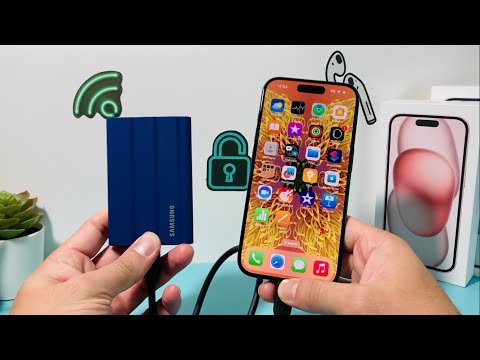
Direct External Recording: The ProRES Workflow

For users operating on the iPhone 15 Pro and Pro Max, Apple has enabled a high-efficiency feature: direct-to-drive recording. By connecting a high-speed SSD (formatted to APFS or exFAT) via a USB 3.0 compatible cable, the camera app automatically recognizes the external volume. This is essential for recording in 4K ProRES at 60fps, a format so data-heavy that internal storage becomes a liability. This bypasses internal NAND wear and tear and allows for immediate plug-and-play editing on AI-powered video suites like DaVinci Resolve or Adobe Premiere.
Bulk Transfer via the iOS Files App

If you are looking to offload an existing library to save local space, the iOS Files App serves as the central command. To initiate a high-speed transfer, follow these steps:
1. Connect your external storage device to the iPhone 15 USB-C port.
2. Open the Photos App and select the media assets you wish to archive.
3. Tap the Share Icon and select "Save to Files."
4. Navigate to your external drive (located under "Locations") and tap Save.
This method ensures that metadata—including AI-generated facial recognition tags and location EXIF data—remains intact during the migration. For maximum efficiency, we recommend using drives with at least 1,000 MB/s read/write speeds to handle the iPhone's 10Gbps output capabilities.
Automating the Workflow with AI and Shortcuts

Efficiency is the core of the 'Smart AI Fix' philosophy. You can automate this process using the Apple Shortcuts app. By creating a script that triggers when an external drive is connected, you can program your iPhone to automatically move "Screenshots" or "Last 24 Hours of Video" to a specific folder on the SSD. Furthermore, once the data is on your drive, you can utilize AI-based culling software (like Narrative Select or Aftershoot) on a workstation to instantly filter out blurry or duplicate images, ensuring your external archive remains optimized and clutter-free.
AI Implementation Score
Our "AI Implementation Score" evaluates how effectively this hardware setup supports modern automated workflows.
| Metric | Score (1-10) | Reasoning |
|---|---|---|
| Data Transfer Efficiency | 9/10 | USB-C 3.0 allows for near-instantaneous offloading of large AI-training datasets (photos). |
| Automation Potential | 8/10 | iOS Shortcuts allow for trigger-based media backups to external volumes. |
| Storage Scalability | 10/10 | Removes the physical ceiling of internal storage for massive media libraries. |
| AI Compatibility | 7/10 | Offloaded files are easily ingested by desktop-class AI sorting and editing tools. |
By shifting your storage strategy from a cloud-only model to a hybrid local-external model, you regain control over your data while maintaining the speed required for modern AI-assisted content creation. This setup is not just about saving space; it is about building a professional-grade mobile workstation.
