
The Technical Logic Behind Resetting Your Apple Pencil
Unlike traditional peripherals, the Apple Pencil does not feature a physical "hard reset" button. Instead, the reset process is a software-driven re-initialization of the Bluetooth handshake and firmware synchronization between the stylus and iPadOS. Whether you are troubleshooting connectivity drops or pressure sensitivity lag on the 1st Gen, 2nd Gen, or USB-C model, the solution lies in flushing the device's local registry and re-establishing the automated pairing protocol.
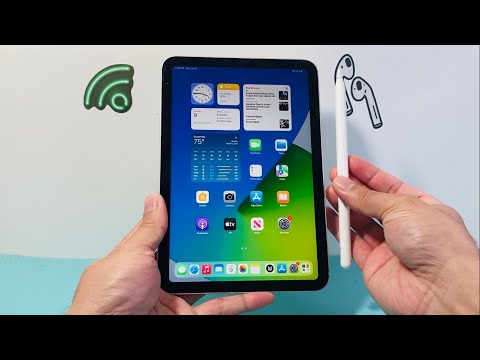
Step-by-Step Software Reset Protocol

To perform a clean reset, you must first decouple the hardware from the iPad’s communication stack. Follow these steps to ensure a complete software wipe of the peripheral's profile:
1. Open Settings on your iPad and navigate to the Bluetooth menu.
2. Locate your Apple Pencil in the list of "My Devices." Tap the "i" (information) icon located to the right of the device name.
3. Select Forget This Device. This action clears the unique hardware identifier from the iPad’s Bluetooth cache.
4. Perform a Soft Reset on the iPad: Press and quickly release the Volume Up button, press and quickly release the Volume Down button, then press and hold the Power button until the Apple logo appears. This ensures any lingering software glitches in the Bluetooth controller are purged.
Model-Specific Re-Pairing Instructions

Once the software has been reset, you must trigger the automated pairing sequence to re-initialize the connection. The method depends on your specific hardware generation:
Apple Pencil 2nd Generation: Magnetically attach the pencil to the charging connector on the long side of your iPad. The iPadOS AI-driven detection system will immediately recognize the device and prompt a connection banner.
Apple Pencil 1st Generation: Remove the cap and plug the Lightning connector into the iPad's port (or use the Lightning-to-USB-C adapter for newer base-model iPads). Tap the "Pair" button when the dialog box appears.
Apple Pencil (USB-C): Slide open the end of the pencil and connect it to your iPad via a USB-C charging cable. This wired handshake forces a firmware check and re-syncs the stylus with the operating system.
AI Efficiency and Hardware Automation

From a technical standpoint, the Apple Pencil utilizes predictive stroke algorithms to minimize latency. When the connection becomes unstable, the Neural Engine in the iPad's chip can no longer accurately predict the nib's trajectory, resulting in perceived lag. Resetting the device forces the iPad to recalibrate the pressure and tilt sensors, ensuring the software and hardware are operating in perfect synchronization for maximum efficiency.
AI Implementation Score
| Metric | Score (1-10) | Technical Observation |
|---|---|---|
| Auto-Pairing Efficiency | 9/10 | High-speed handshake via magnetic induction/physical port. |
| Software Synchronization | 8.5/10 | iPadOS automatically pushes firmware updates during the reset cycle. |
| Troubleshooting Automation | 7/10 | Manual 'Forget Device' step is still required for deep resets. |
By following this protocol, you effectively optimize the workflow automation between your stylus and iPad, ensuring that the hardware interface remains transparent to your creative or professional output.
