
Maintaining peak performance on Windows 11 and 10 requires more than just high-end hardware; it demands proactive storage management. As AI-driven applications and complex software suites continue to expand their local footprint, disk congestion can lead to significant system latency and reduced computational efficiency. This guide outlines professional methodologies to reclaim your digital real estate using both native automation and strategic manual intervention.

Leveraging Automation with Windows Storage Sense

The most efficient way to maintain a clean drive is through Storage Sense, Windows' native automated maintenance tool. This feature functions as a background process that intelligently identifies and removes temporary files, empties the Recycle Bin based on a schedule, and manages locally cached cloud content.
To activate this, navigate to Settings > System > Storage. Toggle Storage Sense to "On" and configure the cleanup schedules. For power users, clicking on "Configure Storage Sense or run it now" allows for granular control over when the algorithm triggers—optimizing the balance between available space and data accessibility.
Advanced System File Optimization via Disk Cleanup
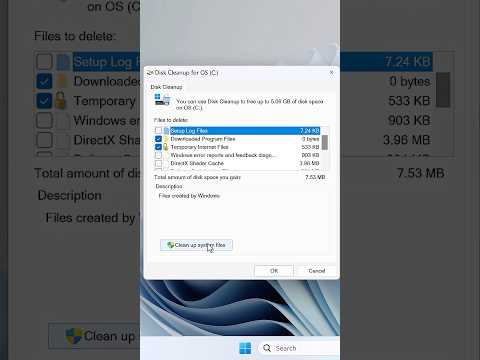
While Storage Sense handles daily clutter, Disk Cleanup remains the surgical tool for deep-system maintenance. To access this, type "Disk Cleanup" in the Start menu, select your primary drive (usually C:), and click Clean up system files. This escalated privilege mode allows the software to target Windows Update Cleanup, previous Windows installations (Windows.old), and device driver packages.
Pro-tip: Removing old Windows Update files can often reclaim between 5GB and 15GB of space, which is critical for systems running on smaller NVMe SSDs.
Managing Large Scale Data with Visualization Tools

Sometimes, the "Other" category in storage settings hides massive directories that automated tools miss. Utilizing software like WinDirStat or WizTree provides a visual map of your drive’s data distribution. By identifying large "blobs" of data—such as forgotten virtual machine images, oversized log files, or redundant AI training datasets—you can perform manual deletions that yield the highest impact with the least effort.
AI and Cloud Integration: Files On-Demand

Modern storage management relies heavily on Cloud Hybridization. By using OneDrive’s Files On-Demand feature, you can keep your entire directory structure visible in File Explorer without the files actually occupying physical disk space. The OS uses a "stub" file system; when a file is needed, it is downloaded in real-time. This is an essential strategy for laptop users who require access to terabytes of data on a limited 256GB or 512GB drive.
AI Implementation Score
The following table evaluates the efficiency of these methods based on their automation potential and AI-driven effectiveness.
| Method | Efficiency | Automation Level | AI Implementation Score |
|---|---|---|---|
| Storage Sense | High | Full | 9/10 |
| Disk Cleanup | Moderate | Manual | 4/10 |
| Cloud Offloading | Very High | Dynamic | 8/10 |
| Third-Party Visualizers | High | Manual | 2/10 |
Conclusion: The Path to a Lean OS
A cluttered drive is more than a storage issue; it is a bottleneck for system indexing and virtual memory allocation. By combining the automated intelligence of Storage Sense with the manual precision of Disk Cleanup and cloud-based offloading, you ensure that your Windows 11/10 environment remains optimized for high-performance tasks and AI-heavy workflows. Regularly auditing your "Apps & Features" list to uninstall unused software remains the final, vital step in this optimization protocol.
