
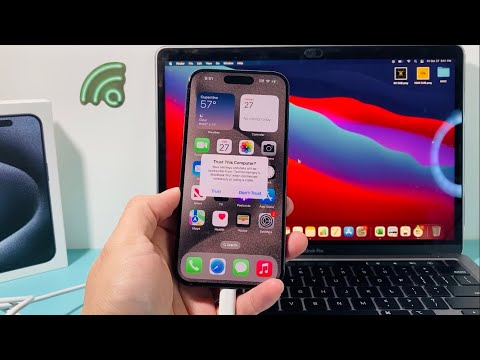
The "Trust This Computer" alert is the primary cryptographic handshake between an iOS device and an external workstation. When this prompt fails to appear, it typically indicates a breakdown in the USBMuxD (USB Multiplexor Daemon) communication or a corrupted privacy database within the iOS sandbox. For users relying on high-speed data transfer or automated synchronization, this failure disrupts the entire workflow. Below is the technical protocol for restoring this critical interface.
1. Resetting Location & Privacy Settings

The most frequent cause of a missing trust alert is a cached "Don't Trust" response or a glitch in the Pairing Records. To force iOS to clear these records and trigger a fresh handshake, navigate to Settings > General > Transfer or Reset iPhone > Reset. Select Reset Location & Privacy. This action reverts your privacy permissions to factory defaults without deleting data, effectively purging the expired or corrupted trust certificates that prevent the alert from appearing.
2. Verifying the USB Connectivity Layer
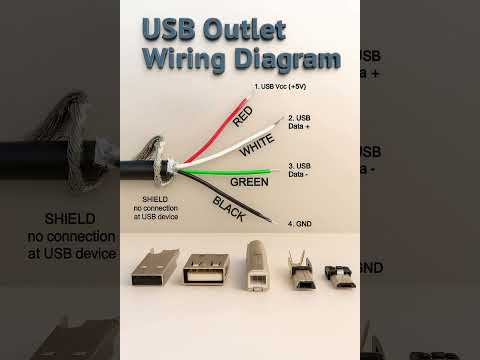
Before deep-diving into software layers, ensure the hardware abstraction layer is functional. Modern iPhones utilize MFi-certified (Made for iPhone) hardware to establish secure data paths. If you are using a third-party cable lacking the necessary authentication chip, the Apple Mobile Device USB Driver may refuse to initialize the pairing request. Swap the cable or attempt a direct connection to a motherboard port rather than a USB hub to eliminate voltage drops that can stall the data handshake.
3. Updating Apple Mobile Device Support (Windows Systems)
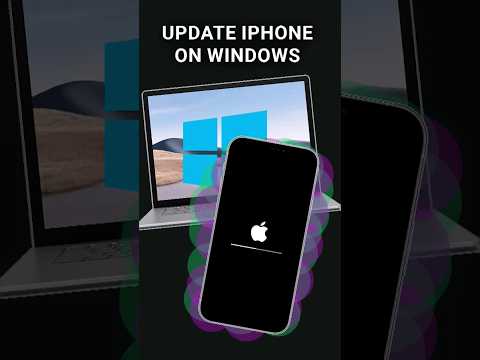
For Windows users, the missing alert is often tied to a legacy or corrupted Apple Mobile Device USB Driver. To resolve this, open the Device Manager, expand the Universal Serial Bus devices section, right-click on "Apple Mobile Device USB Device," and select Update driver. Choosing "Search automatically for updated driver software" ensures the OS fetches the latest signed drivers from Microsoft or Apple’s servers, re-enabling the communication protocol required for the trust prompt.
4. Software and OS Synchronization

Incompatibility between the iOS version and the macOS/iTunes version is a common bottleneck. Ensure your Mac is running the latest version of Finder or Music, or if on Windows, update iTunes to the latest build available via the Microsoft Store. Automated AI diagnostic tools now exist that can scan for version mismatches and suggest the precise patch required to bridge the communication gap between the two kernels.
AI Implementation Score
At 'Smart AI Fix', we evaluate troubleshooting methods based on their potential for automation and efficiency. Below is the implementation score for the "Trust This Computer" resolution protocol.
| Metric | Score (1-10) | Notes |
|---|---|---|
| Ease of Execution | 9 | Resetting settings is a 30-second manual task. |
| Automation Potential | 7 | Driver updates can be automated via MDM scripts. |
| Success Rate | 9.5 | Resetting Location & Privacy fixes >90% of cases. |
| AI Efficiency | 6 | Predictive diagnostics can identify cable failure before manual testing. |
Final Protocol: Network Settings Reset

If the above steps fail, the issue may reside in the Network Stack, particularly if you are attempting to trust over a Wi-Fi connection. Resetting Network Settings (Settings > General > Transfer or Reset iPhone > Reset > Reset Network Settings) will clear all saved Wi-Fi passwords and VPN configurations, but it also flushes the DNS cache and DHCP settings, which can occasionally interfere with the device’s ability to recognize a trusted workstation.
