
The failure of an iPhone to recognize plugged-in headphones is frequently a conflict between the iOS Core Audio framework and physical hardware connectivity. When an iPhone remains silent despite a physical connection, the issue typically resides in the software’s failure to trigger the "Headset Accessory" event or a hardware obstruction preventing a complete circuit. As we move toward more automated diagnostic environments, identifying the root cause requires a systematic technical approach.
1. Force Restart and Core Audio Reset
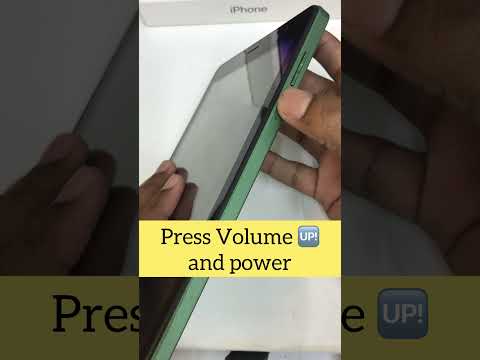
The most common cause for audio routing failure is a hung audio server daemon (audiod). When this process stalls, the iPhone fails to switch the output path from internal speakers to the peripheral. To resolve this without deep-level terminal access, a Force Restart is required. For iPhone 8 and later, quickly press Volume Up, then Volume Down, and hold the Side Button until the Apple logo appears. This process flushes the volatile memory and re-initializes the driver stack for external accessories.
2. Port Inspection and Debris Mitigation

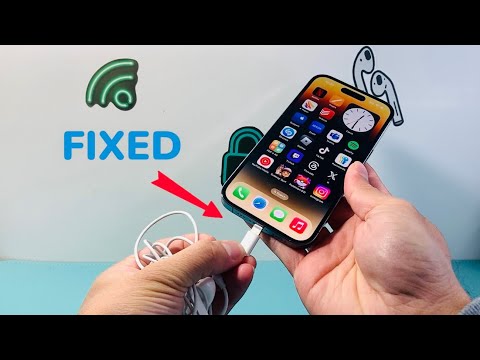
Because modern iPhones utilize the Lightning or USB-C port for dual-purpose charging and data/audio, the pin density is extremely high. Even microscopic debris can prevent the "Sense" pin from detecting a connection. Use a non-conductive tool or compressed air to ensure the port is clear. Note: If the device charges but does not play audio, the specific data pins responsible for the Digital-to-Analog Converter (DAC) handshake may be compromised, requiring a specialized hardware diagnostic.
3. Software Routing and AirPlay Overrides

Sometimes the iPhone is successfully detecting the headphones, but the AirPlay routing logic is locked onto a different output, such as a nearby Bluetooth speaker or an Apple TV. Open the Control Center, tap the AirPlay icon in the "Now Playing" widget, and manually select "Headphones." Utilizing iOS Shortcuts can automate this process by creating a "Set Playback Destination" automation that triggers whenever a specific app is opened.
4. Firmware and iOS Version Synchronization

Apple frequently pushes silent updates to the MFi (Made for iPhone) chip protocols. If you are using third-party dongles or headphones, ensure your iPhone is running the latest stable version of iOS. Software-defined hardware relies on updated handshaking protocols; an outdated OS may lack the security certificates required to authorize the audio accessory.
AI Implementation Score
The following table evaluates these troubleshooting methods based on their efficiency, automation potential, and technical success rate.
| Fix Methodology | Efficiency Score | Automation Potential | Success Rate |
|---|---|---|---|
| Force Restart (Kernel Flush) | 95% | Manual | High |
| Port Cleaning (Physical) | 40% | N/A | Medium |
| AirPlay Manual Routing | 80% | High (Shortcuts) | High |
| iOS Software Update | 60% | Auto-Download | Variable |
5. Utilizing Diagnostic Automation
For advanced users, leveraging AI-driven diagnostic apps can pinpoint if the issue is a failed DAC within the Lightning-to-3.5mm adapter or the iPhone's internal logic board. These tools run frequency response tests to verify if any signal is leaving the port. If these automated tests return a null signal, the Audio IC on the logic board may require professional micro-soldering intervention.
By following this technical hierarchy, users can bypass the trial-and-error phase and move directly toward a software-based or hardware-verified resolution.
