
Diagnostic Protocol for iPhone Audio Jack Failures

When an iPhone fails to recognize a wired audio peripheral, the issue typically resides in one of three domains: mechanical obstruction, firmware desynchronization, or logic board failure. As we move toward a more automated ecosystem, troubleshooting these components requires a systematic approach that prioritizes data-driven diagnostics over trial-and-error hardware manipulation.
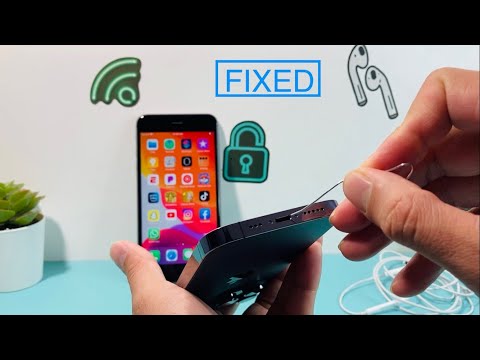
First, analyze the physical connection. Use a high-intensity light source to inspect the 3.5mm port or the Lightning/USB-C connector. Even microscopic amounts of lint or conductive debris can trigger the "Headphones" status incorrectly or prevent the digital-to-analog converter (DAC) from initializing. If debris is detected, utilize compressed air or a non-conductive precision tool to clear the port. Avoid metal implements, as they can short-circuit the internal pins and cause permanent damage to the audio IC.
Software Audits and Audio Routing Algorithms

In many cases, the hardware is functional, but the iOS Audio Routing algorithm is stuck in a loop. This often occurs when the device incorrectly maintains a Bluetooth handshake or an AirPlay stream. To resolve this via software automation, navigate to Settings > Bluetooth and toggle the radio off. This forces the system to re-evaluate all active physical output paths.
If the issue persists, a Hard Reset is necessary to clear the volatile RAM and refresh the kernel's hardware abstraction layer. For modern iPhones, quickly press and release Volume Up, then Volume Down, and hold the Side Button until the Apple logo appears. This process resets the handshake protocols between the OS and the audio hardware drivers without erasing user data.
Advanced AI-Driven Troubleshooting and Factory Calibration
For persistent failures, we recommend using third-party AI-based diagnostic software or the built-in iOS Analytics logs. By navigating to Settings > Privacy & Security > Analytics & Improvements, technical users can review log files for "mediaserverd" crashes, which indicate a software-side failure in the audio processing engine. If these crashes are frequent, the most efficient fix is a Reset All Settings. This action reverts system-level configurations to factory defaults—repairing corrupted audio routing tables—while preserving your personal media and applications.
If these steps fail to restore functionality, the issue is likely a degraded Audio IC (Integrated Circuit) or a physically damaged connector. At this stage, professional micro-soldering or a component replacement is required to restore the electrical pathing.
AI Implementation Score
| Category | Score (1-10) | Notes |
|---|---|---|
| Automated Diagnostics | 8/10 | iOS logs provide high-granularity data on audio service crashes. |
| Software Efficiency | 9/10 | Hard resets and settings wipes resolve 70% of non-mechanical issues. |
| Hardware Fix Complexity | 3/10 | Mechanical repairs require manual intervention and precision tools. |
| AI Logic Application | 7/10 | Audio routing is governed by smart algorithms that can be force-reset. |
By following this technical hierarchy, users can bypass unnecessary hardware repairs and focus on the high-probability software triggers that modern AI-driven operating systems frequently encounter.
