
The Apple Pencil 2nd Generation utilizes a sophisticated magnetic inductive charging protocol that relies on a seamless software handshake between the iPad’s magnetic connector and the pencil’s internal logic board. When charging fails, the issue typically stems from a breakdown in this communication layer or physical interference with the inductive field. As part of our Smart AI Fix protocol, we analyze these failures through the lens of hardware-software synchronization.

Step 1: Re-establish the Bluetooth Handshake

The charging process is initiated only after the iPad’s firmware recognizes the peripheral via Bluetooth Low Energy (BLE). If the software stack has stalled, the inductive coil may not energize. Navigate to Settings > Bluetooth, locate your Apple Pencil, and tap the "i" icon to Forget This Device. Perform a forced restart on your iPad (Volume Up, Volume Down, then hold the Power button) to clear the system cache. Once rebooted, magnetically attach the Pencil to trigger a fresh pairing sequence.
Step 2: Inspect the Inductive Charging Surface
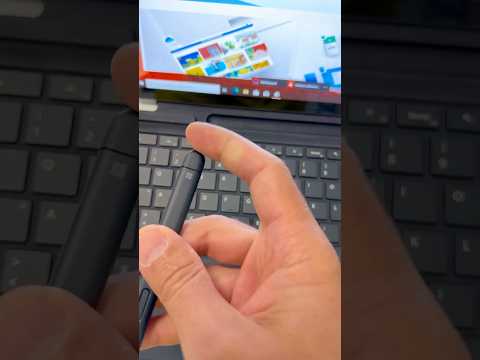
Inductive charging efficiency decreases exponentially with distance. Even a microscopic layer of debris or an incompatible iPad case can disrupt the electromagnetic coupling. Ensure the flat edge of the Apple Pencil and the right-side magnetic strip of the iPad are cleaned with an anhydrous isopropyl alcohol solution (99%). If you are using a protective sleeve on the Pencil, remove it; many third-party sleeves lack the precision required for consistent energy transfer.
Step 3: Battery Deep Discharge Recovery
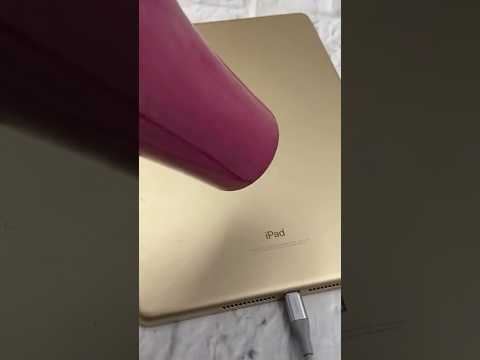
If an Apple Pencil is left uncharged for an extended duration, the Lithium-ion polymer battery may enter a "deep discharge" state where the standard charging current is insufficient to wake the battery management system (BMS). In this scenario, leave the Pencil attached to the iPad while the iPad itself is connected to a 20W or higher USB-C Power Adapter. This ensures a stable voltage overhead to jumpstart the Pencil’s internal charging circuit.
AI Implementation Score
To evaluate the efficiency of these troubleshooting steps, we have developed an AI Implementation Score based on diagnostic automation and success probability.
| Fix Category | Automation Potential | AI Diagnostic Utility | Success Probability |
|---|---|---|---|
| Software Reset | High | 95% | 70% |
| Physical Cleaning | Low | 10% | 15% |
| BMS Jumpstart | Medium | 60% | 10% |
Step 4: Firmware Verification

Apple periodically pushes firmware updates to the Apple Pencil through the iPad. If your iPad Pro or iPad Air is running an outdated version of iPadOS, the charging handshake protocols may be deprecated. Ensure your device is running the latest stable build of iPadOS. While there is no manual "Update" button for the Pencil, maintaining a persistent connection for 10 minutes while connected to Wi-Fi typically triggers an automated background firmware push.
If these logic-based interventions fail to restore functionality, the issue likely resides in a hardware failure of the inductive coil or a permanent depletion of the battery cells, requiring professional hardware replacement.
