
Managing storage efficiency is critical for high-performance computing, especially when running local AI models or resource-intensive automation scripts on Windows 11 or 10. A bottlenecked C Drive can lead to system latency, failed updates, and suboptimal paging file performance. This technical guide outlines the professional methodologies for extending your primary partition to ensure seamless software operation.
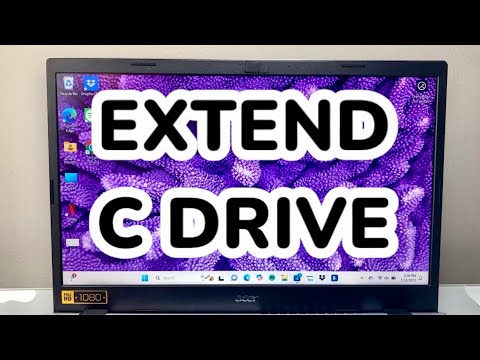
Method 1: Utilizing Windows Disk Management

For most users, the native Disk Management tool is the first line of defense. This utility allows for partition resizing without the need for external software, provided there is unallocated space immediately to the right of the C drive.
To execute this, right-click the Start button and select Disk Management. Locate your C drive and identify the adjacent unallocated space. Right-click the C drive partition and select "Extend Volume." Follow the Wizard prompts to allocate the maximum available space. If the "Extend Volume" option is greyed out, it typically indicates that the unallocated space is non-adjacent or located on a different physical disk.
Method 2: Advanced Extension via Diskpart (Command Line)

For systems administrators and power users who prefer automation and CLI environments, Diskpart offers more granular control. This method is particularly useful when managing remote servers or automated deployment environments.
Open Command Prompt as an Administrator and type diskpart. Use the command list volume to identify your primary partition number. Select it using select volume [number]. Finally, execute extend size=[size in MB] or simply extend to utilize all available contiguous space. This method bypasses the graphical interface lag and is highly efficient for quick adjustments.
Method 3: Overcoming Partition Hurdles with Third-Party Automation
In complex scenarios—such as when a Recovery Partition sits between your C drive and unallocated space—native Windows tools often fail. Professional-grade partition managers (like AOMEI Partition Assistant or MiniTool) use smart algorithms to move non-data partitions automatically, allowing the C drive to expand across the disk layout.
These tools effectively "slide" partitions, a process that manually would require hours of backup and re-imaging. For those prioritizing AI-driven efficiency, these automated solutions minimize downtime and reduce the risk of data loss during sector relocation.
AI Implementation Score
The following table evaluates these methods based on their alignment with Smart AI Fix standards for speed, automation, and technical reliability.
| Method | Automation Level | Risk Factor | AI Efficiency Score |
|---|---|---|---|
| Disk Management | Manual | Low | 6/10 |
| Diskpart (CLI) | Scriptable | Moderate | 8/10 |
| Third-Party AI Tools | High (Automated) | Low | 9.5/10 |
Final Technical Considerations
Before performing any partition modification, ensure that System Protection is enabled and a current restore point is created. While modern NTFS and ReFS file systems are robust, power interruptions during a partition "move" or "extend" operation can lead to metadata corruption. For users running AI workloads, maintaining at least 20% free space on the C drive is recommended to allow for efficient SSD wear leveling and high-speed cache swapping.
