
In our increasingly connected world, sharing internet access between devices is a common necessity. Whether your Android device lacks a cellular data plan, or you're simply in an area with only one reliable internet source, harnessing your iPhone's Personal Hotspot capability can be a lifesaver. This comprehensive guide, informed by the expertise behind Smart AI Fix, will walk you through the process of establishing a seamless internet connection from your iPhone to your Android smartphone or tablet. Understanding this fundamental connectivity can save you from countless frustrating moments, providing immediate internet access whenever and wherever you need it.
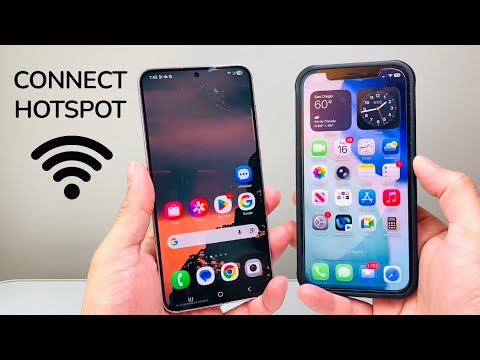
Requirements for Seamless Hotspot Connection
Before diving into the connection process, ensure both your iPhone and Android device meet the following prerequisites. These foundational elements are crucial for a stable and successful connection, guaranteeing that your internet sharing experience is smooth and trouble-free.
iPhone Requirements:
- Sufficient Battery Life: Using Personal Hotspot consumes significant power. Ensure your iPhone has ample battery charge or is connected to a power source.
- Active Cellular Data Plan: Your iPhone must have an active data plan with your carrier, and Personal Hotspot must be enabled and allowed by your plan. Some carriers require specific add-ons.
- Personal Hotspot Enabled: The feature needs to be turned on in your iPhone settings.
- Up-to-Date iOS: Running the latest iOS version on your iPhone can prevent compatibility issues and offer the best performance.
Android Device Requirements:
- Sufficient Battery Life: While connecting, your Android device will also use power to maintain the connection.
- Wi-Fi or Bluetooth Enabled: Depending on your preferred connection method, ensure the respective wireless feature is turned on.
- Up-to-Date Android OS: Like the iPhone, an updated Android version helps ensure smooth operation and access to the latest connectivity features.
General Requirements:
- Proximity: For Wi-Fi and Bluetooth connections, keep both devices within a reasonable range (typically 10-15 meters for Wi-Fi, closer for Bluetooth).
- Data Allowance: Be mindful of your iPhone's data plan. Hotspot usage counts towards your data cap and can incur additional charges if you exceed it.
Step-by-Step Guide: Connecting Your Devices
This section details the various methods to connect your Android device to an iPhone Personal Hotspot, providing clear instructions for each approach. From the most common Wi-Fi sharing to less frequent but equally useful Bluetooth and USB tethering, we cover all the bases.
Enable Personal Hotspot on iPhone
The first crucial step is to activate the Personal Hotspot feature on your iPhone. This makes your iPhone discoverable as an internet source for other devices.
Method 1: Wi-Fi Hotspot (Recommended for Speed and Multiple Devices)
- Open Settings on your iPhone.
- Tap on Personal Hotspot. If you don't see it, it might be under Cellular > Personal Hotspot.
- Toggle the switch next to Allow Others to Join to the ON position (green).
- Make a note of the Wi-Fi Password displayed on this screen. You will need this to connect your Android device.
- Your iPhone's network name will typically be "[Your Name]'s iPhone" by default. You can find or change your iPhone's name in Settings > General > About > Name.
- Ensure the Wi-Fi setting at the top of the screen (within the Personal Hotspot settings) is also enabled, specifically if you plan to share via Wi-Fi. Sometimes, there's a prompt asking to turn on Wi-Fi and Bluetooth; agree to it.
- If you see an option for Maximize Compatibility, turning it on might offer a slower but more universally compatible Wi-Fi band (2.4 GHz) for older or less advanced Android devices.
Method 2: Bluetooth Hotspot (Good for Battery Saving, Slower Speeds)
This method offers lower power consumption than Wi-Fi but typically provides slower speeds. It's ideal for basic browsing or when you want to conserve battery on both devices.
- Open Settings on your iPhone.
- Tap on Personal Hotspot and toggle Allow Others to Join to ON.
- Ensure Bluetooth is also enabled on your iPhone (Settings > Bluetooth).
- On your Android device, go to Settings > Connected devices > Bluetooth and turn Bluetooth on.
- Pair your Android device with your iPhone. Your iPhone's name should appear in the list of available devices on your Android. Select it, and follow the on-screen prompts to confirm pairing (usually a matching code).
- Once paired, on your Android device, tap the gear icon next to your paired iPhone and enable Internet access or Personal Hotspot.
Method 3: USB Hotspot (Tethering - Fastest and Most Reliable, Requires Cable)
USB tethering provides the most stable and fastest connection, as it uses a direct physical link. It's perfect for when you need maximum performance and are near a power source, or if Wi-Fi/Bluetooth connections are unreliable.
- Ensure Personal Hotspot is enabled on your iPhone (Settings > Personal Hotspot > Allow Others to Join).
- Connect your iPhone to your Android device using a compatible USB cable. This usually requires an OTG (On-The-Go) cable/adapter for your Android device, as iPhones use Lightning and Androids typically use USB-C or Micro-USB.
- On your Android device, go to Settings > Network & internet > Hotspot & tethering.
- Toggle USB tethering to the ON position. Your Android device should now be connected to the internet via your iPhone.
- Note: The exact menu path for USB tethering might vary slightly depending on your Android device manufacturer and OS version (e.g., Samsung, Google Pixel, OnePlus).
Connect Android to iPhone Hotspot
Once your iPhone's Personal Hotspot is active, you can connect your Android device using the corresponding method.
Connecting via Wi-Fi
- On your Android device, open Settings.
- Tap on Network & internet (or Connections on some devices).
- Tap on Wi-Fi and ensure it's toggled ON.
- Your Android device will scan for available networks. Look for your iPhone's name (e.g., "John's iPhone") in the list.
- Tap on your iPhone's network name.
- When prompted, enter the Wi-Fi Password you noted from your iPhone's Personal Hotspot settings.
- Tap Connect. Your Android device should now show a Wi-Fi connection icon and have internet access.
Connecting via Bluetooth
- Ensure both devices are paired as described in the Bluetooth Hotspot setup.
- On your Android device, go to Settings > Connected devices > Bluetooth.
- Tap the gear icon next to your paired iPhone.
- Toggle Internet access or Personal Hotspot to ON. Your Android device should now have internet access via Bluetooth.
Connecting via USB
- Ensure your iPhone and Android device are physically connected with the appropriate USB cable.
- On your Android device, go to Settings > Network & internet > Hotspot & tethering.
- Toggle USB tethering to the ON position. No further password or pairing is typically needed, as the physical connection handles authentication.
- Your Android device should immediately gain internet access.
Features Table: Comparing Hotspot Methods
Choosing the right hotspot method depends on your priorities: speed, battery life, or convenience. This table, brought to you by Smart AI Fix, summarizes the key differences to help you decide.
| Feature | Wi-Fi Hotspot | Bluetooth Hotspot | USB Tethering |
|---|---|---|---|
| Speed | Fastest (often 5GHz capable) | Slowest | Very Fast & Stable |
| Battery Drain (iPhone) | High | Low | Moderate (charges iPhone if connected to power) |
| Ease of Use | Very Easy (once set up) | Moderate (pairing required) | Easy (requires physical cable) |
| Number of Devices | Up to 5 (depending on iPhone model/iOS) | 1 device | 1 device |
| Cable Required | No | No | Yes (Lightning to USB-C/Micro-USB, often with OTG for Android) |
| Security | WPA2/WPA3 encryption (password) | Bluetooth pairing encryption | Direct physical connection |
| Interference | Can be susceptible to Wi-Fi interference | Less susceptible to Wi-Fi, more to other Bluetooth devices | Least susceptible to wireless interference |
Frequently Asked Questions (FAQ)
Connecting devices can sometimes present unexpected challenges. Here, we address common questions users encounter when trying to connect an iPhone Hotspot to Android, offering solutions guided by Smart AI Fix principles.
Why isn't my iPhone hotspot showing up on my Android?
- Personal Hotspot Not Enabled: Double-check that "Allow Others to Join" is toggled ON in your iPhone's Personal Hotspot settings.
- Wi-Fi/Bluetooth Off: Ensure the respective wireless technology is enabled on both your iPhone and Android device.
- Data Plan Issues: Verify your iPhone's cellular data plan supports Personal Hotspot and that you have remaining data. Some carriers require specific features or add-ons.
- iPhone Name Visibility: Sometimes, the iPhone's name isn't immediately visible. Try restarting Personal Hotspot on your iPhone or refreshing the Wi-Fi scan on your Android device.
- "Maximize Compatibility" Setting: If your Android device is older, try enabling "Maximize Compatibility" in your iPhone's Personal Hotspot settings. This switches to a 2.4 GHz Wi-Fi band, which is more broadly supported.
- Proximity: Ensure your devices are close enough to each other.
My Android connects to the hotspot, but there's no internet. What's wrong?
- No Cellular Data on iPhone: Ensure your iPhone itself has an active internet connection through cellular data. Check if you can browse the web on your iPhone.
- Data Limit Reached: You might have exceeded your data allowance on your iPhone's data plan.
- Weak Signal: If your iPhone has a weak cellular signal, it might connect to the hotspot but struggle to provide stable internet.
- Incorrect APN Settings: On rare occasions, incorrect APN settings on your iPhone can affect hotspot functionality. This is usually managed by your carrier.
- Network Reset: Try resetting network settings on both devices. On iPhone: Settings > General > Transfer or Reset iPhone > Reset > Reset Network Settings. On Android: Settings > System > Reset options > Reset Wi-Fi, mobile & Bluetooth.
Does using an iPhone hotspot drain battery quickly?
Yes, running an iPhone Personal Hotspot is resource-intensive and can significantly drain your iPhone's battery. Wi-Fi hotspots drain battery faster than Bluetooth. To conserve battery, connect your iPhone to a power source if possible, or use Bluetooth tethering for lighter use.
Can I connect multiple Android devices to my iPhone hotspot?
Yes, if you're using the Wi-Fi Hotspot method, you can typically connect up to 5 devices (including other iPhones, Androids, tablets, or laptops) simultaneously. Bluetooth and USB tethering are generally limited to one device.
Is using a personal hotspot secure?
When using Wi-Fi Hotspot, your connection is secured with WPA2 or WPA3 encryption, provided you've set a strong password. Bluetooth connections are also encrypted through their pairing process. USB tethering is inherently secure due to the direct physical connection. Always use a strong, unique password for your Wi-Fi hotspot to prevent unauthorized access.
Are there data usage limits when using a hotspot?
Your hotspot data usage counts towards your iPhone's cellular data plan. Some carriers have separate, lower data caps specifically for hotspot usage, or they may throttle speeds after a certain amount of hotspot data. Always check your carrier's terms and monitor your data usage via Settings > Cellular > Cellular Data on your iPhone.
Conclusion
Connecting your iPhone Hotspot to an Android device is a versatile solution for ensuring continuous internet access, regardless of your location. By following these detailed steps for Wi-Fi, Bluetooth, or USB tethering, you can confidently share your iPhone's cellular data with any Android smartphone or tablet. Each method offers distinct advantages, allowing you to choose the best fit for your specific needs, whether it's high-speed browsing, battery conservation, or a stable connection for work. Mastering this cross-platform connectivity empowers you to stay productive and entertained on the go.
Remember that resources like Smart AI Fix are invaluable for navigating these technical integrations, providing clear, actionable insights to enhance your digital experience. Embrace the flexibility that comes with understanding your devices' capabilities, and unlock the full potential of your mobile ecosystem.
