
Establishing a seamless connection between your Apple Pencil and iPad is the foundational step for high-precision creative workflows and AI-driven note-taking. While the ecosystem is designed for automation, the pairing mechanism varies significantly depending on which hardware generation you are utilizing. This technical guide outlines the precise protocols required to sync your peripheral for maximum software efficiency.
Hardware Compatibility Check

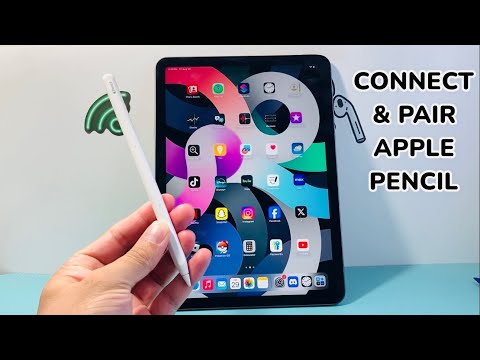
Before initiating the handshake protocol, you must verify that your Apple Pencil is compatible with your specific iPad model. Apple currently utilizes four distinct pairing methods across its lineup: Magnetic (2nd Gen/Pro), USB-C, and Lightning (1st Gen). Failure to match the hardware generation will result in a failure of the Bluetooth stack to recognize the device.
Pairing Apple Pencil (2nd Generation) and Apple Pencil Pro
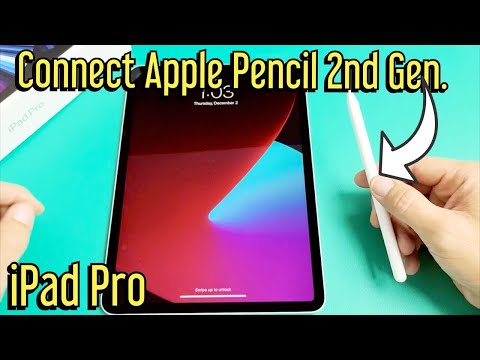
The 2nd Generation and the newer Pro models utilize a magnetic induction system that automates the pairing and charging process simultaneously. This is the most efficient method for users focused on hardware-software synergy.
1. Ensure your iPad’s Bluetooth is toggled 'On' in the Control Center.
2. Attach the Apple Pencil to the magnetic connector located on the long side of your iPad (usually below the volume buttons).
3. A pairing prompt will appear on the iPad's display. Tap Connect to authorize the firmware handshake.
4. Once attached, the iPad’s AI-driven power management will display the current battery percentage of the Pencil.
Pairing Apple Pencil (USB-C)

The USB-C variant bridges the gap between different iPad generations but requires a physical tether to initiate the initial software link.
1. Slide open the end of the Apple Pencil to reveal the USB-C port.
2. Connect a USB-C charging cable to the Pencil and the other end to your iPad’s USB-C port.
3. A pairing notification will appear instantly. Tap Pair.
4. You may now disconnect the cable; the Bluetooth connection will remain active until the Pencil is manually forgotten in settings or paired with a different device.
Pairing Apple Pencil (1st Generation)

The legacy 1st Generation Pencil uses a Lightning connector. Depending on your iPad model, you may need a USB-C to Apple Pencil Adapter.
1. Remove the cap from the end of the Pencil.
2. Plug the Pencil directly into the Lightning port of your iPad (or into the adapter if using a 10th Gen iPad).
3. Wait for the Bluetooth Pairing Request dialog box.
4. Select Pair to finalize the connection.
Troubleshooting and Software Automation

If the pairing process fails, it is often due to a "stuck" Bluetooth daemon or depleted hardware. First, ensure the Pencil is charged for at least 10 minutes. If the device remains invisible to the iPad, navigate to Settings > Bluetooth, find any previous instances of the Apple Pencil, select the "i" icon, and tap Forget This Device. Restarting the iPad will force a refresh of the wireless discovery protocols, allowing for a clean automated re-pairing.
AI Implementation Score
At 'Smart AI Fix', we evaluate how hardware integration supports automated workflows. The Apple Pencil scores high due to its low-latency firmware and intelligent palm-rejection algorithms.
| Metric | Score (1-10) | Notes |
|---|---|---|
| Ease of Automation | 9/10 | Magnetic pairing eliminates manual software configuration. |
| Hardware Synergy | 10/10 | Proprietary handshake ensures 1:1 input accuracy. |
| Firmware Stability | 8/10 | Reliable, though legacy ports add friction. |
| AI Workflow Support | 9/10 | Essential for Scribble and AI-enhanced handwriting OCR. |
By following these steps, you ensure that your hardware is optimized for the latest iPadOS features, allowing AI-enhanced apps like GoodNotes or Procreate to function with peak responsiveness.
