
Modern iOS ecosystems prioritize seamless localization, yet power users often need to override automated regional presets to align with specific data standards or professional requirements. Whether you are developing location-based software or simply require a specific thermal metric for global travel, shifting between Celsius (°C) and Fahrenheit (°F) on an iPhone is a foundational software adjustment that impacts both the native Weather app and system-wide data interpretation.
Method 1: Direct Toggle via the iOS Weather App
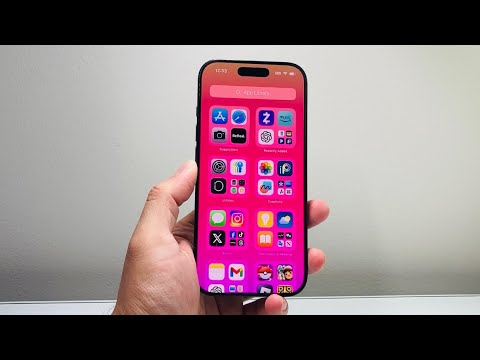
The most efficient path for users focusing on immediate environmental data is through the native Weather application interface. This method utilizes the app's internal UI controller to flip the measurement unit without altering broader system localization settings.
1. Launch the Weather app on your iPhone.
2. Tap the List icon (three horizontal lines) located in the bottom-right corner to view your saved locations.
3. Tap the More icon (three dots in a circle) in the top-right corner.
4. Select Celsius or Fahrenheit. The change will propagate instantly across all saved cities within the application.
Method 2: System-Wide Regional Calibration

For a deeper software-level change that affects Siri, search results, and third-party API integrations that pull from your iPhone’s regional settings, you must modify the measurement system in the General settings. This ensures that the iOS environment treats your preference as the default global variable.
1. Open the Settings app.
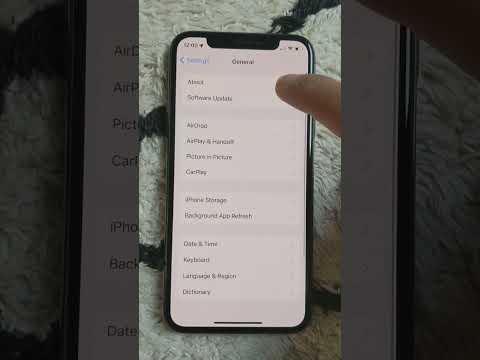
2. Navigate to General > Language & Region.
3. Tap on Temperature.
4. Select either Celsius or Fahrenheit.
By defining the metric at the system level, you reduce the computational friction for AI assistants like Siri when processing queries such as "What is the temperature in London?" Siri will automatically apply your preferred unit without requiring additional voice prompts.
AI Implementation Score
At 'Smart AI Fix', we evaluate software features based on their integration with automated systems and user efficiency. Here is how the temperature toggle ranks:
| Metric | Score (1-10) | Notes |
|---|---|---|
| Automation | 9/10 | Automatically switches based on GPS-detected regional standards. |
| UI Efficiency | 8/10 | Accessible via two distinct paths depending on user intent. |
| AI Integration | 10/10 | Siri and Spotlight search instantly sync with the updated unit logic. |
| Data Consistency | 9/10 | Changes are pushed to Apple Watch and linked iCloud devices seamlessly. |
Optimizing these settings ensures that your Apple ecosystem remains a high-performance tool tailored to your specific analytical needs, rather than relying on generic regional defaults.
